There are two ways to start a GeneratePress site. Pick the one that fits:
| Option 1: Site Library | Option 2: Start from scratch | |
|---|---|---|
| Best for | The fastest route to a finished-looking site | Full control from a blank page |
| You get | A complete starter site: design, pages, posts and images | A clean install you build up yourself |
| Needs | GeneratePress theme and GP Premium | GeneratePress theme (GP Premium optional) |
If you have GP Premium, start with the Site Library. You can have a full site in a few minutes, and everything on it is editable.
GeneratePress comes in two parts:
- GeneratePress: the free theme, installed from WordPress.org. It gives you the layout and most of the Customizer options.
- GP Premium: a plugin that adds modules such as Elements, the Site Library, extra navigation and blog options. It needs the GeneratePress theme to be installed and active.
Current versions: GeneratePress 3.6.1 and GP Premium 2.5.6.
Theme: Appearance → Themes
GP Premium: Plugins, and Appearance → GeneratePress for modules and your licence key
Site Library: Appearance → GeneratePress → Site Library
Settings: Appearance → Customize
Option 1: Start with the Site Library
Requires GP Premium: a GP Premium or GeneratePress One licence.
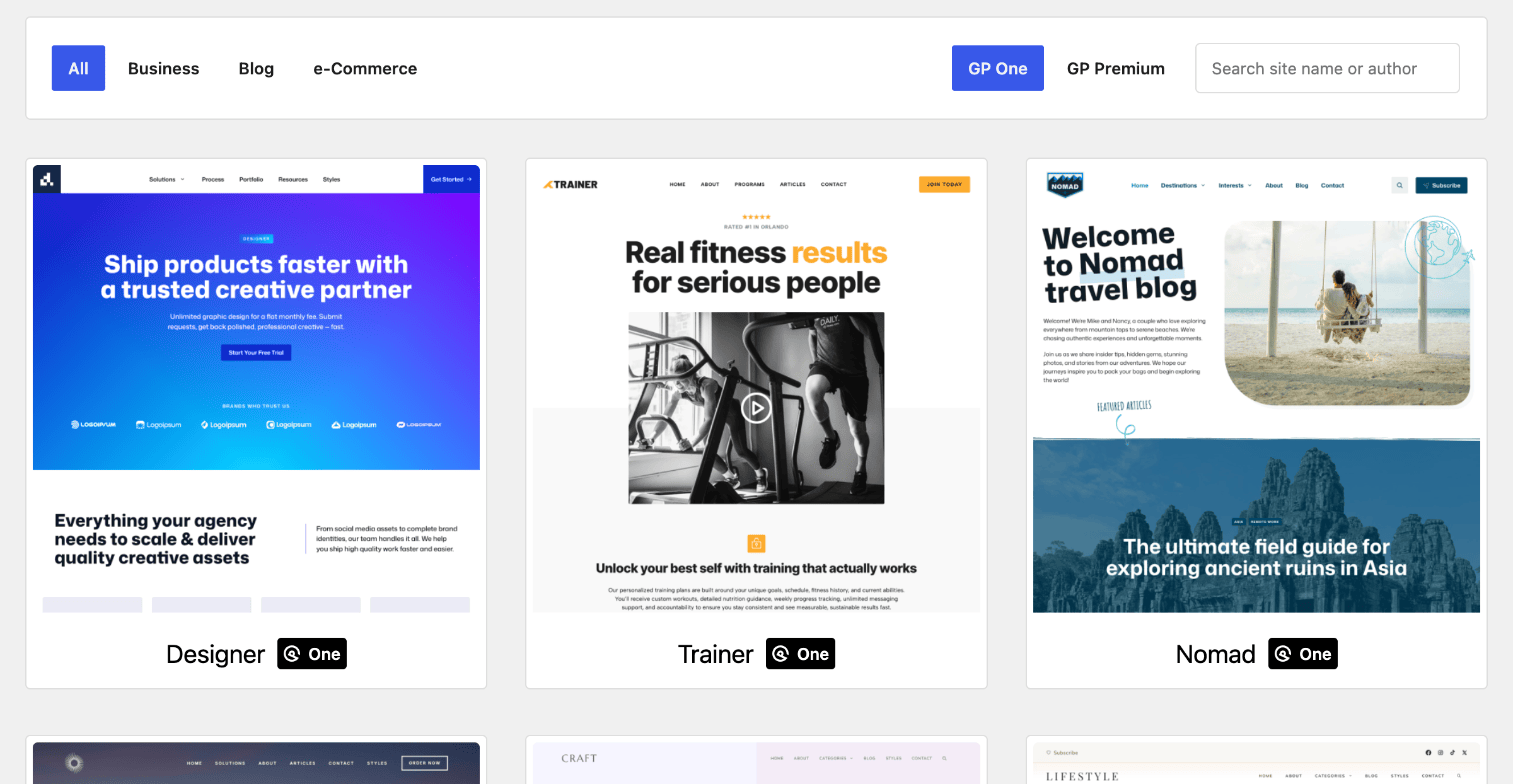
The Site Library is the quickest way to get going. Each starter site comes with its Customizer settings, layouts and, if you want them, demo pages, posts and images. You import one, then swap in your own text, images and colours instead of designing everything yourself.
- Install the GeneratePress theme. See Installing GeneratePress.
- Install GP Premium. See Installing GP Premium.
- Activate your modules. Make sure the Site Library module is switched on. See Activate your modules.
- Activate your licence key. See Activate your licence key.
- Import a site. Go to Appearance → GeneratePress → Site Library, choose a starter site, click Get Started and follow the prompts. Full steps are in Importing a site.
Note
Importing a site changes your Customizer settings and adds pages, posts and images. It’s safest on a new site. If your site already has content, take a backup first. Changed your mind? You can remove an imported site.
Once it’s imported, edit the pages in the block editor and adjust the design in the Customizer. See Find your settings. If the library won’t load or an import fails, see Troubleshooting imports.
Option 2: Start from scratch
Choose this if you’d rather build your own design, or you’re using the free theme on its own.
- Install the GeneratePress theme. See Installing GeneratePress.
- Find the Customizer and set up your layout, colours and typography. See Find your settings.
- Add GP Premium later if you need it. It adds modules such as Elements, extra navigation and blog options. Install it any time, as in Installing GP Premium.
Install
Installing GeneratePress
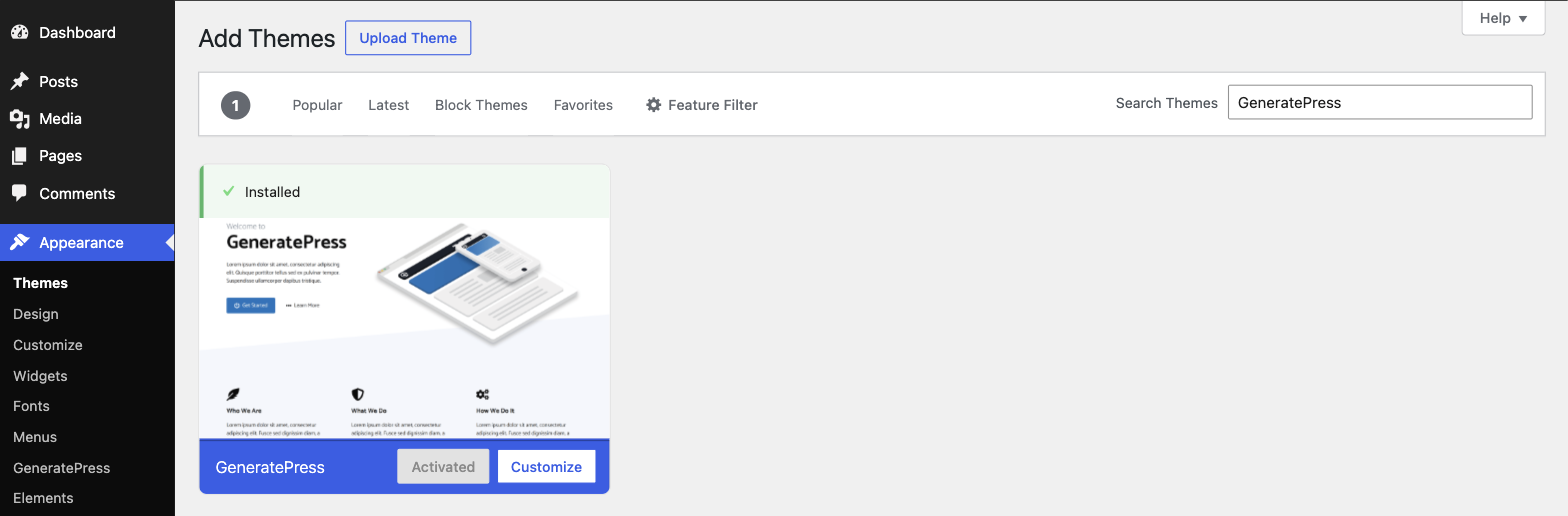
- In your WordPress dashboard, go to Appearance → Themes → Add New Theme.
- Search for GeneratePress.
- Click Install, then Activate.
Installing GP Premium
Requires GP Premium — a GP Premium or GeneratePress One licence.
Install and activate the GeneratePress theme first. GP Premium won’t run without it.
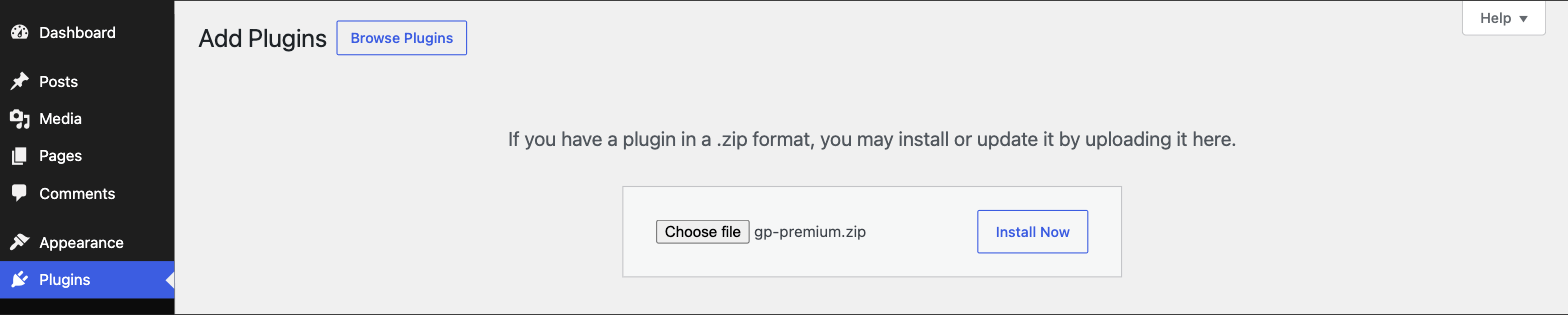
- Download GP Premium. Log in to your account and download
gp-premium.zip. Keep it as a.zipfile. - Upload it. Go to Plugins → Add New Plugin → Upload Plugin, choose
gp-premium.zip, then click Install Now and Activate. - Activate your modules (below).
- Activate your licence key so you get updates — see Updating GP Premium.
Note
Safari unzipped the download into a folder? Go to Safari → Settings → General and untick Open “safe” files after downloading, then download it again.
Uploading the wrong file is the most common install problem. If WordPress says the theme is missing its stylesheet, or that no valid plugins were found, see Missing style.css and Plugin install failed.
Activate your modules
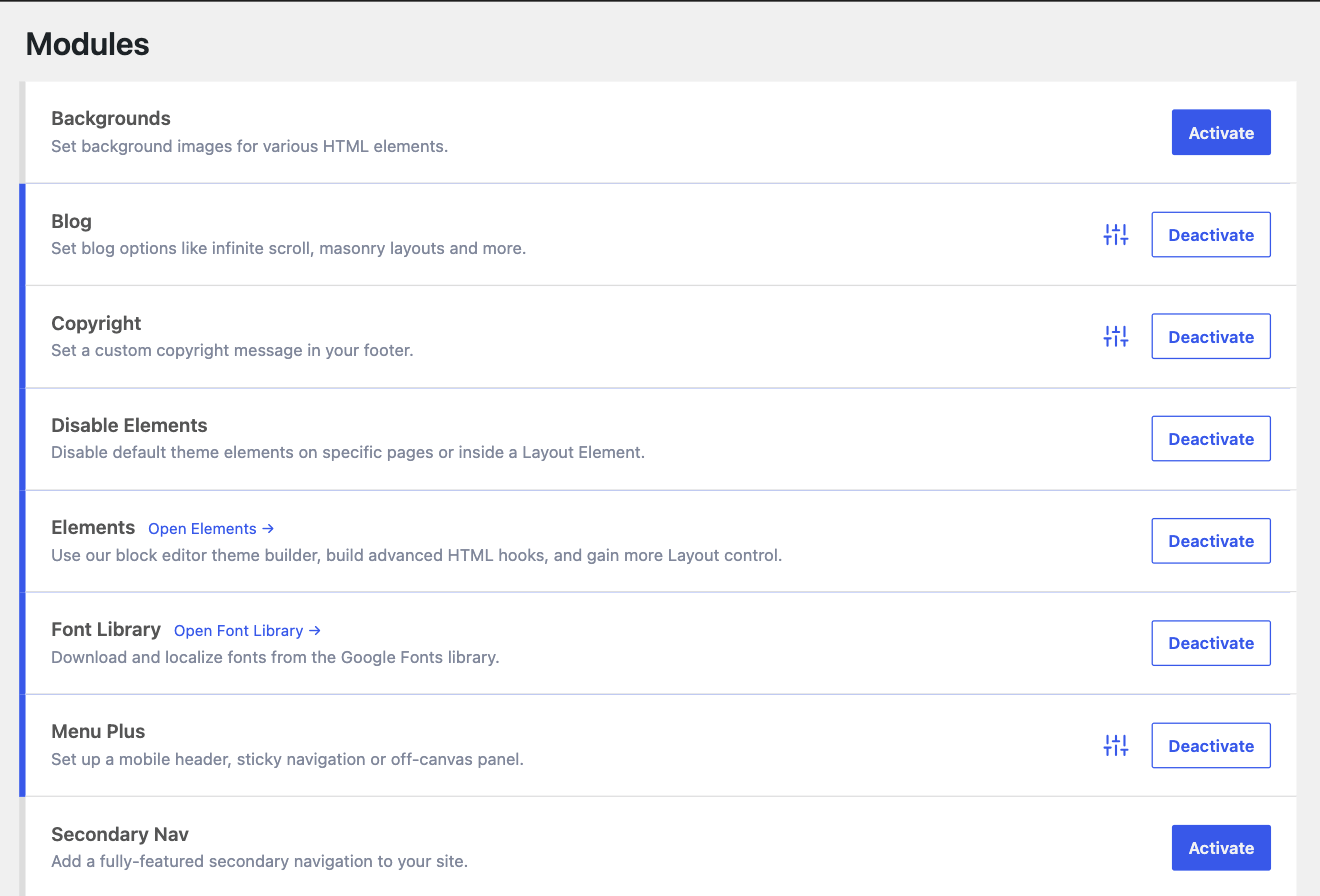
Go to Appearance → GeneratePress and switch on the modules you want to use. Only active modules add their options to the Customizer and the dashboard.
The WooCommerce module only appears once the WooCommerce plugin is installed and active.
Find your settings
Finding the Customizer
Most GeneratePress options live in the Customizer. Go to Appearance → Customize. Changes preview live, and nothing reaches your site until you click Publish.
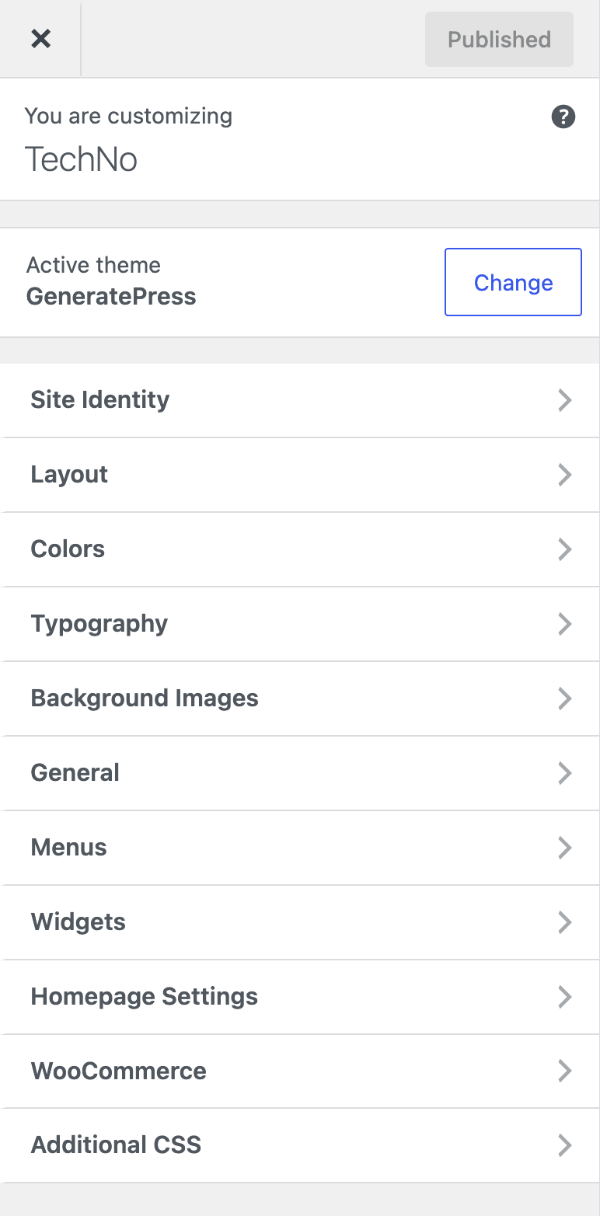
Some panels only appear when their GP Premium module is active — for example, Background Images needs the Backgrounds module.
Everything else is under Appearance → GeneratePress: GP Premium modules, your licence key, the Site Library, Elements and settings tools.
Keep things up to date
Check your versions under Appearance → GeneratePress, or on the Themes and Plugins screens.
Updating GeneratePress
The theme updates like any theme from WordPress.org. When an update is available, go to Dashboard → Updates or Appearance → Themes and click Update now. You don’t lose any Customizer settings.
If you’ve changed theme files directly, those changes are overwritten. Use a child theme for file changes.
Updating GP Premium
Requires GP Premium.
GP Premium updates from your dashboard like any other plugin, once its licence key is active.
Activate your licence key
- Log in to your account and copy your licence key.
- In your dashboard, go to Appearance → GeneratePress and find the licence key field.
- Paste the key — with no spaces before or after — and click Save.
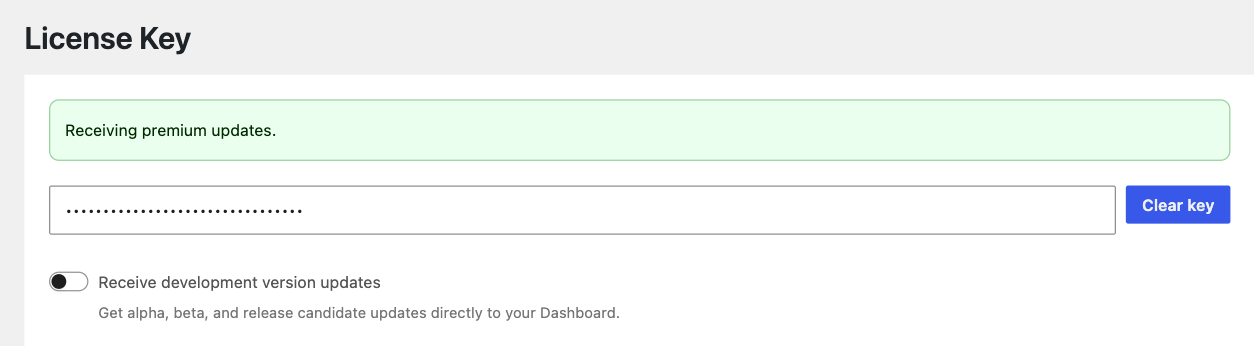
Key won’t save or activate? See Licence key activation issues. Updates say Unauthorized? See Authorizing site URLs.
Manually updating
If your server blocks dashboard updates, update by hand. You won’t lose any settings.
- Download a fresh
gp-premium.zipfrom your account. - Go to Plugins → Add New Plugin → Upload Plugin and upload it.
- When WordPress says the plugin is already installed, click Replace current with uploaded.
Changelogs
Every release is listed on the GeneratePress changelog, with what changed in each version. Each download also includes a changelog.txt file.
Beta testing
Note
Don’t run beta versions on a live site with real traffic. Test them on a staging or local copy.
Theme: download the beta .zip from your account and upload it over your current version under Appearance → Themes → Add New Theme → Upload Theme, choosing Replace active with uploaded.
GP Premium (requires GP Premium): either upload the beta .zip the same way under Plugins → Add New Plugin → Upload Plugin, or opt in to beta updates under Appearance → GeneratePress. Opted-in sites get beta releases as normal dashboard updates.
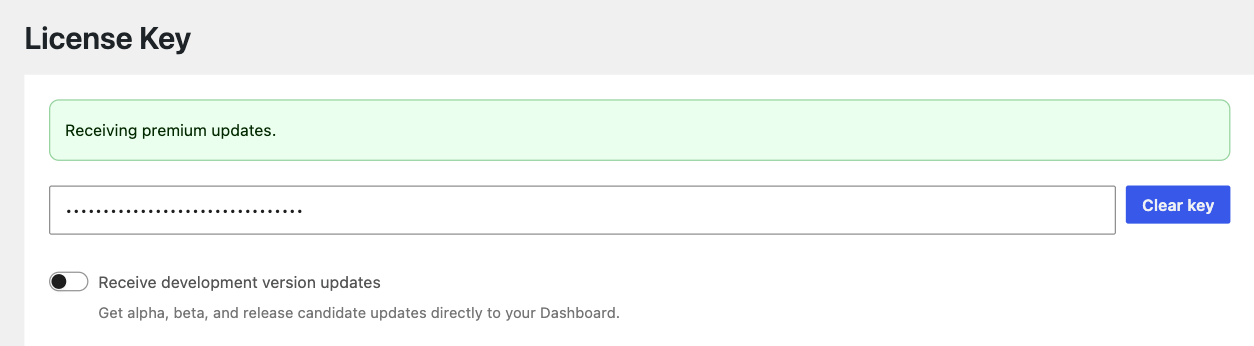
To hear when a beta is available, join the beta tester program.
Move settings between sites
Requires GP Premium — Import / Export module.
Export your GeneratePress settings to a single file and import it on another site — useful for moving from staging to live, or reusing a setup. You can export everything, or only the settings for particular modules.
- Go to Appearance → GeneratePress and find Import / Export.
- Export: choose what to include and download the
.jsonfile. - Import: on the other site, upload the file.
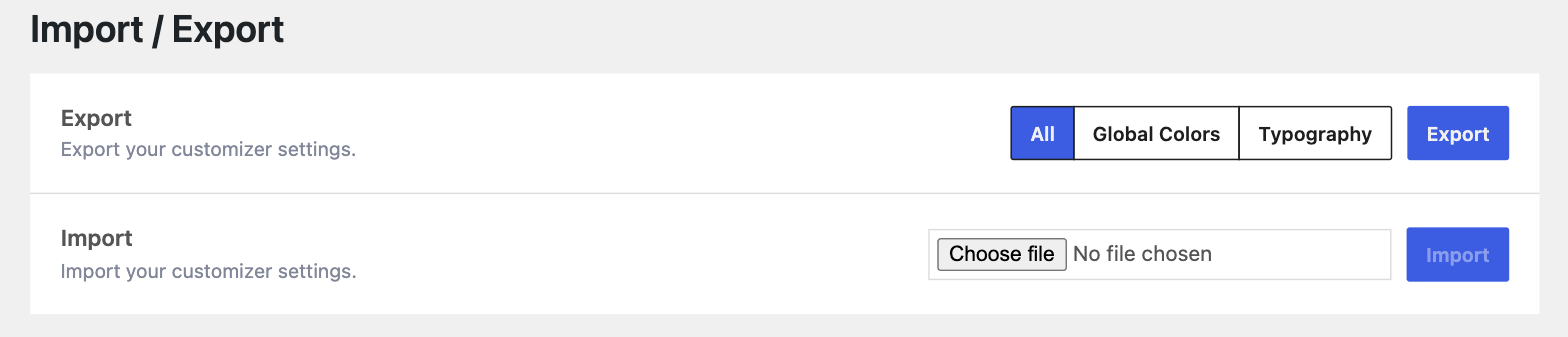
Note
Additional CSS isn’t included. WordPress stores it separately, so copy it from Customize → Additional CSS by hand.
Related
- Account & Licensing — licence keys, renewals and site URLs
- Troubleshooting — install and update errors
- Site Library — start from a ready-made site
- Adding Custom Code — CSS, PHP and child themes