Elements let you add content and change layouts across your site from one place, using display rules instead of editing each page. You’ll find them under Appearance → Elements.
Requires GP Premium — Elements module. The whole guide is a GP Premium feature.
| Element | Use it to | Guide |
|---|---|---|
| Hook | Insert HTML, shortcodes or PHP at a hook location | Hook Elements |
| Layout | Apply Layout meta box settings to many pages at once | Layout Elements |
| Header | Add a page hero or change the header on chosen pages | Page Hero |
| Block | Build headers, footers, sidebars, templates and more with blocks | Block Elements |
Elements replaced the old GP Hooks and Page Header modules in GP Premium 1.7; see Legacy Features to migrate.
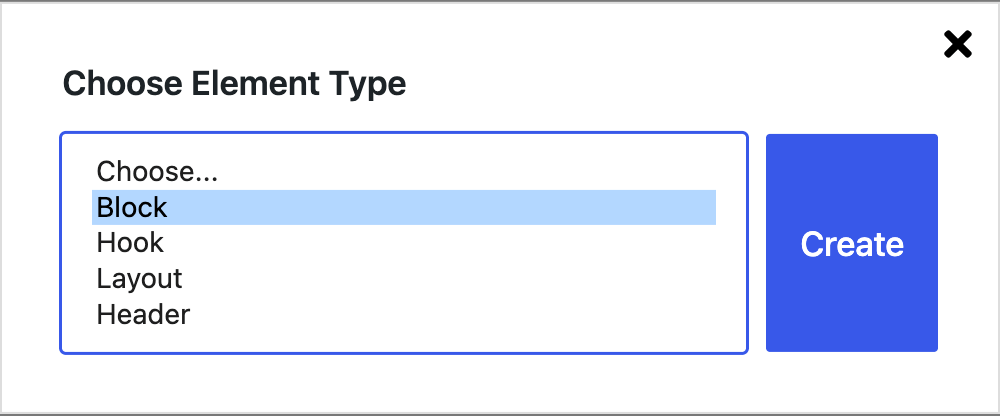
Appearance → Elements → Add New, then choose the element type
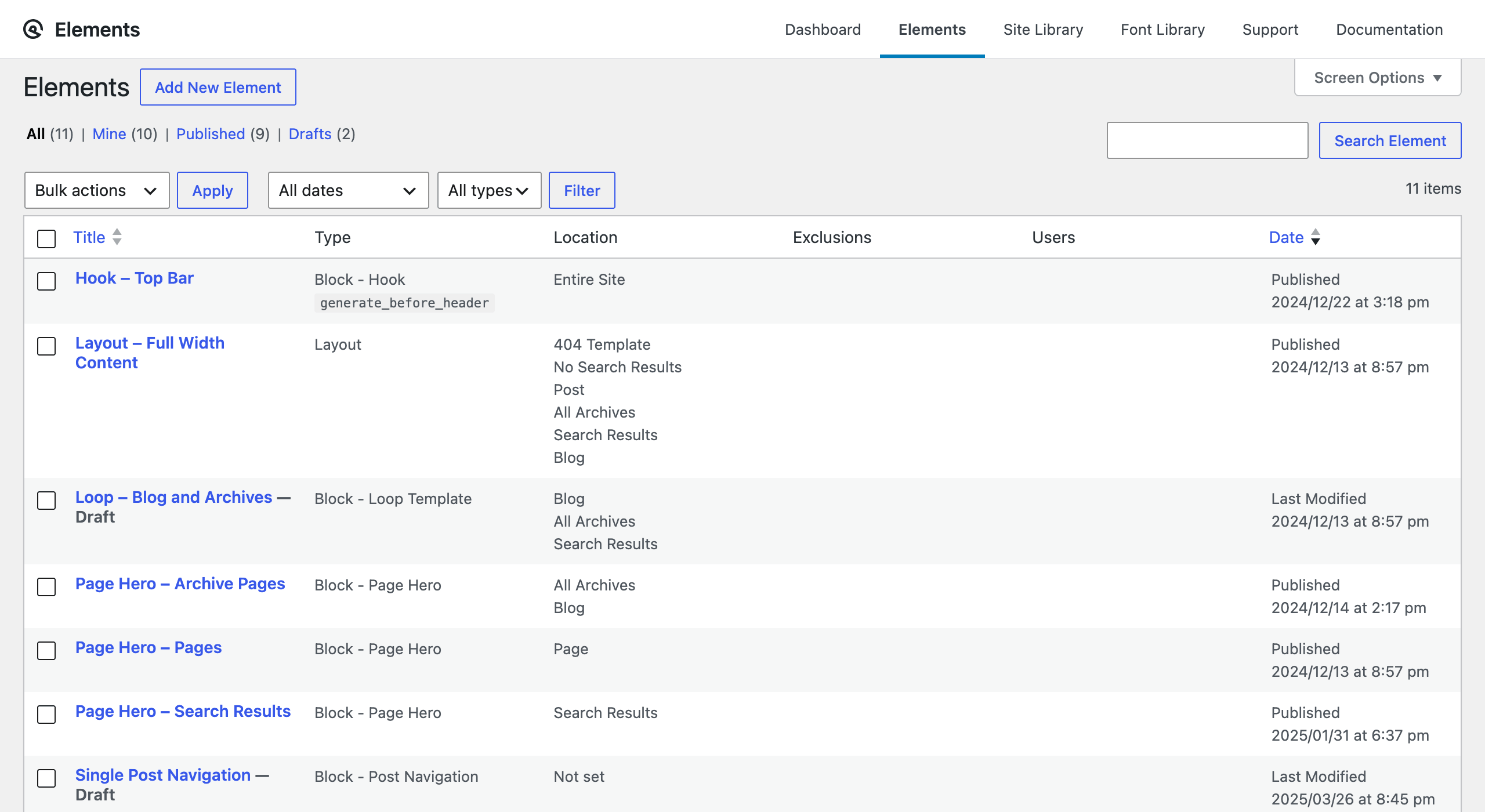
Display rules
Every element needs display rules, or it shows nowhere.
- Location (required) — where it applies: the entire site, all posts, a single page, a category archive, and so on. Add as many as you need.
- Exclude — where it shouldn’t apply, even if a location includes it. For example: Entire Site, excluding the About page.
- Users — limit it to logged-in users, logged-out users or certain roles.
The Internal Notes tab is for your own notes on what the element is for; it never shows on the site.
If two Page Heroes target the same place, only one shows — see Troubleshooting › Conflicting display rules.
Hook Elements
A Hook Element inserts content at one of the theme’s hooks — before the header, after the content, inside the footer and so on. The hooks visual guide shows where each one is.
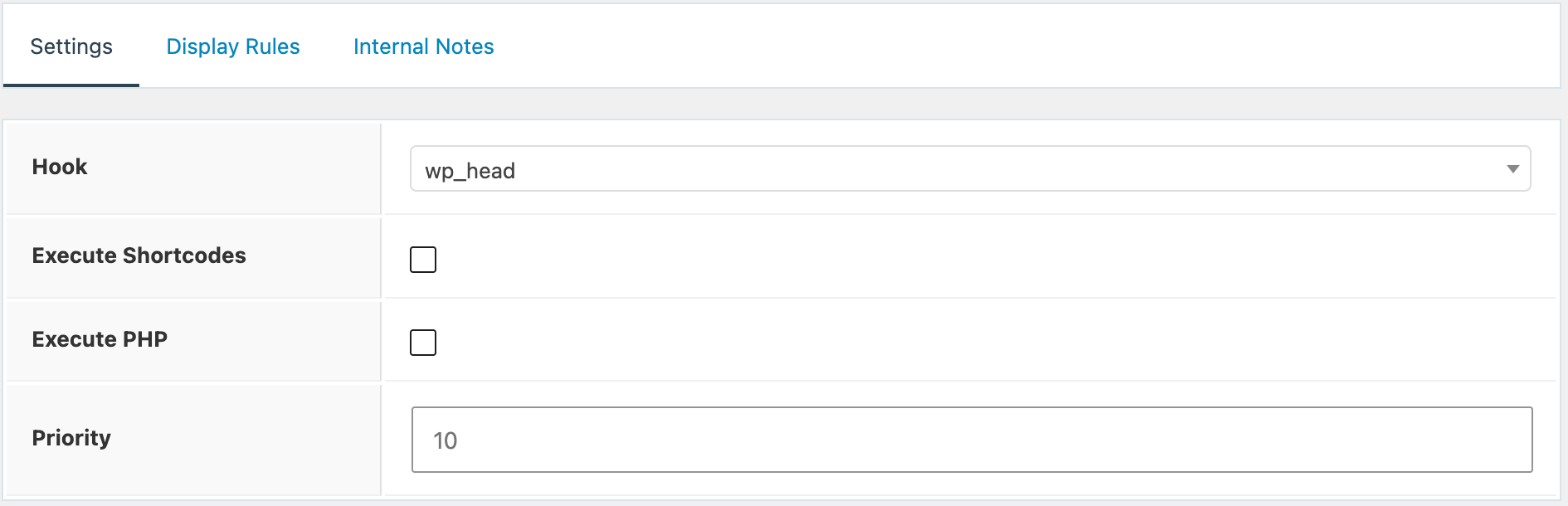
- Go to Appearance → Elements → Add New and choose Hook.
- Add your content (HTML, text or shortcodes).
- In Settings, choose the Hook. Pick Custom Hook to type a hook name that isn’t listed.
- Set the Display Rules and publish.
Options:
- Execute Shortcodes — run shortcodes in the content.
- Execute PHP — run PHP in the content. Not available when
DISALLOW_FILE_EDITis set (some security plugins set it); see Disallow PHP execution. - Priority — the order when several elements use the same hook (lower runs first).
For block-built content at a hook, use a Block Element › Hook instead.
Replacing the site header
Use a Site Header Block Element. It’s the recommended way to build your own header: you design it with blocks in the editor, and it replaces the theme’s header wherever its display rules apply.
Alternative: a Hook Element with your own HTML. This is a completely separate method, for sites that don’t use the block editor or already have header HTML. It doesn’t use blocks or the Site Header Block Element.
- Create a Hook Element and choose the
generate_headerhook. - Tick Disable Site Header, which appears below the hook.
- Add your header HTML (or a shortcode) as the content, then set the display rules.

Replacing the site footer
Use a Site Footer Block Element. It’s the recommended way: design the footer with blocks and it replaces the theme’s footer wherever its display rules apply.
Alternative: a Hook Element with your own HTML. A completely separate method that doesn’t use blocks:
- Create a Hook Element and choose the
generate_footerhook. - Tick Disable Site Footer, which appears below the hook.
- Add your footer HTML (or a shortcode) as the content, then set the display rules.

Layout Elements
A Layout Element applies the Layout meta box settings to every page its display rules match — for example, no sidebar on all category archives, or full-width content on every page. Use the meta box instead when it’s only a few pages.
- Go to Appearance → Elements → Add New and choose Layout.
- Set any of the tabs below, then the Display Rules, and publish.
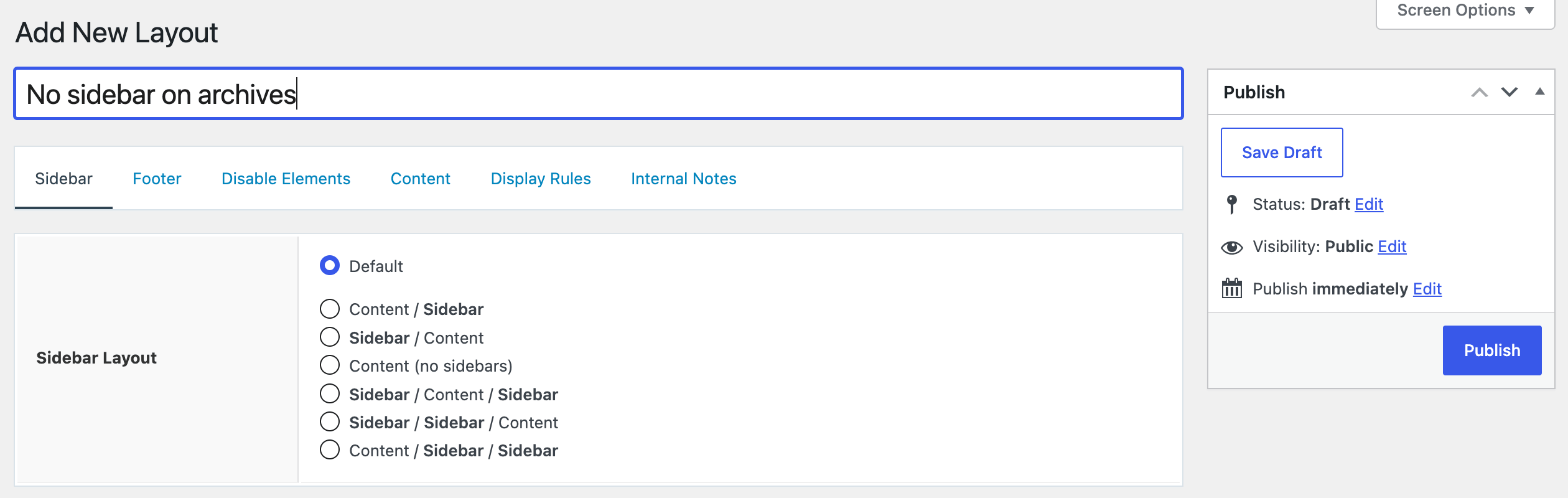
Sidebar
Choose a sidebar layout for the matching pages. See Sidebars.
Footer
Choose how many footer widget columns show. See Footer.
Disable Elements
Hide parts of the page such as the header, navigation, featured image, title or footer. See Container › Disable elements.
Content
Set the Content Container (Default, Full Width or Contained) and, only here, a Content Width that overrides your Container Width for the matching pages. See Container › Content container.
Display rules
Layout Elements use the same display rules as every element.
Header Element template tags
Header Elements can include template tags that fill in details of the page being viewed:
| Tag | Shows |
|---|---|
{{post_title}} | The page or post title, or the archive title on a category, tag or other archive |
{{post_date}} | The post’s published date |
{{post_author}} | The post’s author |
{{post_terms.taxonomy}} | The post’s terms in a taxonomy: {{post_terms.category}}, {{post_terms.post_tag}}, or for WooCommerce {{post_terms.product_cat}} |
{{custom_field.name}} | A custom field’s value, for example {{custom_field.description}}. {{custom_field._thumbnail_id}} prints the featured image |
Related
- Block Elements — site header, footer, sidebar, hooks and templates built with blocks
- Page Hero — Header Elements and Block Element Page Heroes
- Developers — hooks, filters and the hooks visual guide
- Container — the Layout meta box for single pages
- Developer reference: Elements and Page Hero filters