The Site Library gives you ready-made starter sites to build from. Each one includes GeneratePress Customizer settings and, if you want them, demo pages, posts and images. Import a site, then make it yours.
Requires GP Premium — Site Library module. The whole Site Library is a GP Premium feature. Make sure the module is active (see Installing GP Premium).
If the library won’t load or an import fails, jump to Troubleshooting imports.
Site Library: Appearance → GeneratePress → Site Library
Using the Site Library
Importing a site
Note
Importing a site changes your Customizer settings and adds the site’s pages, posts and images. Import on a new site, or back up first.
- Back up your site if it already has content, with a plugin such as Duplicator or your host’s backup tool.
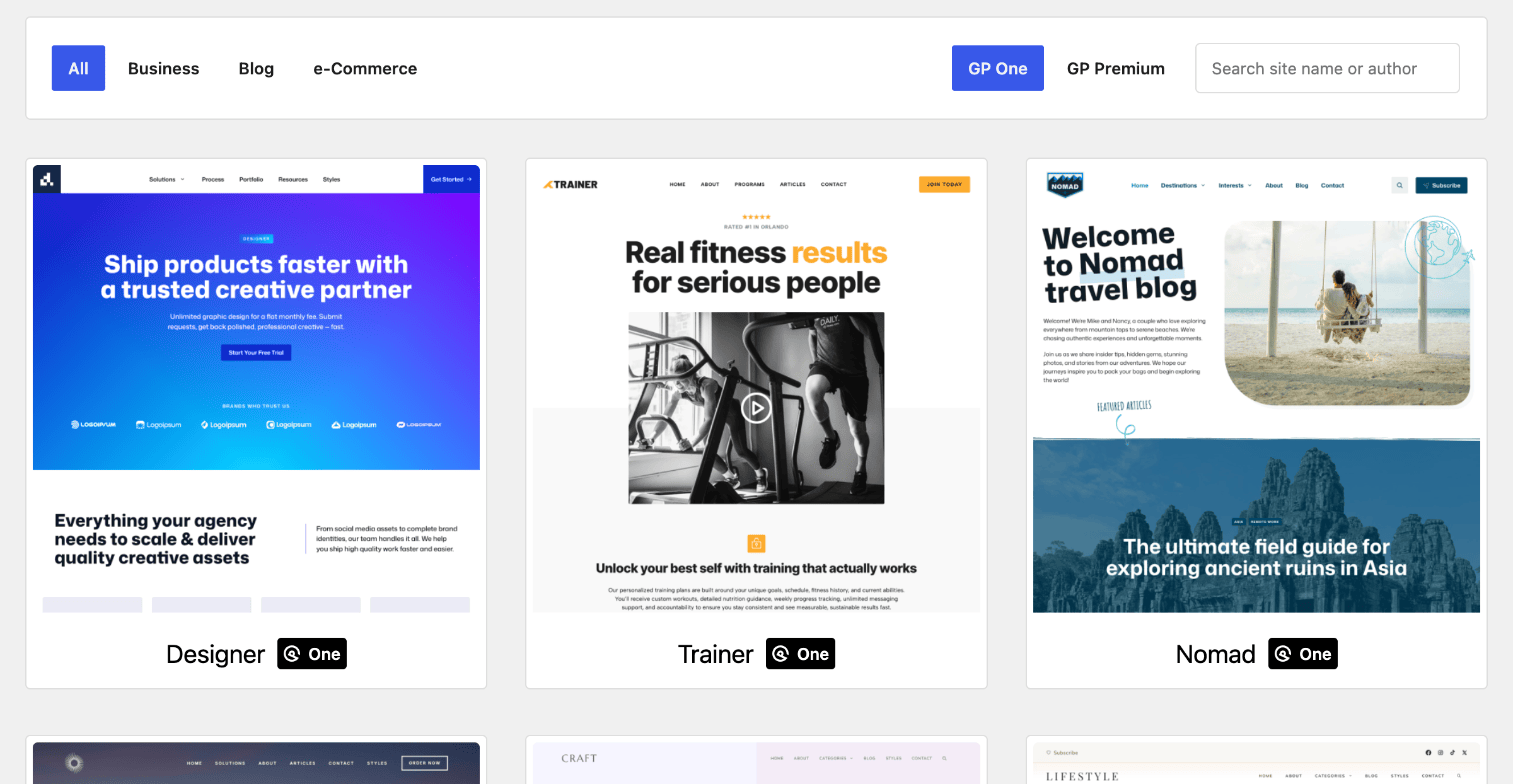
- Go to Appearance → GeneratePress → Site Library. Filter by category (Business, Blog, e-Commerce), by plan (GP One or GP Premium), or search by name.
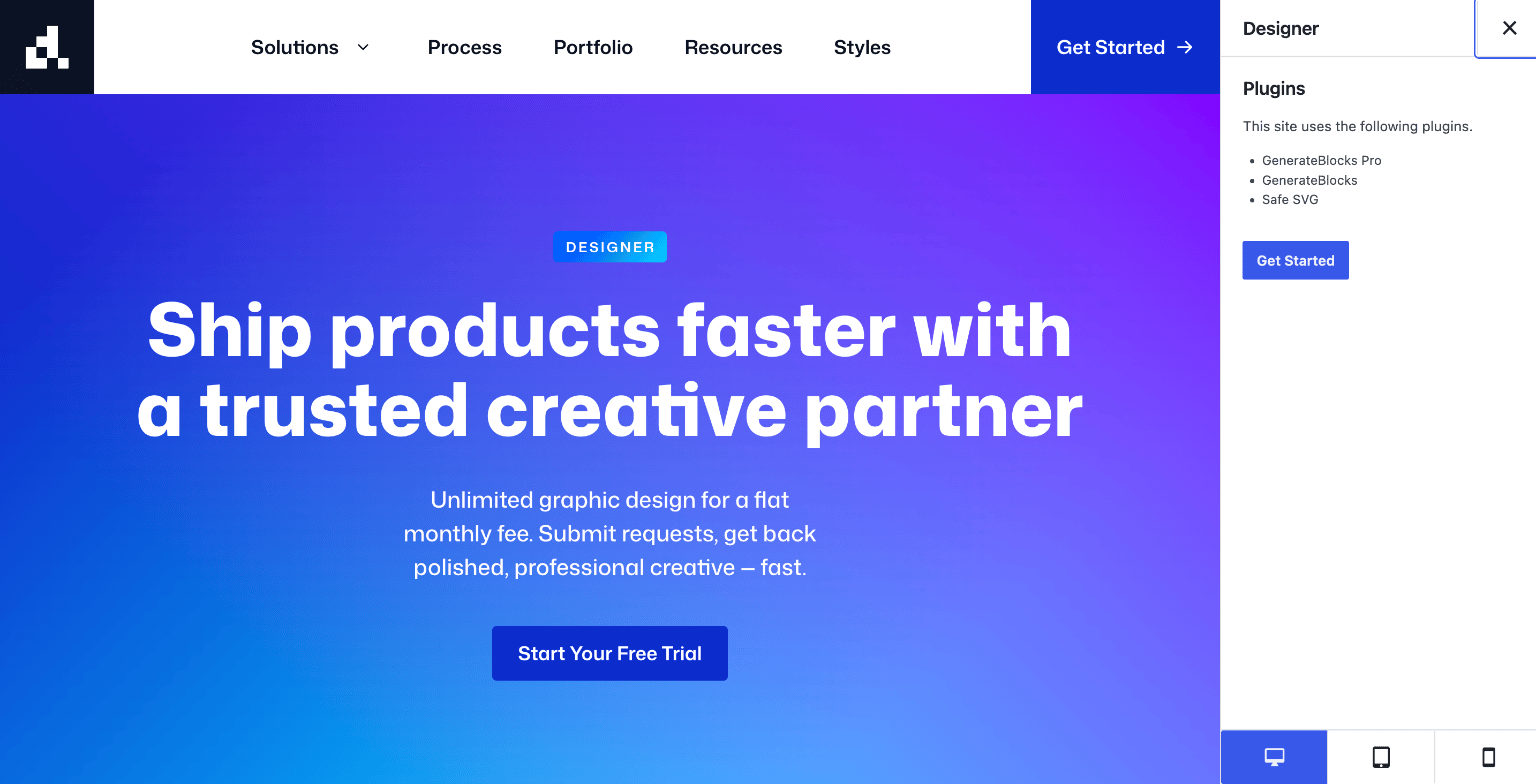
- Click a site to preview it at desktop, tablet and mobile sizes and see the plugins it uses.
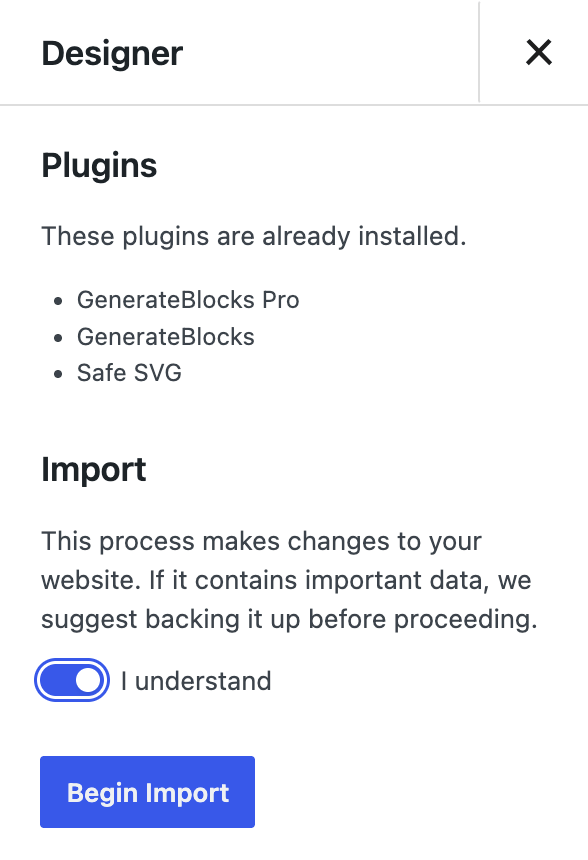
- Click Get Started. The panel lists the plugins that will be installed and those you already have.
- Read the message under Import, switch on I understand, and click Begin Import.
- When it’s finished, click View Site and start editing.
The import brings both the site’s Customizer settings and its content (pages, posts and images).
Imported sites aren’t child themes. Any custom CSS a site brings goes into Customize → Additional CSS. To move to a child theme afterwards, see Using a child theme after importing a Site Library site.
Removing an imported site
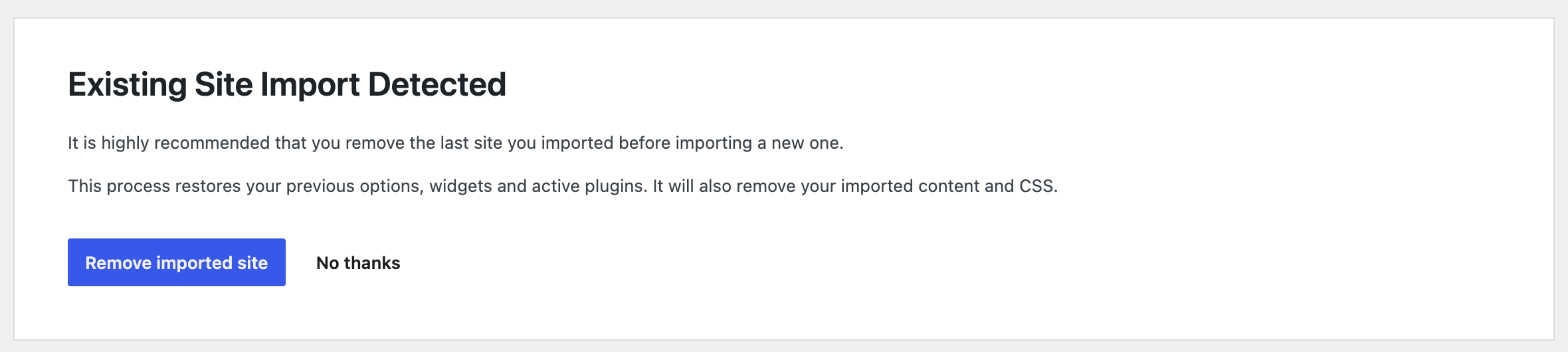
Before each import, GP Premium backs up your current settings. If you change your mind, go back to Appearance → GeneratePress → Site Library and use the option at the top of the page to remove the imported site. Your backed-up settings are restored.
- Back up first. Removing a site changes your database, so take a full backup if there’s anything you can’t afford to lose.
- Importing on top of an import (skipping the removal) is possible, but the backup is taken at each import. The second import backs up the first one, so you can’t get back to the site as it was before either import.
Troubleshooting imports
Site Library unavailable
Constant loading
If the Site Library never finishes loading, WordPress is probably having trouble reaching its own REST API. Go to Settings → Permalinks and click Save Changes without changing anything, then open the Site Library again.
No sites found
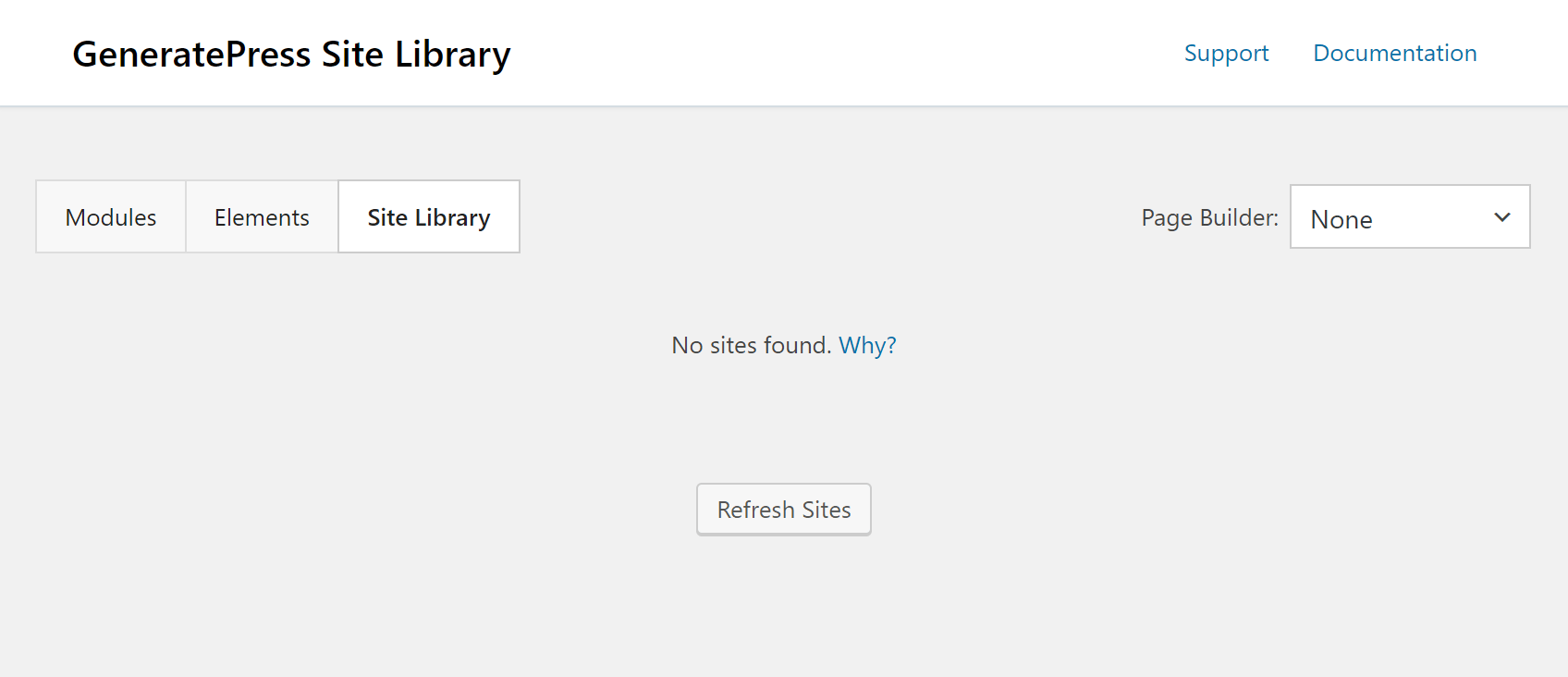
If the Site Library opens but shows no sites, your server can’t reach the Site Library’s API.
- Click Refresh Sites to fetch the list again.
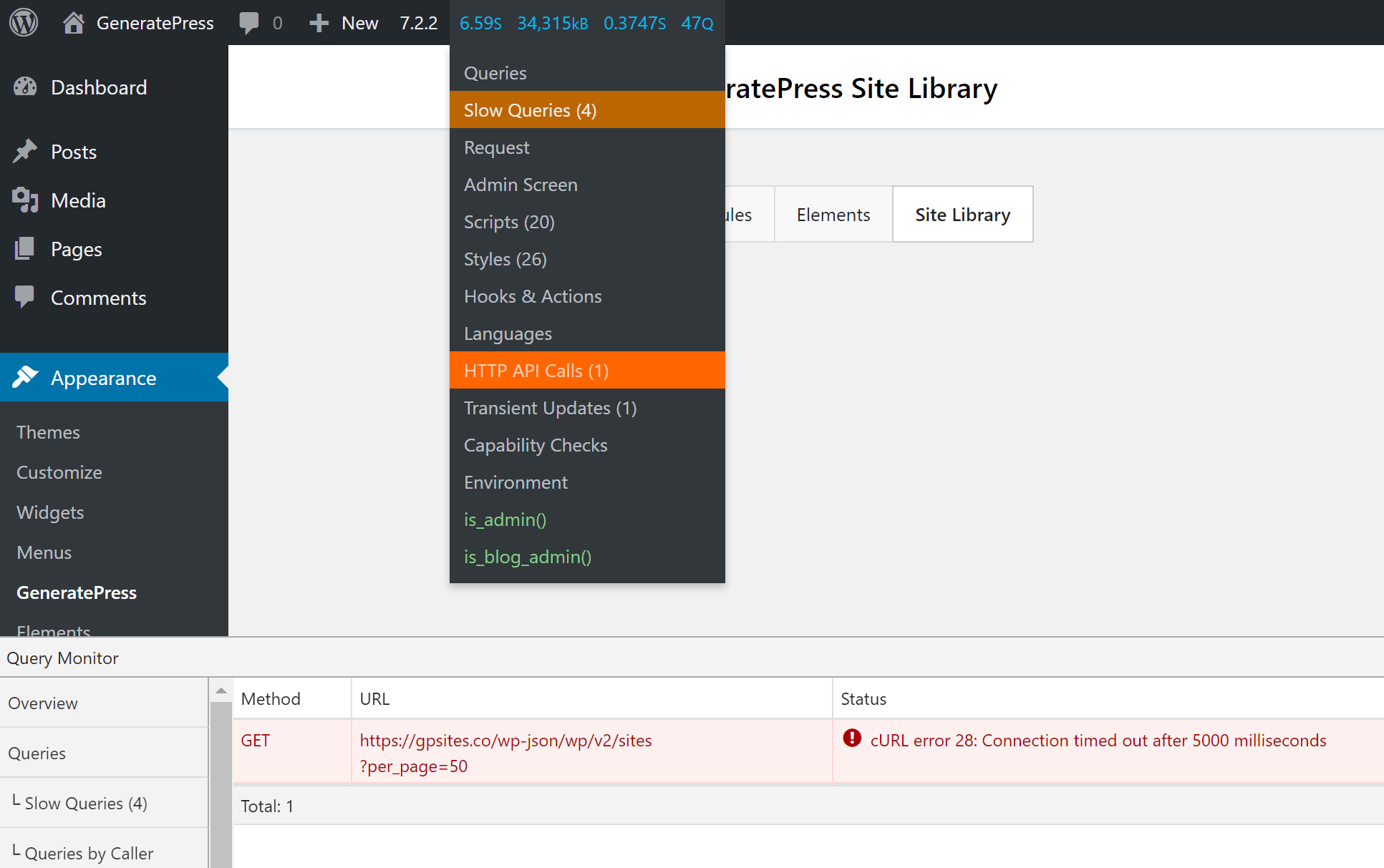
- Still empty? Install Query Monitor, click Refresh Sites again, then open Query Monitor in the admin bar and choose HTTP API Calls.
- The usual error is cURL error 28 — a timeout connecting to the Site Library server. Ask your host what’s blocking the connection.
- If nothing is blocked, ModSecurity may be the cause. Ask your host to disable it while you import, and turn it back on afterwards.
No Site Library tab
If GP Premium and the Site Library module are active but there’s no Site Library tab, check that your server runs a supported PHP version. You can see it under Tools → Site Health → Info → Server. Ask your host to upgrade PHP if it’s out of date.
Debug mode enabled
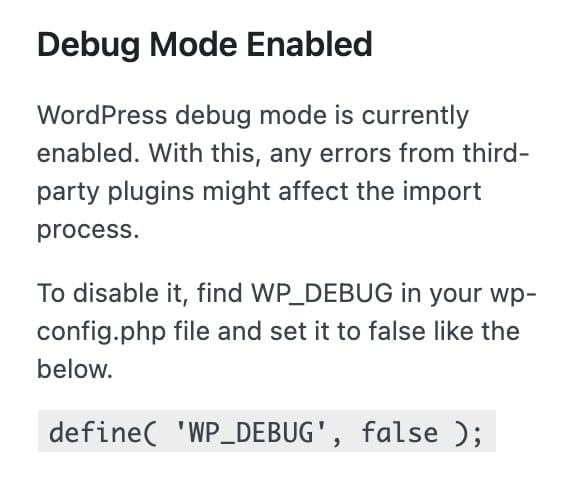
If the Site Library warns that debug mode is enabled, turn it off before importing. With WP_DEBUG on, any PHP notice from a plugin being installed can interrupt the import.
- Open
wp-config.phpin your site’s root folder (via FTP or your host’s file manager). - Set
WP_DEBUGtofalse:
define( 'WP_DEBUG', false );- Save the file, refresh the Site Library and import again.
Error codes while importing
Server Error 500
A 500 Internal Server Error during import usually means the server ran out of resources. Ask your host to raise these PHP limits (or change them yourself if you’re comfortable):
| Setting | Suggested value |
|---|---|
max_input_vars | 4000 |
max_execution_time | 1200 |
memory_limit | 512M |
max_input_time | 600 |
upload_max_filesize | 300M |
post_max_size | 512M |
These are generous for our starter sites; exact needs depend on the site.
502 Bad Gateway
On nginx servers, add this to the server config (or ask your host to):
fastcgi_buffers 16 16k;
fastcgi_buffer_size 32k;
400 error
A 400 error during import is usually a file or folder permissions problem. We’ve seen it most on servers managed with EasyEngine — see this forum thread. Ask your host to check that WordPress can write to the uploads folder.
Further debugging
If none of the above helps:
- Add these lines to
wp-config.php:
define( 'WP_DEBUG', true );
define( 'WP_DEBUG_LOG', true );- Run the import again until the error appears.
- Open
wp-content/debug.logand look at the last entries for errors. Share them on the support forum if you need help. - Set both back to
falsewhen you’re done.
Related
- Getting Started — installing GP Premium and activating modules
- Adding Custom Code — using a child theme with an imported site
- Troubleshooting — memory limits and debugging tips
- Developer reference: Admin and capabilities filters