Many guides on this site include a short CSS or PHP snippet. This guide shows where to put them so they’re safe from theme updates. Everything here works with the free GeneratePress theme.
| You want to add | Easiest place | Also works |
|---|---|---|
| A few lines of CSS | Additional CSS in the Customizer | Simple CSS, a snippets plugin, or a child theme |
| A PHP snippet (hook, filter, function) | A snippets plugin such as Code Snippets or WPCode | Your own plugin, or a child theme |
| Template changes, or lots of custom code | A child theme | — |
Note
Never edit the GeneratePress theme files directly. Updates replace the whole theme folder, so your changes would be lost.
Additional CSS: Appearance → Customize → Additional CSS
Snippet plugins: Plugins → Add New Plugin, then the plugin’s own menu
Child theme: Appearance → Themes → Add New Theme → Upload Theme
Adding CSS
Use any one of these methods. They all load your CSS after the theme’s own styles.
Additional CSS
WordPress has a built-in CSS box in the Customizer.
- Go to Appearance → Customize → Additional CSS.
- Paste your CSS. The preview updates as you type.
- Click Publish.
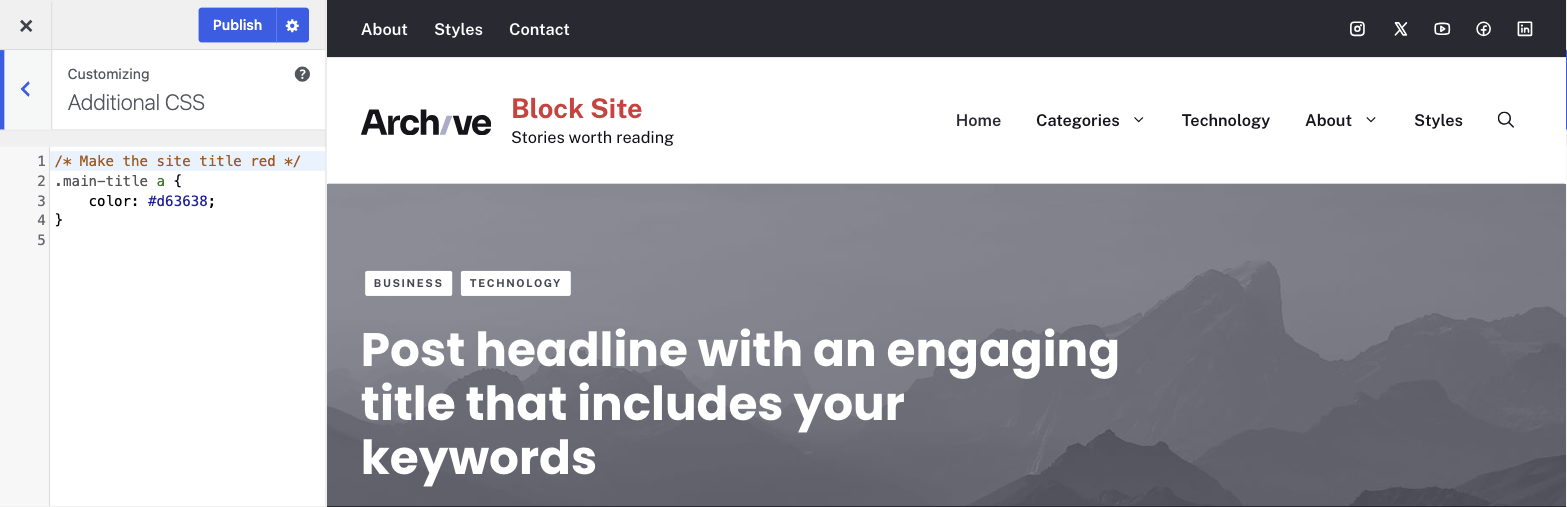
Additional CSS is saved per theme. If you switch themes, or activate a child theme later, the CSS stays with the old theme — copy it across first (see Will I lose my changes?).
Simple CSS
Simple CSS is a free plugin from the GeneratePress developer. It adds a site-wide CSS editor, and a CSS box on each post and page for styles that only apply there. Its CSS isn’t tied to a theme, so it survives a theme or child theme switch.
- Go to Plugins → Add New Plugin and search for Simple CSS.
- Install and activate it.
- Add site-wide CSS under Appearance → Simple CSS, or page-specific CSS in the Simple CSS box when editing a post or page.
WPCode (below) can also hold CSS snippets.
Using a child theme
If you already use a child theme, add your CSS to its style.css file. If CSS is all you need, a child theme is more than you need — use one of the methods above.
Adding PHP
PHP snippets usually hook something into the theme or use a filter to change its output. See Using hooks and Using filters for how they work.
Note
PHP is unforgiving. One typo can cause a fatal error or a blank white screen. Before adding PHP, make sure you can reach your site’s files by FTP or your host’s file manager, so you can remove the code if something goes wrong. Snippet plugins catch most errors before they break your site, which makes them the safest choice.
Code Snippets or WPCode
A snippets plugin is the easiest way to add PHP. Each snippet is stored separately, with a title and notes, and you can switch it on and off without deleting it. Both plugins below are free.
- Code Snippets — go to Snippets → Add New, paste your PHP, and save and activate. If a snippet does break your site, its safe mode lets you get back in and turn the snippet off. The free version covers PHP; CSS and JavaScript snippets need Code Snippets Pro.
- WPCode — go to Code Snippets → + Add Snippet, choose Add Your Custom Code, set the code type to PHP Snippet, paste your code, and save and activate. WPCode also handles CSS, JavaScript and HTML snippets.
Install either under Plugins → Add New Plugin by searching for its name.
Paste snippets without the opening <?php tag — both plugins add it for you.
Create your own plugin
If you’d rather not use a snippets plugin, put your functions in a small plugin of your own. The Pluginception plugin creates the plugin file for you.
- Go to Plugins → Add New Plugin, search for Pluginception, then install and activate it.
- Go to Plugins → Create a New Plugin.
- Give it a name unique to you so it can’t clash with another plugin, and create it.
- The new plugin opens in the plugin editor. Add your functions below the plugin header and save.
Your plugin keeps working if you deactivate or delete Pluginception.
Use a child theme
If you already use a child theme, add your PHP to the end of its functions.php file.
Using a child theme
A child theme runs on top of GeneratePress. It uses all the parent theme’s files unless you copy one into the child theme, in which case WordPress uses your copy. That lets you change a template without touching GeneratePress itself — updates replace the parent theme’s folder but leave the child theme alone.
A child theme is also a place for custom CSS (style.css) and PHP (functions.php). These two files start empty — don’t copy the parent theme’s versions into them. If you only need CSS or PHP, you probably don’t need a child theme: see Adding CSS and Adding PHP.
GeneratePress loads the parent and child style.css files for you, so you don’t need to enqueue them in functions.php. Doing so causes the most common child theme problems — see Child theme issues.
Installing a child theme
- Download the blank GeneratePress child theme and keep it as a
.zipfile. - Make sure GeneratePress (the parent theme) is installed.
- Go to Appearance → Themes → Add New Theme → Upload Theme, upload the
.zipfile, and activate the child theme.
Will I lose my changes?
Settings you made in the Customizer’s GeneratePress sections carry over to the child theme. A few things are stored per theme, so check them after switching:
- Additional CSS — copy it from the parent theme’s Customizer to the child theme’s, or into the child theme’s
style.css. - Logo — re-upload it under Customize → Site Identity. See Site Identity & Logo.
- Copyright — re-add it under Customize → Layout → Footer. See Changing the copyright message.
- Menu locations and widgets — reassign them under Appearance → Menus and Appearance → Widgets if they don’t appear.
Changes made directly to the parent theme’s files are lost — which is exactly what a child theme prevents from now on.
Using a child theme after importing a Site Library site
Site Library sites aren’t child themes. Any CSS a site imports goes into the parent theme’s Additional CSS. To move to a child theme afterwards:
- Copy everything in Customize → Additional CSS while GeneratePress is still active.
- Install and activate the child theme (steps above).
- Paste the CSS into the child theme’s Additional CSS, or into its
style.css. - Check the logo, copyright, menus and widgets as listed in Will I lose my changes?
Recipes & customizations
Stop loading the child theme’s style.css
If your child theme’s style.css has no CSS in it, you can stop it loading and save a request. Add this PHP:
add_filter( 'generate_load_child_theme_stylesheet', '__return_false' );Reference: generate_load_child_theme_stylesheet.
Related
- Troubleshooting › Child theme issues — Customizer options not working with a child theme
- Developers — using hooks and filters, the hooks visual guide
- Developer reference — every GeneratePress hook and filter
- Site Library — importing a starter site
- Developer reference: Admin and capabilities filters