Find your symptom below and jump to the fix. If nothing matches, start with Debugging tips — it narrows most problems down in a few minutes.
Looking for something else? Licence key won’t activate → Account & Licensing. Site Library won’t load or import → Site Library.
| Symptom | Fix |
|---|---|
| “The package could not be installed. The theme is missing the style.css stylesheet.” | Missing style.css |
| “No valid plugins were found. Plugin install failed.” | Plugin install failed |
| GP Premium won’t update, or an update error appears | Updating issues |
| White screen, or the Customizer won’t load or save | Increasing the PHP memory limit |
| Something broke and you don’t know why | Debugging tips |
| Customizer options have no effect with a child theme active | Child theme issues |
| A new Page Hero doesn’t show up | Conflicting display rules |
| Excerpts, word count or Read more don’t behave | Excerpt issues |
| Mobile usability warnings (text too small, tap targets too close) | Mobile usability warnings |
Lots of wp_image_processing rows in the database | Image processing queue (old versions) |
| You need to ask for help | Using the support forum |
Installing & updating
GeneratePress comes in two parts: the theme (generatepress.zip, installed under Appearance → Themes) and GP Premium (gp-premium.zip, a plugin installed under Plugins). Most install errors come from uploading one where the other belongs.
Missing style.css
If WordPress says the theme is missing the style.css stylesheet, you’ve uploaded GP Premium as a theme. GP Premium is a plugin.
- Go to Plugins → Add New Plugin → Upload Plugin.
- Upload
gp-premium.zipand activate it.
Full steps: Installing GP Premium.
Plugin install failed
If you see “The package could not be installed. No valid plugins were found. Plugin install failed.”, you’ve uploaded the theme (generatepress.zip) as a plugin.
- Install the theme under Appearance → Themes instead.
- For GP Premium, download
gp-premium.zipfrom your account and upload that under Plugins.
Updating issues
Update package not available. GP Premium only updates while its licence key is active. Go to Appearance → GeneratePress and enter your key in the licence field. If it won’t activate, see Licence key activation issues.
Getting an unauthorized message
The site’s URL isn’t authorised on your licence. See Authorizing site URLs.
Download failed. cURL error 51. The full message mentions an SSL certificate name that doesn’t match the host. Your server is running an old version of cURL and/or OpenSSL; ask your host to update both.
Could not copy file / could not create directory.
- On a Windows-based local install, this is a known conflict between WordPress’s updater and Windows file paths. The Fix Windows Compatibility plugin works around it.
- On a live (non-Windows) server, file or folder permissions are wrong. Ask your host to make sure WordPress can add, change and remove files.
Still stuck? Update GP Premium manually. You won’t lose any settings — it’s the same process the dashboard runs, done by hand.
Increasing the PHP memory limit
Some hosts cap how much memory WordPress can use. When it runs out you’ll see a white screen, or the Customizer won’t load or save.
Easiest fix: ask your host to raise the PHP memory limit. Most will do it straight away.
Or edit wp-config.php yourself. Open it in the root of your WordPress install (via FTP or your host’s file manager) and add this line above /* That's all, stop editing! */:
define( 'WP_MEMORY_LIMIT', '256M' );Your host’s own limit still applies, so if nothing changes, ask them. More detail: Editing wp-config.php.
Something looks or works wrong
Debugging tips
Work through these in order. Each step either finds the cause or rules something out — and the answers are exactly what support will ask for.
- Deactivate plugins. Deactivate everything except GP Premium and GenerateBlocks. If the problem goes away, reactivate plugins one at a time until it comes back — the last one you activated is the conflict.
- Turn on debugging. In
wp-config.php, setdefine( 'WP_DEBUG', true );and check your dashboard and site for errors. Turn it off again when you’re done. See Debugging in WordPress. - White screen? Increase the PHP memory limit.
- Switch themes briefly. Activate a default WordPress theme (such as Twenty Twenty-Five). If the problem remains, it isn’t caused by GeneratePress.
- Check the error log. Look in your server’s
error_log, or ask your host to.
Moving an old site to the current theme structure? See Switching from floats to flexbox.
Child theme issues
GeneratePress loads the parent theme’s stylesheet for you. Many child-theme tutorials and pre-built child themes load it a second time, which stops some Customizer options from working. Remove either of these if you find them.
In the child theme’s style.css:
@import url("../generatepress/style.css");In the child theme’s functions.php, any function that enqueues the parent stylesheet, such as:
function example_enqueue_styles() {
	wp_enqueue_style( 'parent-theme', get_template_directory_uri() . '/style.css' );
}
add_action( 'wp_enqueue_scripts', 'example_enqueue_styles' );
New to child themes? See Using a child theme.
Conflicting display rules
Requires GP Premium — Elements module.
Hooks and Layout Elements can share a display rule without any conflict. Page Heroes can’t: only one Page Hero applies per location. If two target the same place, the older one wins and the newer one never appears.
To make the newer Page Hero show:
- If the older one targets a specific location (one page), remove that location from the older Element’s display rules.
- If the older one targets a broad location (all pages), add the specific location to the older Element’s Exclude rules. That frees it for the new Element.
Example: Page Hero A is set to all pages. Page Hero B is set to the About page but doesn’t show. Open A and add the About page to its exclusions.
Excerpt issues
These assume you’ve set Content type to Excerpt in Customize → Layout → Blog.
Read more label or button not showing
The post uses a hand-written excerpt (the Excerpt box in the editor). WordPress doesn’t add a Read more link to those by default. To add one, use the snippets in Activating Read more with a custom excerpt.
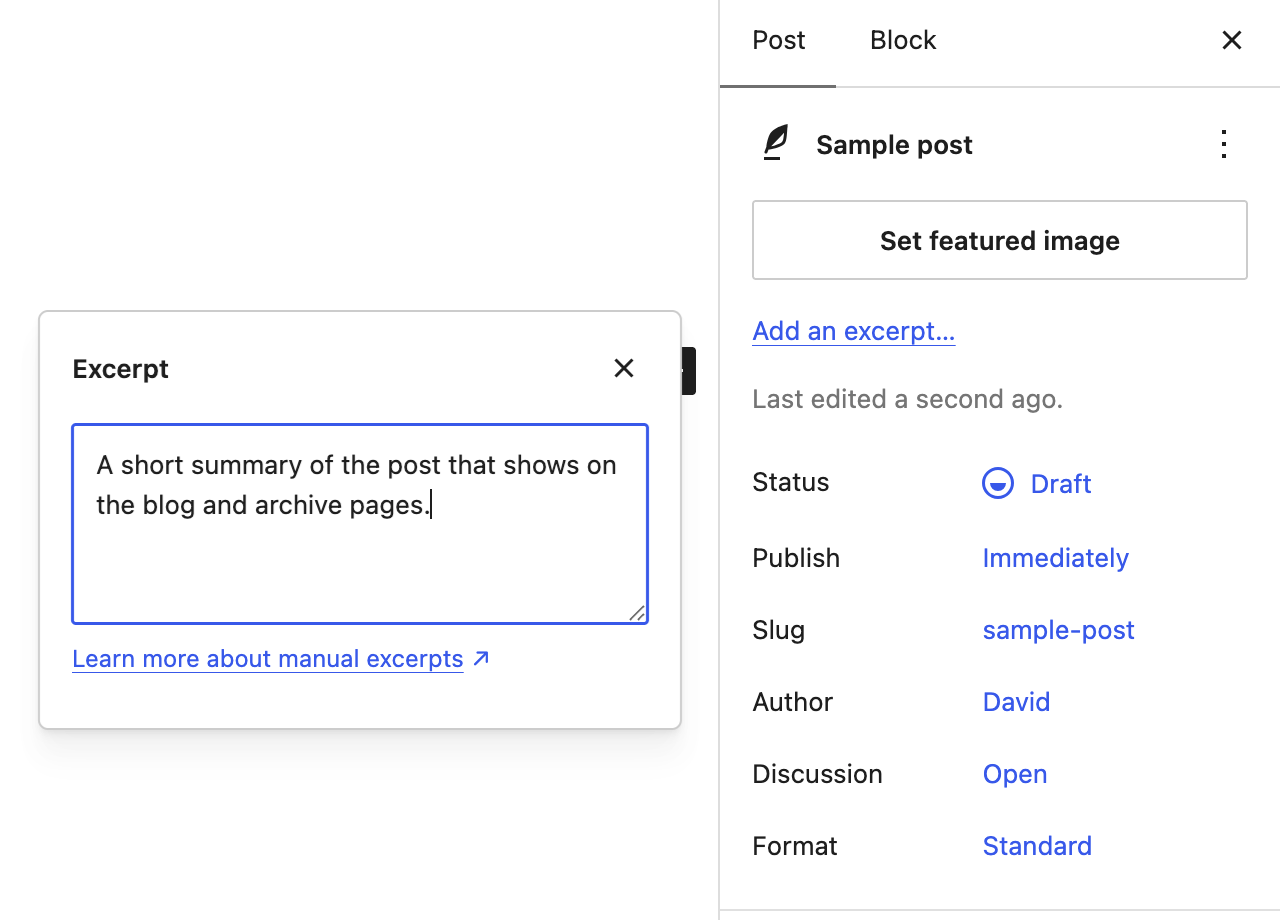
Full post content displaying while using excerpt
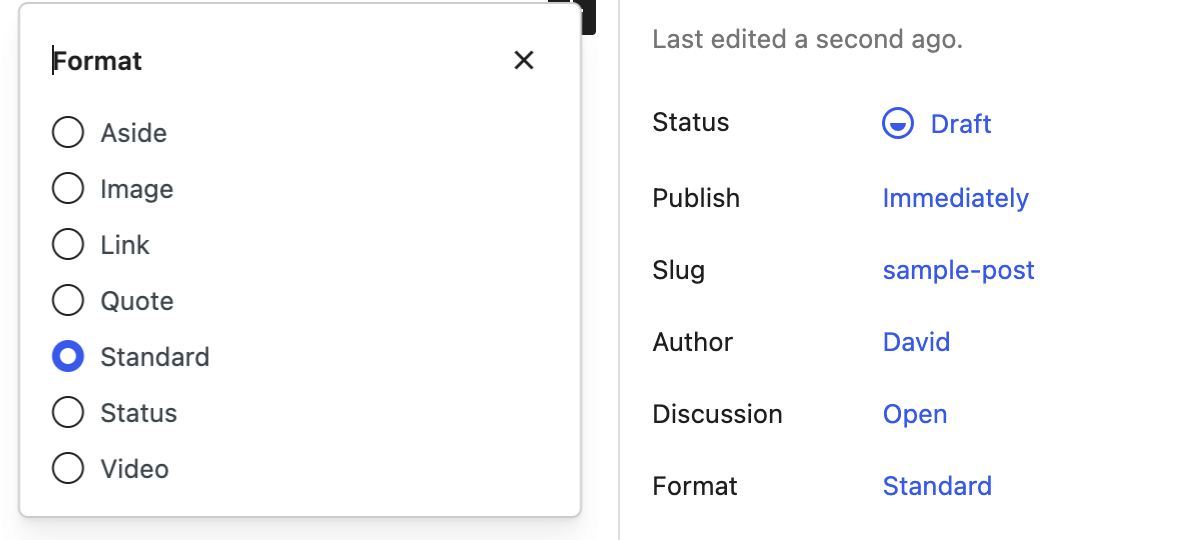
Check the post’s Format in the editor. Excerpts and word count only apply to the Standard format by default. To enable them for other formats, add this PHP:
// Image and video formats only
add_filter( 'generate_show_excerpt', function( $show ) {
    if ( 'image' === get_post_format() || 'video' === get_post_format() ) {
        return true;
    }
    return $show;
} );
Or for every format:
add_filter( 'generate_show_excerpt', function( $show ) {
    if ( 'standard' !== get_post_format() && ! $show ) {
        return true;
    }
    return $show;
} );
Word count not working
Check whether the post uses the More tag — it overrides the word count. For Chinese and other languages without spaces, see Fixing excerpt word count in other languages.
Excerpt not showing at all
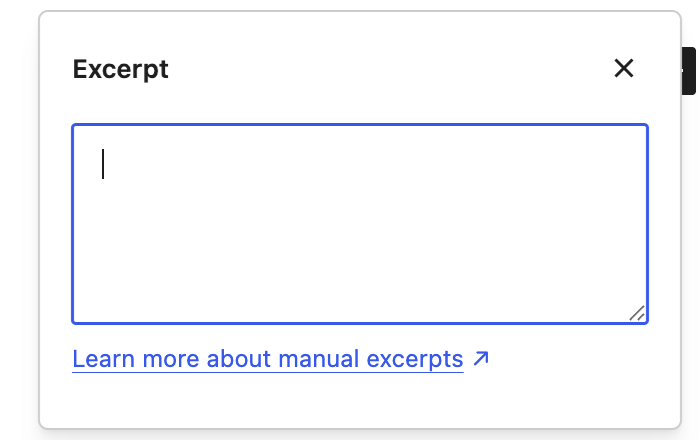
Make sure the post’s Excerpt box is truly empty — a single space counts as a custom excerpt and displays as nothing.
Mobile usability warnings
Warnings like text too small to read or clickable elements too close together usually mean one of two things.
- The page is failing to load its CSS or JavaScript. If the page looks unstyled on a real phone (use a private window to avoid caches), temporarily disable caching and optimisation plugins and check again. Make sure
robots.txtdoesn’t block CSS or JS files. - Text or tap targets really are too small. Keep body text at 16px or more, and give buttons, icons and link lists enough padding or line height that a fingertip doesn’t hit two at once.
To pinpoint the element, run a Lighthouse audit in Chrome DevTools; its accessibility and SEO checks flag small fonts and tap targets.
Image processing queue (old versions only)
GP Premium before 1.10.0 could leave wp_image_processing transients in the wp_options table. It isn’t a security issue. Update GP Premium, then delete the leftover transients with a plugin such as Transients Manager.
Getting help
Using the support forum
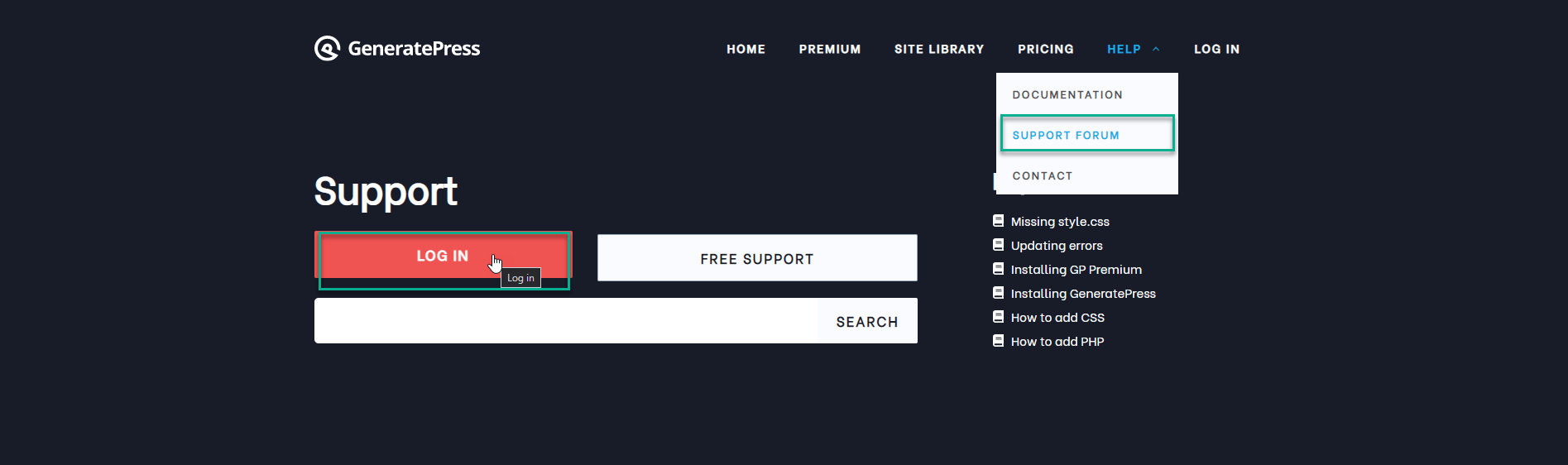
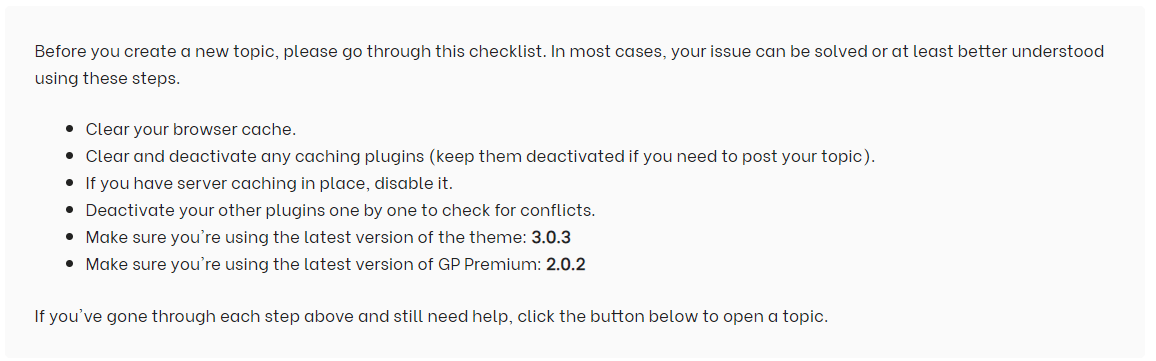
GP Premium customers get help on the support forum. Before you post, run through Debugging tips — the answers speed up every reply.
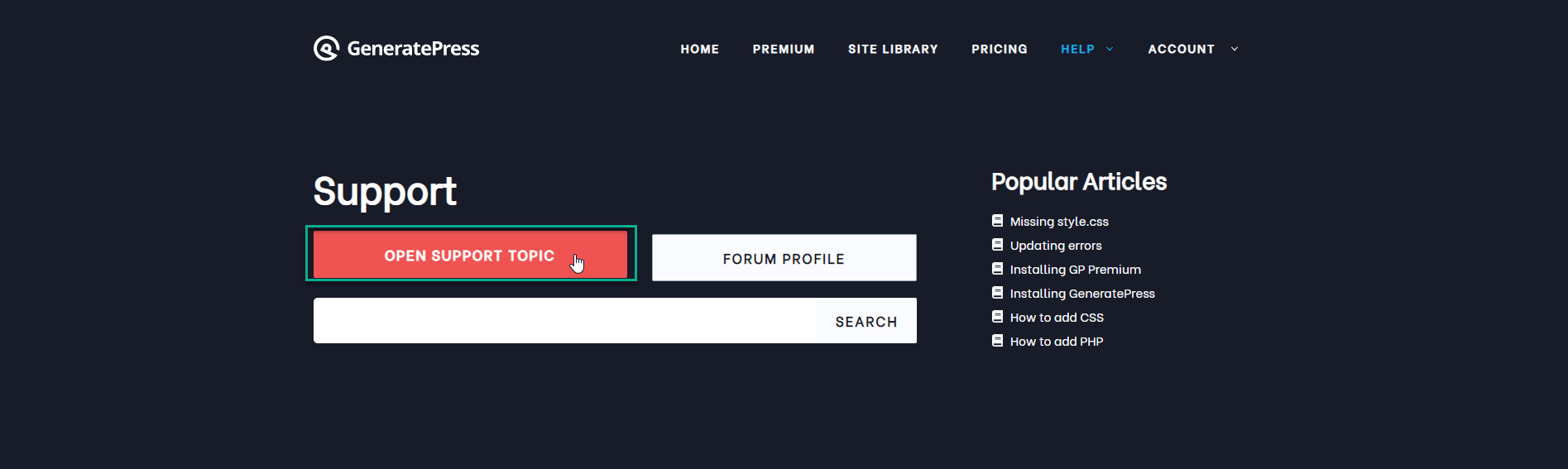
- Log in with the username and password you created when you bought GP Premium.
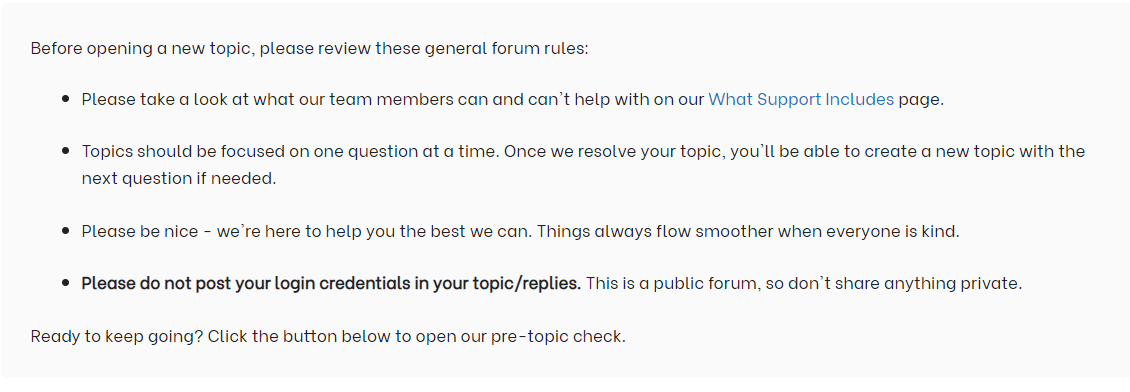
- Open a support topic. Read the forum rules and the pre-topic checklist shown with the form.
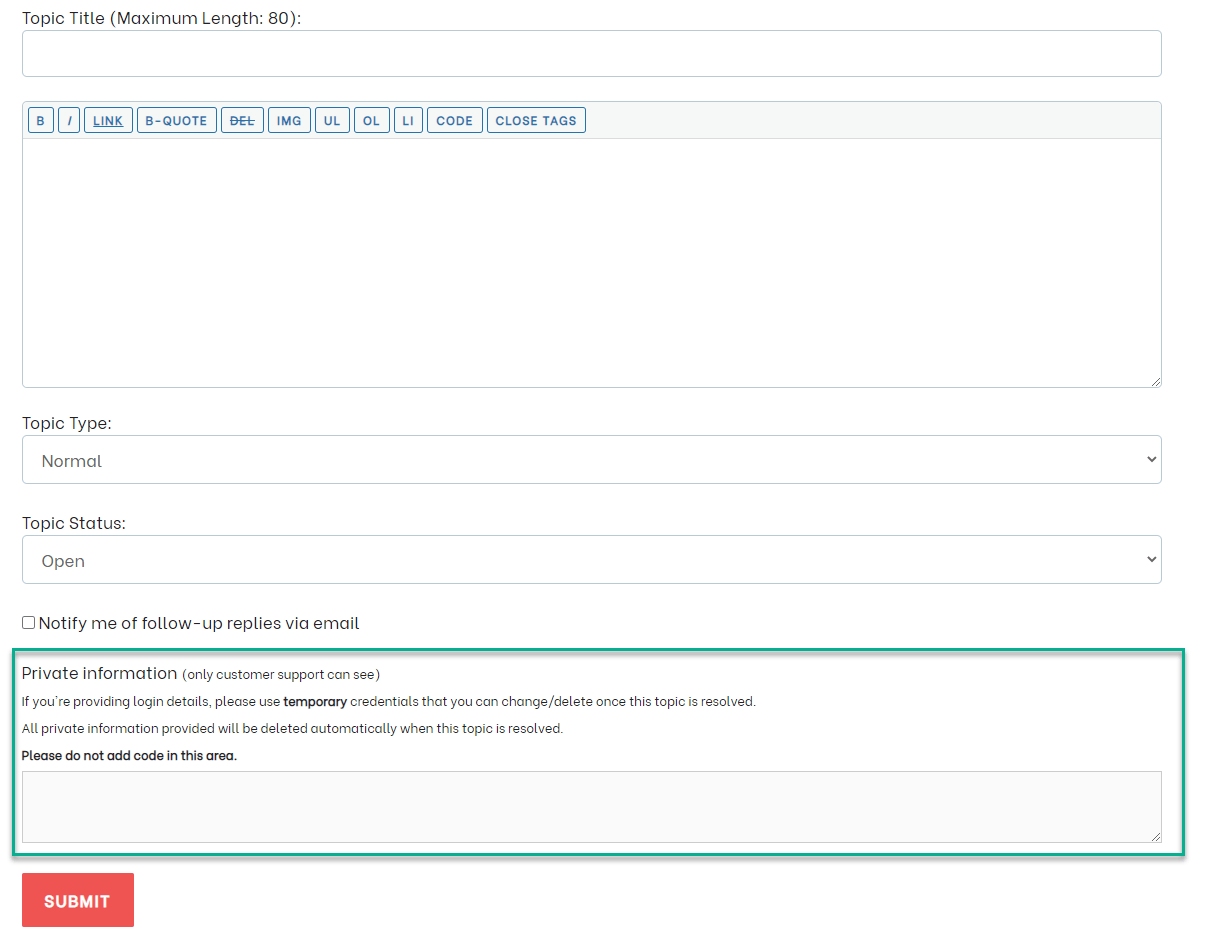
- Add your site URL in the Private information field (below) so staff can inspect the problem directly.
- Screenshots: upload them to a service such as Postimages or Imgur and paste the link.
Private information
The forum is public. Put site URLs, login details and screenshots of anything sensitive in the Private information field. Only support staff can see it, and it’s deleted automatically when the topic is marked resolved.
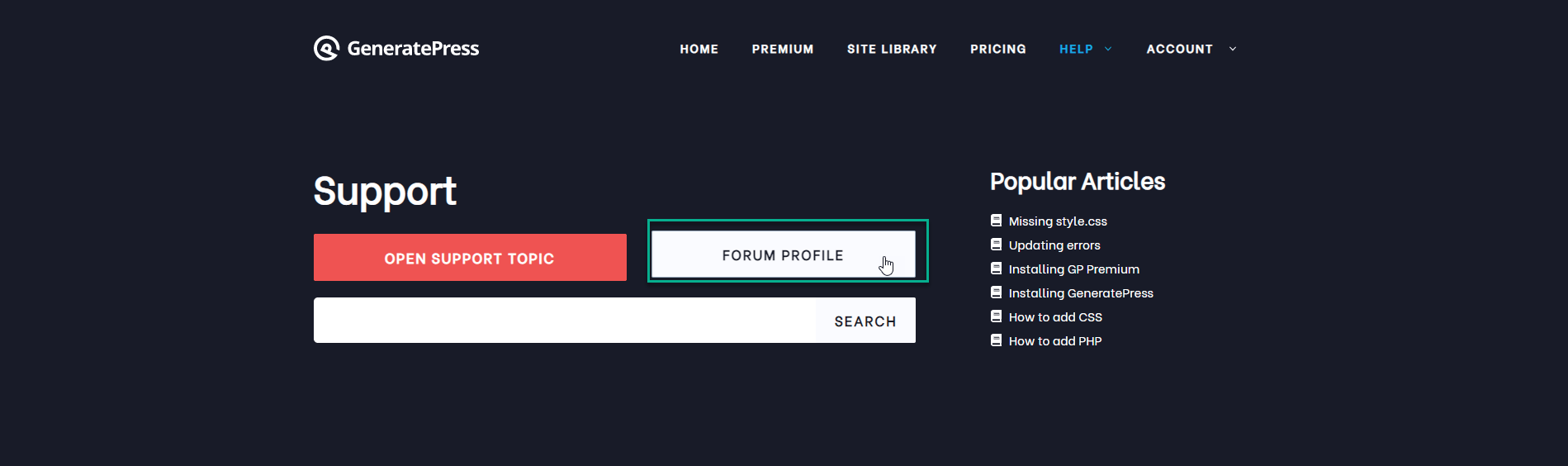
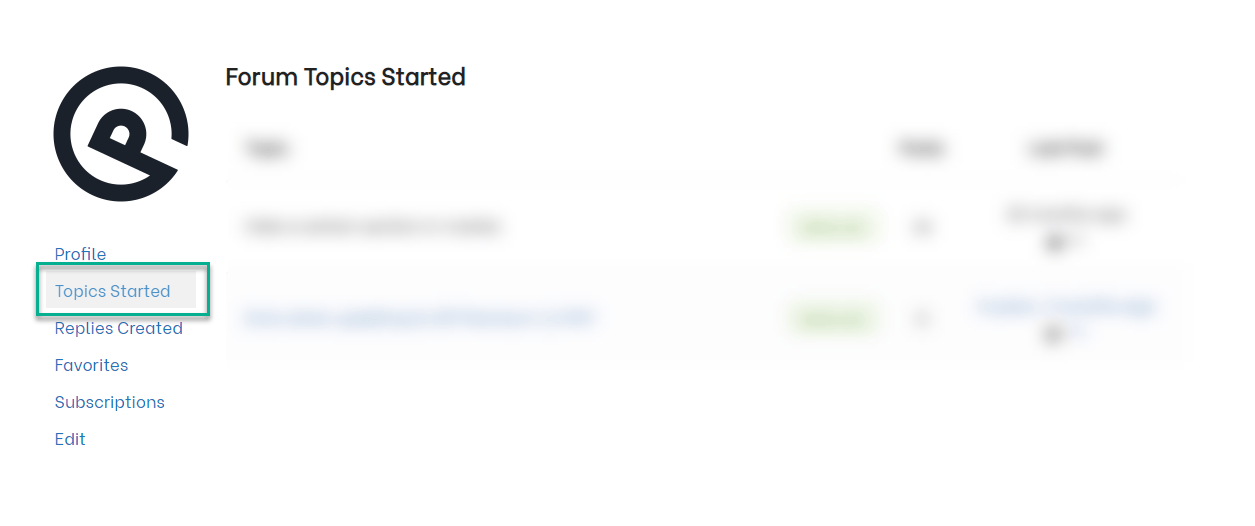
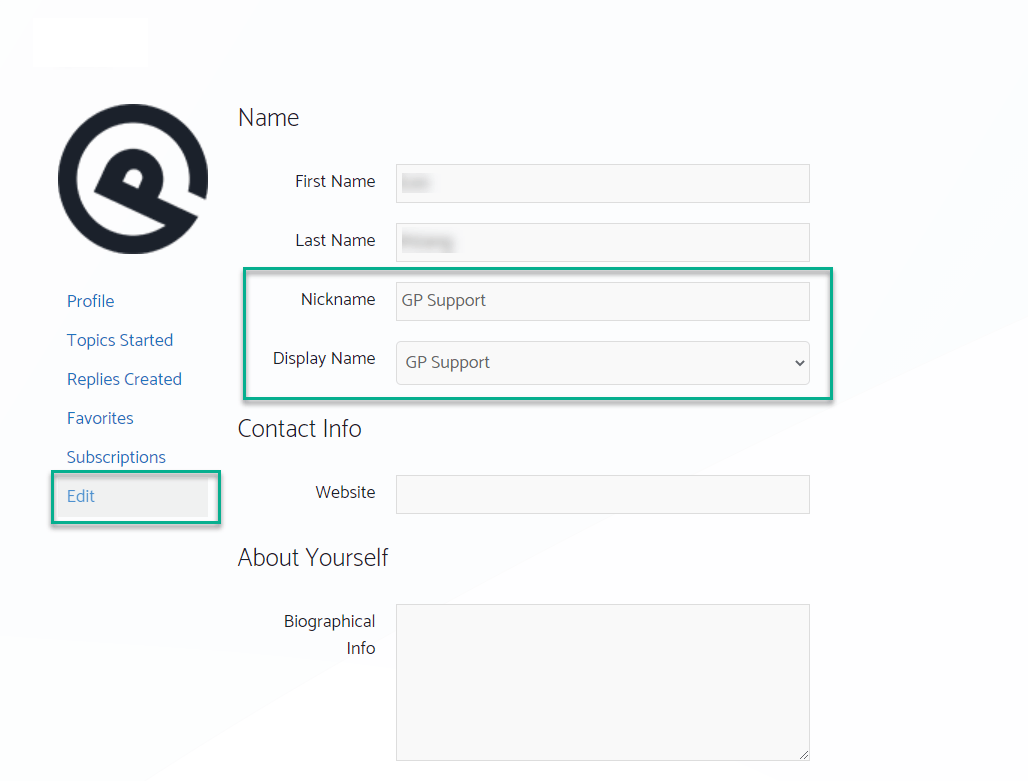
Your forum profile lists the topics you’ve started and lets you change your display name if you’d rather stay anonymous. Profile pictures come from Gravatar.
Related
- Account & Licensing — licence activation, site URLs, renewals
- Site Library — import errors and “no sites found”
- Getting Started — installing and updating
- Legacy Features — floats to flexbox and older modules