Install GenerateBlocks
The first thing you’ll want to do is install GenerateBlocks, the free plugin.
The free plugin needs to be installed and activated for the GenerateBlocks pro to work.
Download GenerateBlocks Pro
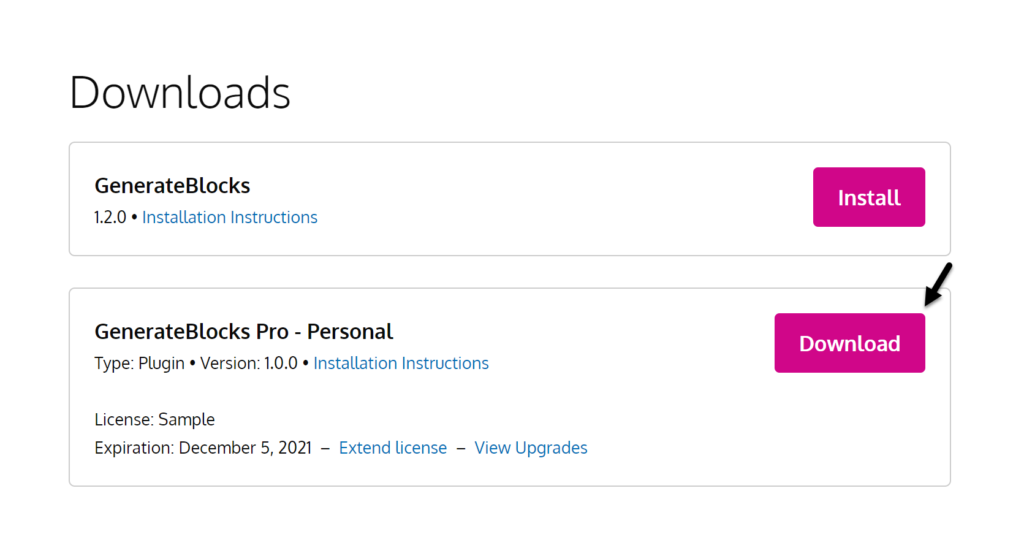
To find your download link, go to your account.
Click or right-click the download button (control + click for Mac users), then save the file to your computer. The file should save as generateblocks-pro-1.x.x.zip.
- Using Firefox or Chrome, the option you want to click is “Save link as…”.
- In Safari, it’s “Download linked file as…”.
- In Internet Explorer, it’s “Save target as…”.
Note for Mac users who are using Safari: If your download appears as an ordinary folder instead of a zip file, go to “Safari Preferences > General” and uncheck “Open ‘safe’ files after downloading”. Then the download will remain a zip file and not be unpacked.
Install GenerateBlocks Pro
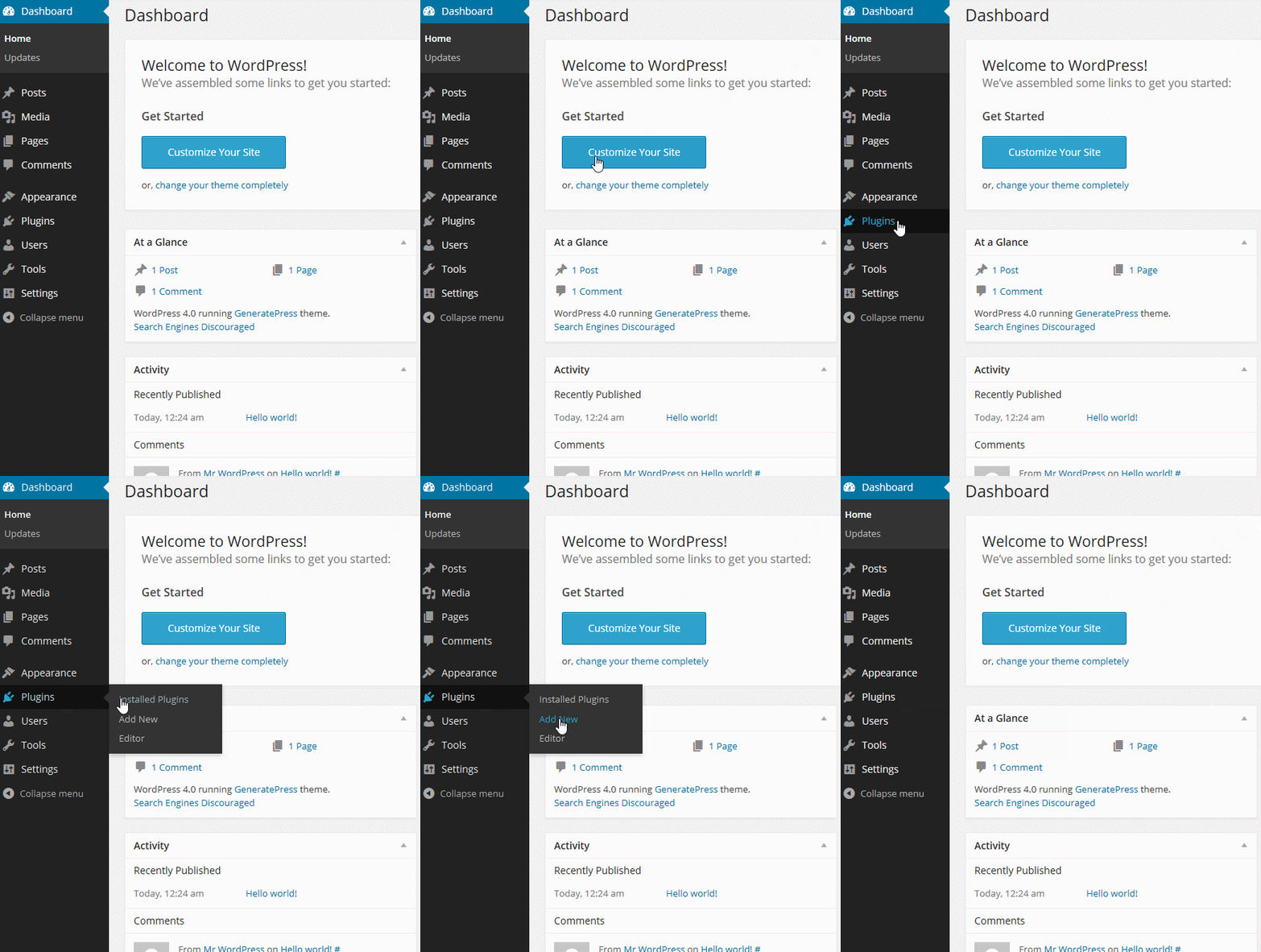
From your Dashboard, go to Plugins > Add New.
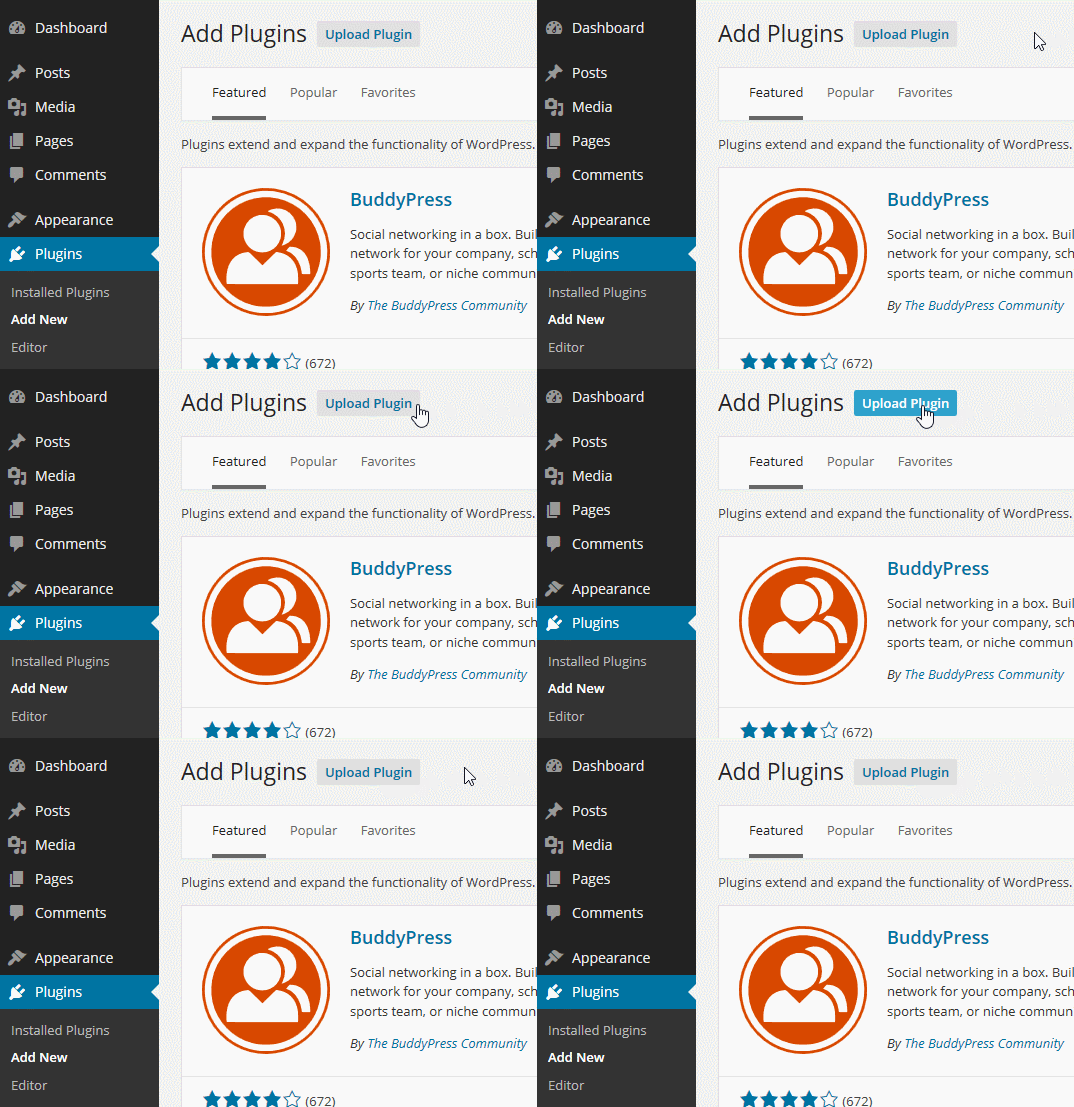
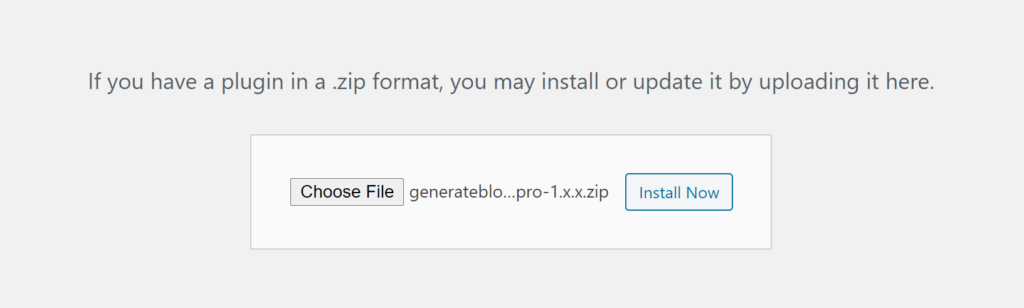
Click Upload Plugin at the top, browse and select the generateblocks-pro-1.x.x.zip file we downloaded.
Updating GenerateBlocks Pro
GenerateBlocks Pro updates contain bug fixes and new features. You can check what version you’re running in GenerateBlocks or in the Plugins area of your Dashboard.
In order to receive updates through your Dashboard, you need to activate your license key.
Finding Your License Key
To find your license key, go to your account and locate your download.
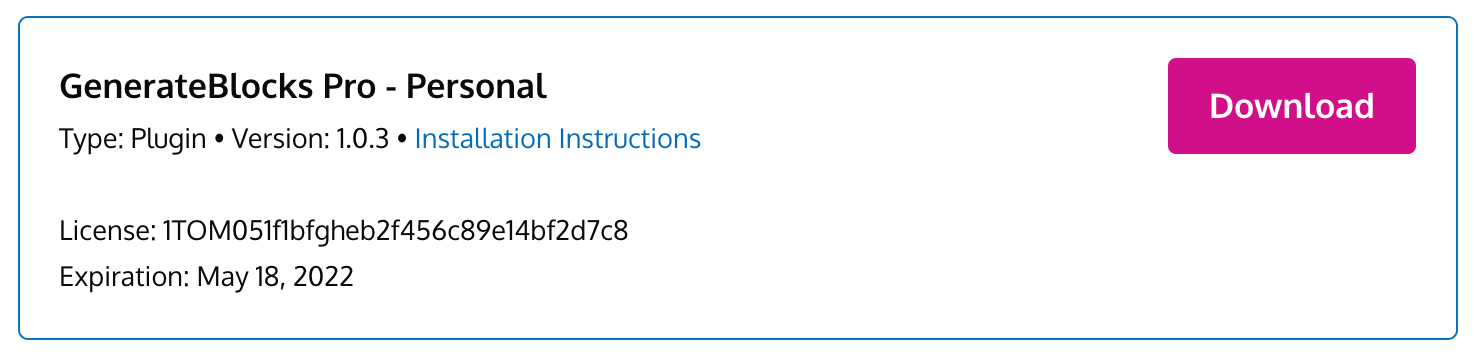
Copy your license key and move onto the next step.
Activating Updates
Now that we have our license key copied, we can navigate to “GenerateBlocks” in our Dashboards.
On the top, you’ll see a link labeled “Updates”.
Paste your license key into the license key field, and click the “Save” button.
Problem activating? See this article.
Manually Updating
Sometimes the update process through your Dashboard won’t work due to server restrictions. In that case, you can manually update.
- Download a fresh copy of your add-on through your account.
- Upload and activate the fresh copy you downloaded in step 1.
Updating Issues
Update package not available
Updates can only process if your license key is activated.
To activate your license key, go to GenerateBlocks > Settings in your Dashboard, add your license key into the license key field, and then click the save button.
Getting an unauthorized message
When you activate your license, the URL you’re activating it from is authorized on our end.
If that URL changes at any time, you need to re-authorize your license key or you’ll received an “unauthorized” error when trying to update.
To re-authorize your license key, go to GenerateBlocks > Settings and click the Save button under your license key field.
Could not copy file
Also seen as “could not create directory”.
This error can happen for two reasons.
- If you’re using your localhost running on a Windows machine. For whatever reason, there’s a bug between the WordPress updating system and Windows hosting. You can read the more technical aspects of this issue here. To fix this issue, you can use this plugin.
- If you’re using a live server that’s not Windows-based, it’s likely that some of the file/folder permissions are not what they should be. Contact your hosting and ask them to make sure that you’re able to upload/remove/change files on your server through WordPress.
Manually updating
If all else fails, you can always manually update the plugin by re-uploading the new version using the same process you used when installing it.