The first step of adding GenerateBlocks is to make sure the plugin is installed and activated.
After the installation is completed, add a new page or post to access the block editor:
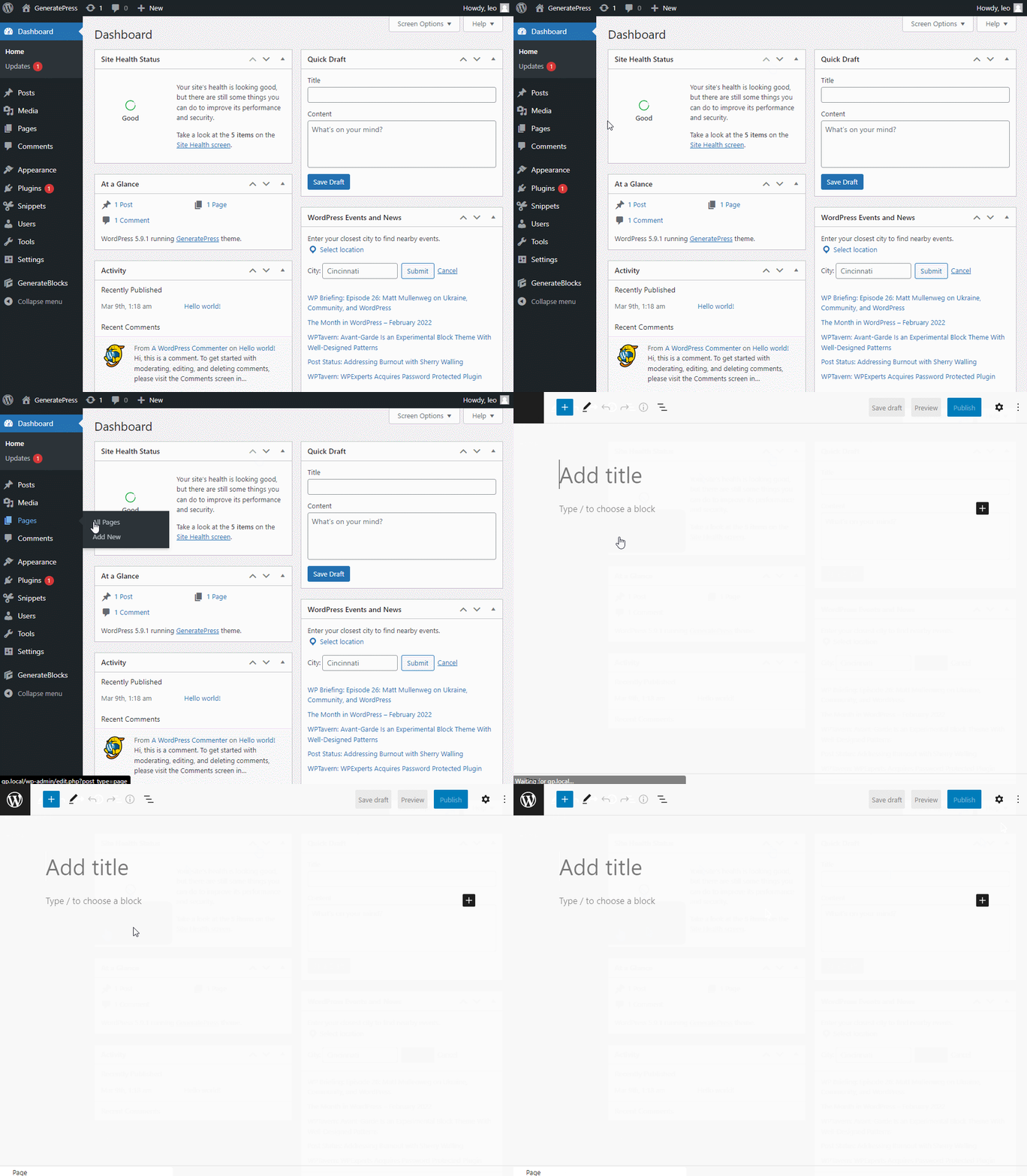
The six core blocks can be added by clicking the Add Block button and search for GenerateBlocks:
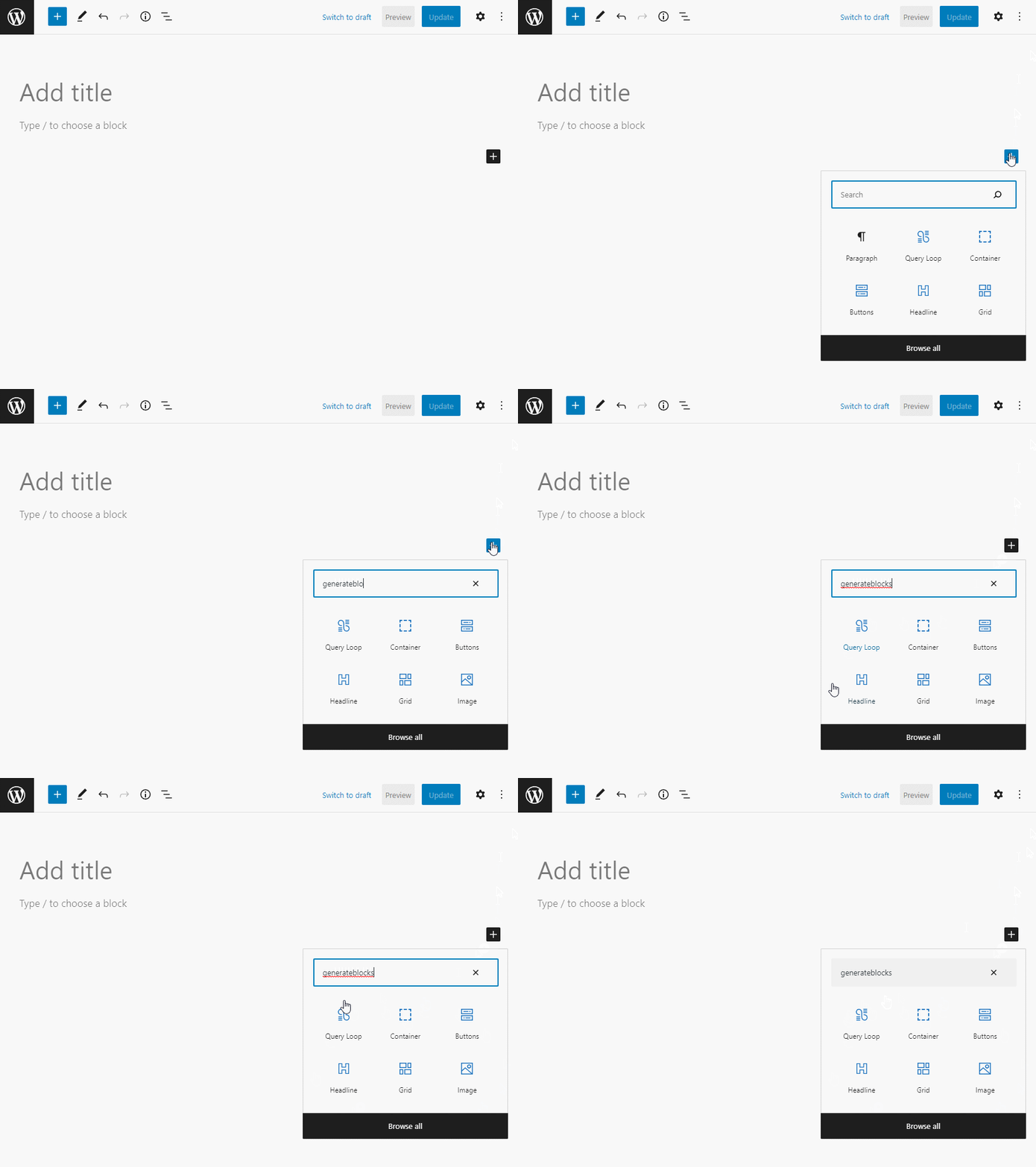
Or use the Browser all option:
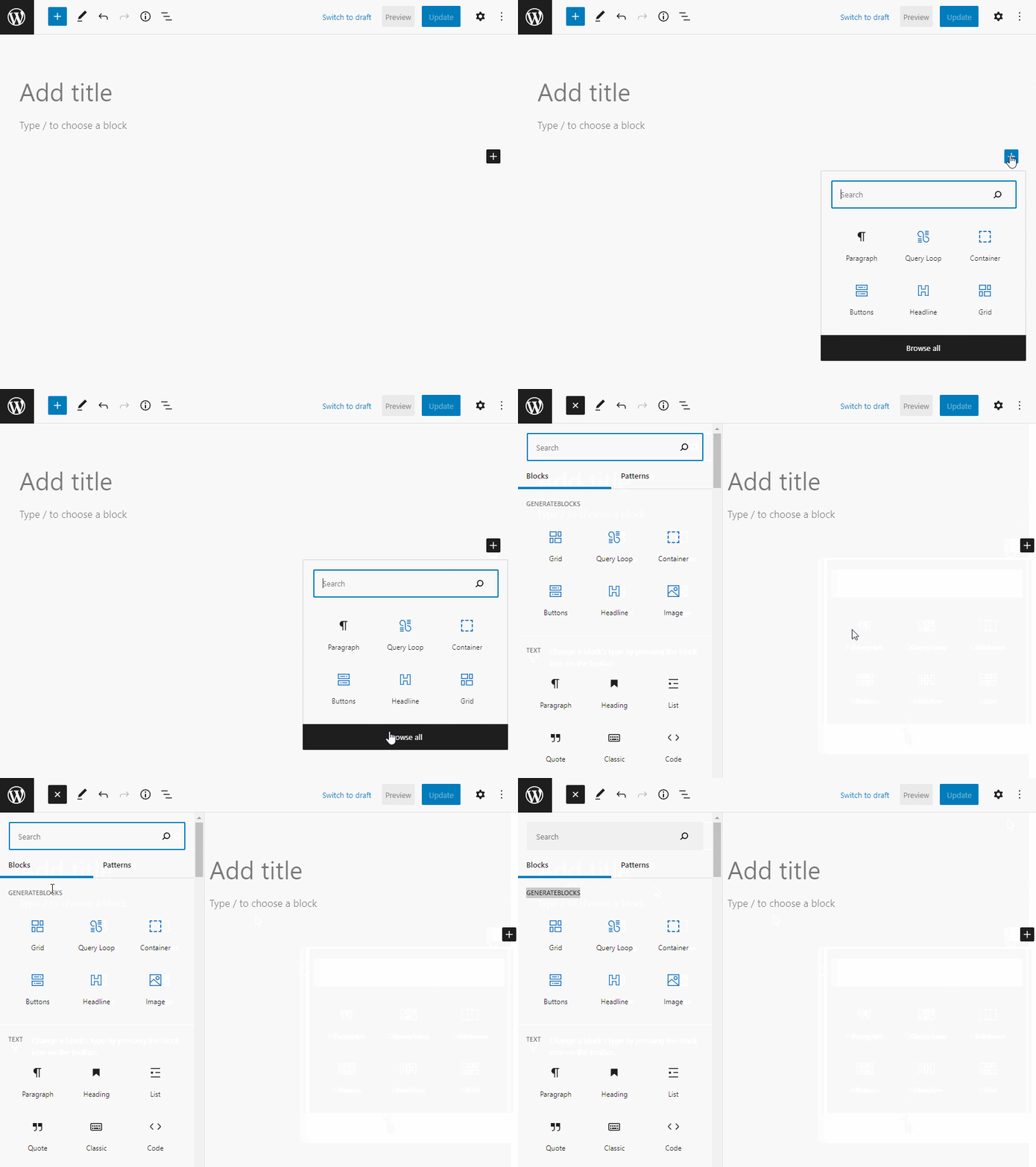
If you have GenerateBlocks pro installed and activated, then you will also see the Pattern Library block:
Responsive Controls
All GenerateBlocks have responsive controls that allow you to set different values, alignment etc. for each device.
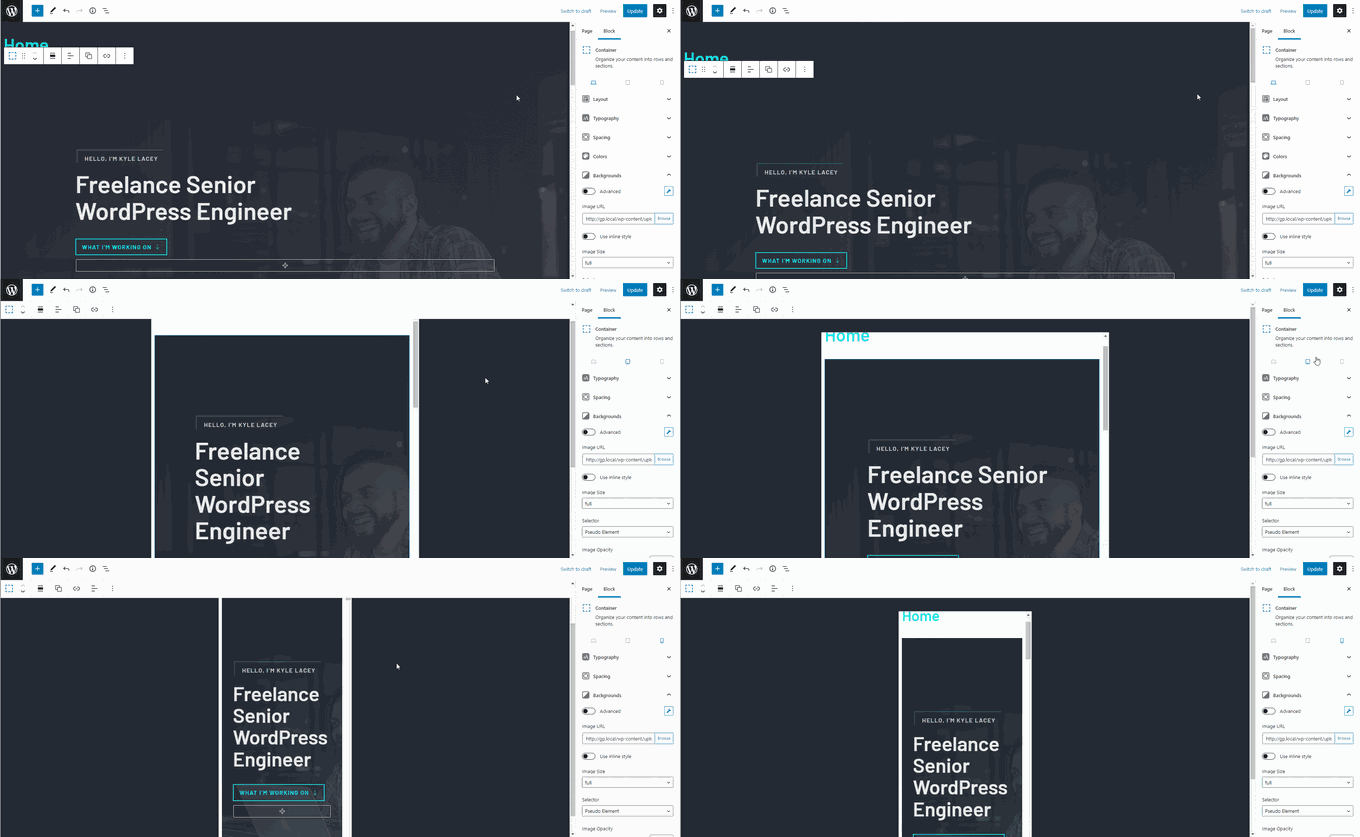
The responsive controls can be accessed by clicking the device icons below the block description. For examples:
When the tablet and mobile icon is clicked, you will also see the responsive previews:
Copy+Paste Styles
This is a feature in our pro version only.
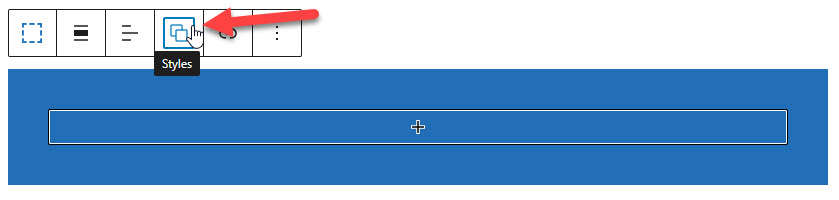
The Copy+Paste Styles feature is a great time-saver. It allows you to copy the styles of a block, and paste them into another block of the same type.
For example, if we have three Container blocks with a black background and white text, but we change it to a white background with black text, we can use the Copy+Paste Styles feature to copy the new styles and seamlessly apply them to the other two blocks with only a couple of clicks.
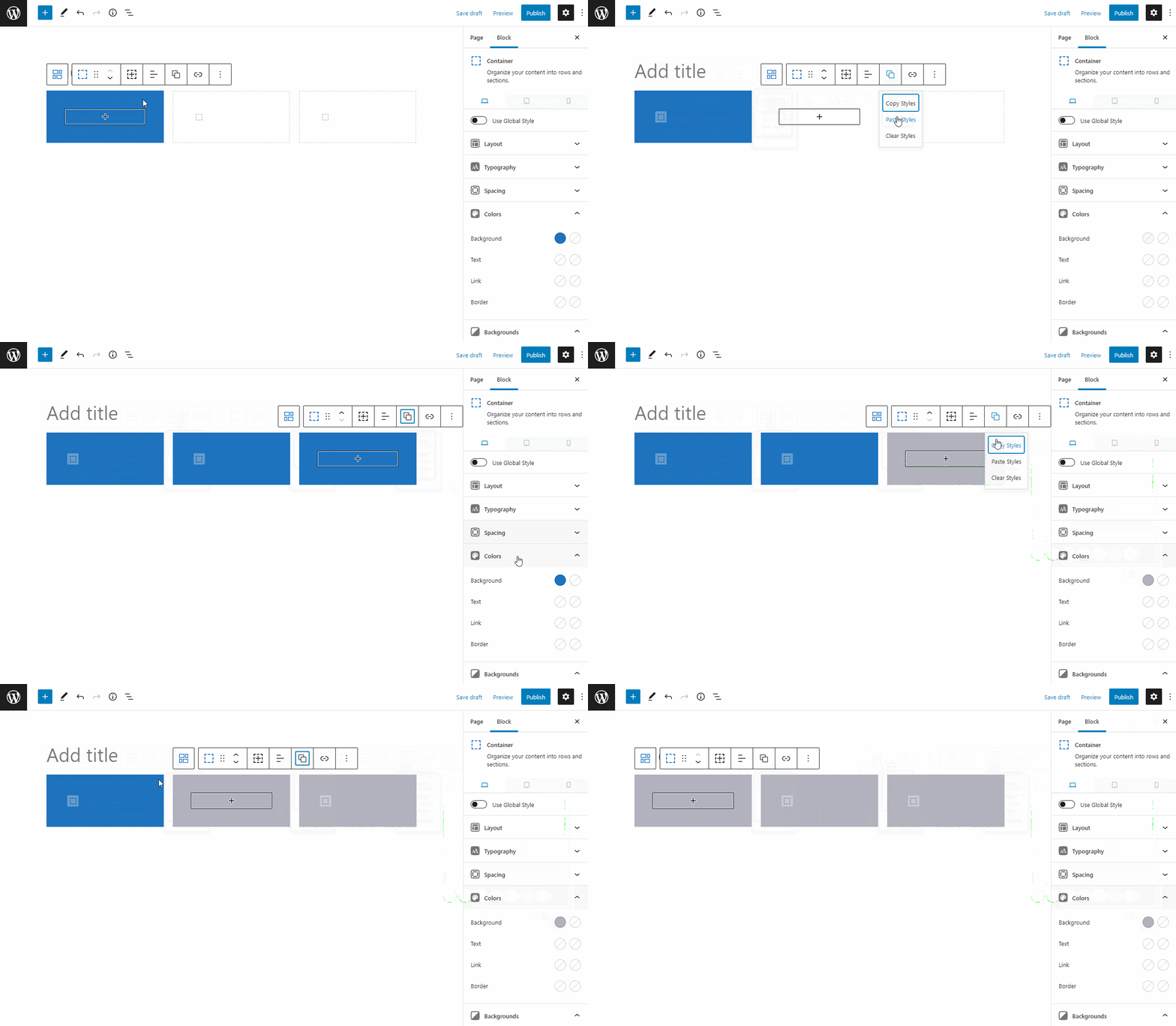
The feature only works for the block you currently have selected. If you select a Container block, it will copy+paste the styles for that Container block into other Container blocks. It does not affect any blocks inside the selected Container.
Device Visibility
This is a feature in our pro version only.
Our Blocks have a Device Visibility feature in the Advanced Panel. This allows you to hide our blocks on specific devices using CSS.
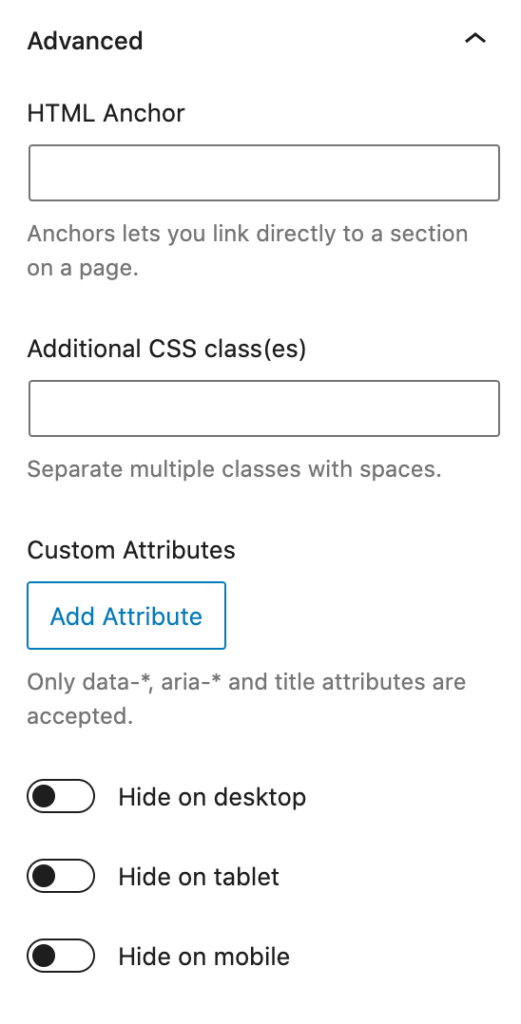
Toggling these options will hide the block in the editor and on the front-end using CSS. If you need to access the block in the editor, you can either select it while viewing a device where it’s visible or use the List View feature to select it.
Custom Attributes
This is a feature in our pro version only.
Our Blocks allow you to add an unlimited number of custom attributes to them.
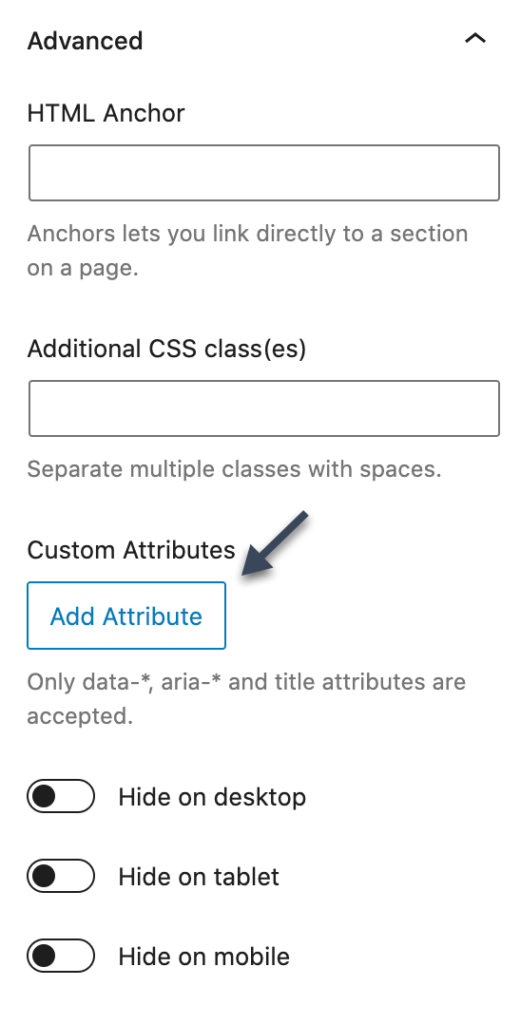
Clicking the “Add Attribute” button will add new fields – an attribute name and label.
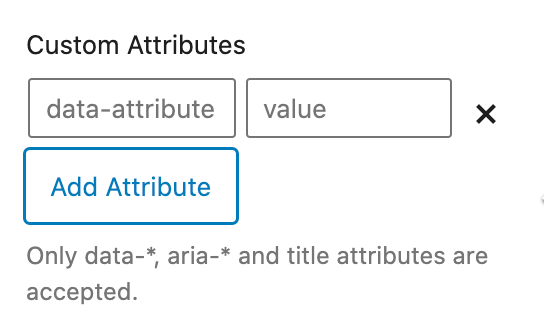
This feature is ideal for data-* attributes when you’re using a library like AOS or Lity.
For security purposes, we only accept data attributes and the title attribute at this time.
Unstyled Content
GenerateBlocks scans your content when a page loads and generates CSS based on your chosen values in each block.
If you’re generating an external CSS file (GenerateBlocks > Settings), a file will be created with the generated CSS and placed in your wp-content/generateblocks.
This method works great and is better than inline embedding when it comes to performance. However, it can conflict with some servers/caching methods.
Removing Query Strings
Some performance/caching plugins come with an option to remove query strings. If you do this, your generated CSS file will not know when you’ve changed something on the page. This means your changes won’t display, as the browser has cached the file. Doing this can also prevent the file from loading at all when combined with caching plugins.
Solutions
a) Disable this option, or use Inline Embedding for the CSS Print Method in GenerateBlocks > Settings. b) Regenerate your CSS files in GenerateBlocks > Settings.
Caching
Some caching plugins seem to conflict with the file generation. One we’ve observed a few times is the Siteground Optimizer plugin. If you find your pages aren’t loading their styles, it’s likely due to a caching plugin or your server caching.
Solutions
a) Choose Inline Embedding for the CSS Print Method in GenerateBlocks > Settings. b) Regenerate your CSS files in GenerateBlocks > Settings.
Adding content sources for dynamic CSS generation
By default, GenerateBlocks scans your content area for its blocks and generates the necessary CSS based on your block settings.
In some cases, you may be adding blocks to other areas not within your content area. In these cases, you need to tell GenerateBlocks about the existence of these other areas, so it know to scan them.
For example, GeneratePress Elements use a custom post type to insert blocks throughout the theme. In order for GenerateBlocks to generate the necessary dynamic CSS, we need to tell GenerateBlocks about this custom post type so it can scan its content.
To do this, we use the generateblocks_do_content filter. Here’s an example:
add_filter( 'generateblocks_do_content', function( $content ) {
    $post_id = 123; // A post ID to check the content of. Can be dynamically set.

    if ( has_blocks( $post_id ) ) {
        $block_element = get_post( $post_id );

        if ( ! $block_element || 'your_post_type' !== $block_element->post_type ) {
            return $content;
        }

        if ( 'publish' !== $block_element->post_status || ! empty( $block_element->post_password ) ) {
            return $content;
        }

        $content .= $block_element->post_content;
    }

    return $content;
} );