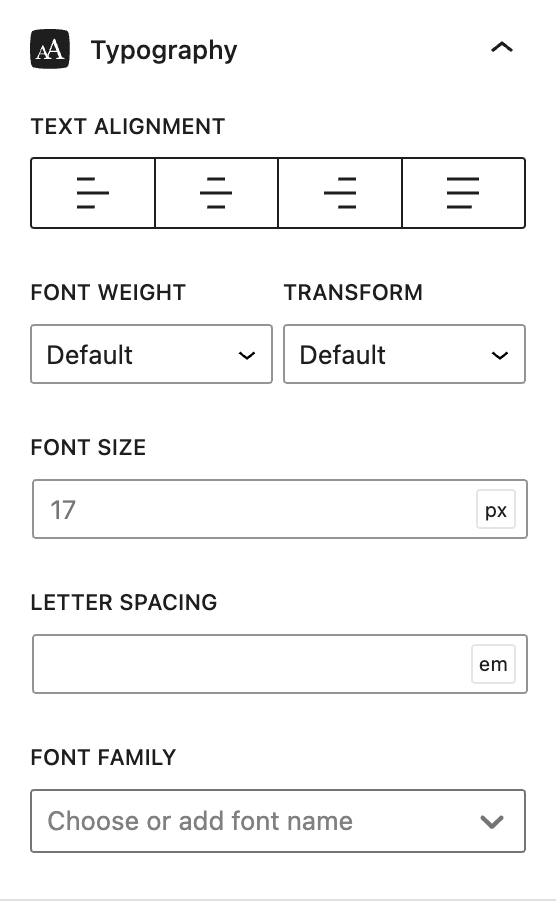
Our typography component allows you to control the typography of your block.
Font Family
The Font Family dropdown serves a shortcut for the “Enter font name…” field. It has a small collection of popular fonts you can choose from.
If the list doesn’t have the font you wish to use, simply type it into the “Enter font name…” field.
Entering something into this field will make a “Google Font” toggle appear. If the font you’re entering is a Google Font, you can toggle this option and we’ll make the request to Google Fonts for you.
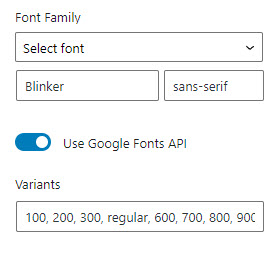
If it’s a Google font, you’ll have control over the variants you want to load. These variants will populate automatically depending on the font you chose. The fewer variants you need, the smaller the request size will be.
The font family fallback will also be populated automatically depending on the font you choose.
If you’re using a Google Font but hosting it locally, simply leave the “Google Font” toggle un-checked.
Add Custom Fonts to Font Family Dropdown List
This feature enables users to incorporate their custom fonts into GB’s font family dropdown list. Kindly note that before utilizing this filter to include fonts in GB’s dropdown list, they must be either installed or linked to your website.
add_filter(
    'generateblocks_typography_font_family_list',
    function( $fonts ) {
        $fonts[] = [
            'label' => 'My custom fonts',
            'options' => [
                [
                    'label' => 'My cool font',
                    'value' => 'My cool font',
                ],
                [
                    'label' => 'Another font',
                    'value' => 'Another font',
                ],
            ],
        ];

        return $fonts;
    }
);
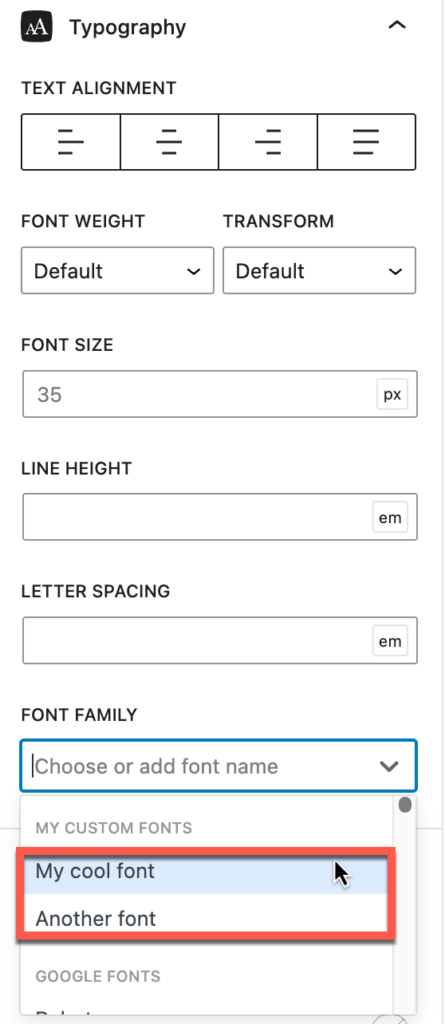
As a result, you’ll have the option to select from the two custom fonts we’ve just added to the dropdown list.