Our icon picker component is found in the Headline and Buttons blocks. It allows you to insert an SVG icon.
This article will focus on the icon picker itself. The Buttons and Headline blocks each have different icon picker options, which you can learn more about in those articles.
Adding an Icon
The beauty of this component is you can add your own SVG HTML into the field. This HTML is sanitized when you add it and when you save the page to make sure it’s safe.
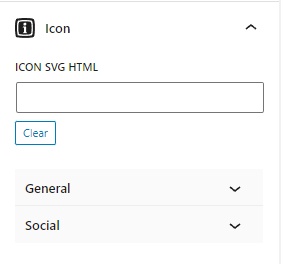
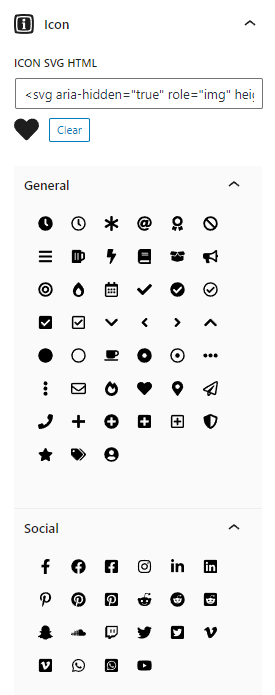
There are also a handful of icon “shortcuts” we’ve added in the “General Icons” and “Social Icons” panels. You can open these panels and click an icon to add its HTML to the field.
Icon Settings
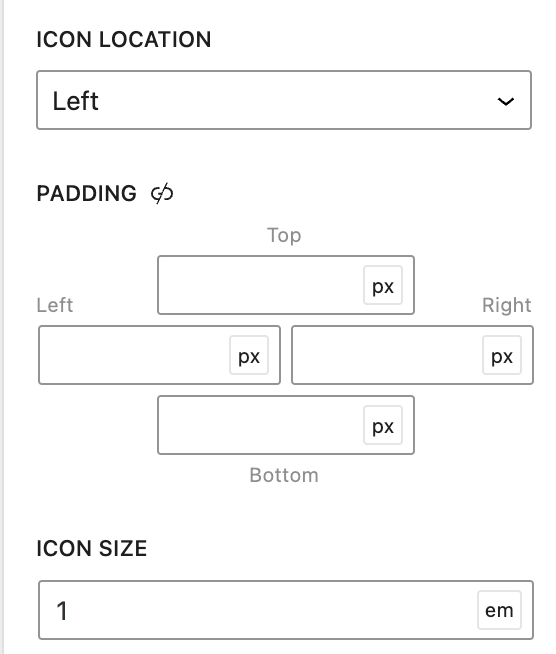
The icon settings will appear once an icon is chosen or added.
Removing an Icon
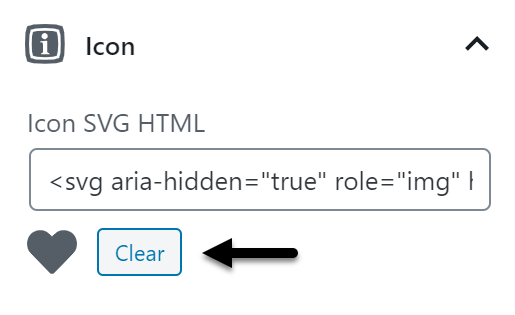
To remove an icon, simply click the “Clear” button next to the icon, or simply delete the HTML from the field.
Adding Custom SVG Icons
Our Icon Picker Component is really cool because it allows you to add your own SVG HTML. This means you’re not limited to the icons we provide, you can use any SVG icon you like.
If you’re looking for SVG icons to use, you can turn to a library like Font Awesome. Of course, there are tons of open source SVG icon libraries out there if you search for them.
Once you find the icon you want to use, download the .svg file and open it inside your favorite text editor.
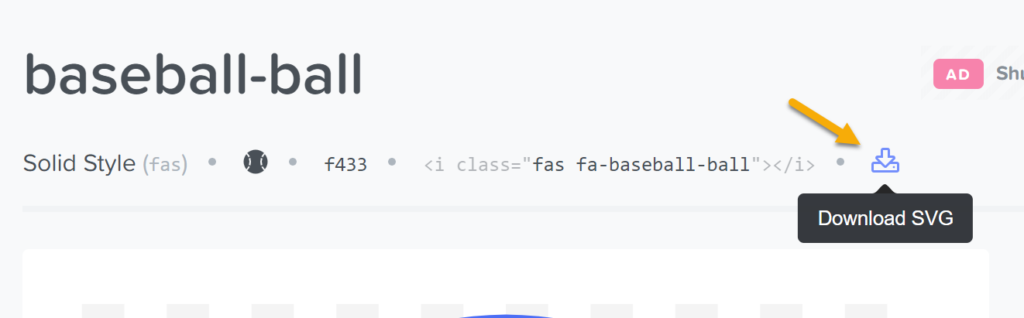
Download the .svg file
In your text editor, the code will look something like this:
<svg aria-hidden="true" focusable="false" data-prefix="fas" data-icon="baseball-ball" class="svg-inline--fa fa-baseball-ball fa-w-16" role="img" xmlns="http://www.w3.org/2000/svg" viewBox="0 0 496 512"><path fill="currentColor" d="M368.5 363.9l28.8-13.9c11.1 22.9 26 43.2 44.1 60.9 34-42.5 54.5-96.3 54.5-154.9 0-58.5-20.4-112.2-54.2-154.6-17.8 17.3-32.6 37.1-43.6 59.5l-28.7-14.1c12.8-26 30-49 50.8-69C375.6 34.7 315 8 248 8 181.1 8 120.5 34.6 75.9 77.7c20.7 19.9 37.9 42.9 50.7 68.8l-28.7 14.1c-11-22.3-25.7-42.1-43.5-59.4C20.4 143.7 0 197.4 0 256c0 58.6 20.4 112.3 54.4 154.7 18.2-17.7 33.2-38 44.3-61l28.8 13.9c-12.9 26.7-30.3 50.3-51.5 70.7 44.5 43.1 105.1 69.7 172 69.7 66.8 0 127.3-26.5 171.9-69.5-21.1-20.4-38.5-43.9-51.4-70.6zm-228.3-32l-30.5-9.8c14.9-46.4 12.7-93.8-.6-134l30.4-10c15 45.6 18 99.9.7 153.8zm216.3-153.4l30.4 10c-13.2 40.1-15.5 87.5-.6 134l-30.5 9.8c-17.3-54-14.3-108.3.7-153.8z"></path></svg>You can now paste this code directly into the Icon SVG HTML option inside the Icon Picker Component.
However, there’s one more thing you should do before doing that – optimize the code.
This website is great for doing just that.
Simply copy your code, and then choose the Paste Markup option on the website. Once you paste your code, it will optimize it and allow you to re-copy the optimized code.
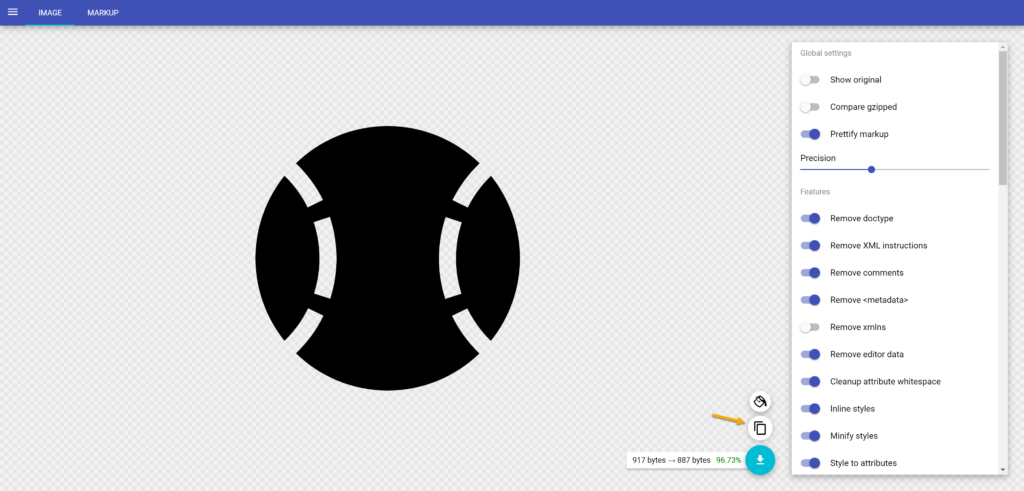
Copy the optimized code
Now you’re ready to add your code to your block!
Fix SVG icons not saving
GenerateBlocks allows you to insert your own SVG icons, which is great because you don’t have to rely on a pre-determined list of available icons.
However, SVG code can be dangerous. It can include <script> elements, which can lead to XSS vulnerabilities.
To mitigate that risk, we use DomPurify, which sanitizes your SVG code when you insert it, and when you save it. This prevents nasty things from ever making it into your content.
However, WordPress itself will not save SVG code unless your user has the unfiltered_html capability.
By default, everyone but the “author” role has this capability. The exception is within multi-site installs, where even administrators don’t have the ability to save unfiltered_html.
If you’re running into this issue, you can tell WordPress to allow these basic SVG tags/attributes.
add_filter( 'wp_kses_allowed_html', function( $tags, $context ) {
	if ( 'post' === $context ) {
		$tags['svg'] = array(
			'viewbox' => true,
			'filter' => true,
			'xmlns' => true,
			'class' => true,
			'preserveaspectratio' => true,
			'aria-hidden' => true,
			'data-*' => true,
			'role' => true,
			'height' => true,
			'width' => true,
		);

		$tags['path'] = array(
			'class' => true,
			'fill' => true,
			'd' => true,
		);

		$tags['filter'] = array(
			'id' => true,
		);
	}

	return $tags;
}, 10, 2 );
This code will allow the essential SVG tags/attributes, while continuing to disallow the dangerous bits.
We may add this to the plugin by default one day, but for now it seems like a decision best left up to the user.