The Query Loop block allows you to display posts based on specified parameters; like a PHP loop without the code.
It uses all of the core blocks that you are already familiar with. You can display the posts in columns (or not) with our Grid block, and display all of the post data (titles, dates, excerpts) with the Headline and Button blocks.
Inserting a Query Loop Block
First, make sure you’ve already added a Container Block. It’s good practice to wrap your query loop in a surrounding Container, as it gives you more options moving forward.
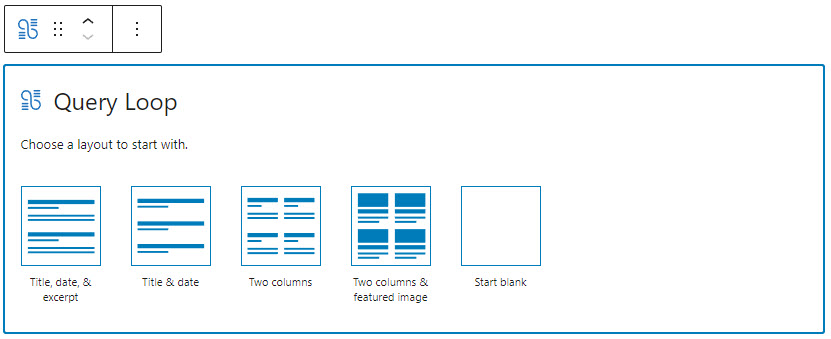
Once you choose the Query Loop Block in the editor, you’ll be given a choice of layout presets.
Query Parameters
The query parameters allow you to customize further what posts are being displayed.
Layout
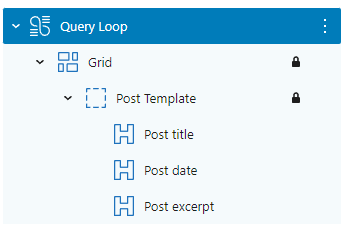
Clicking the Layout panel selects the Grid block that is positioned under the Query loop block. It allows you to configure the column settings if needed and the options are exactly the same as in the Grid block.
Pagination
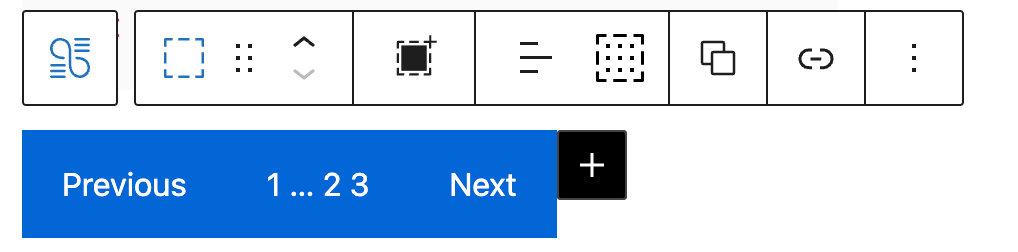
To add pagination to the Query Loop block, simply click on the + icon in the top/floating toolbar.

The default pagination buttons come with GB button’s default style, you can customize it after it’s been added.
Query Loop Examples
Recent Posts
By default, the Query Loop block displays the 10 most recent Posts on your site.
Recent Pages
To display recent pages, select Pages under Select post type.
Posts in a Category or Categories
Displaying posts in a specific category or categories is one of the most common usages of the Query Loop block and very easy to achieve.
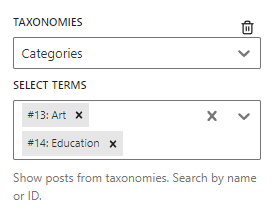
Simply add a new parameter, select Taxonomies, then select Categories.
One or multiple categories as desired.
For more information on WordPress taxonomies, check out this article.
Posts in a Tag or Tags
Displaying posts in a specific tag or tags is one of the most common usages of the Query Loop block and very easy to achieve.
Simply add a new parameter, select Taxonomies, then select Tags.
One or multiple tags as desired.
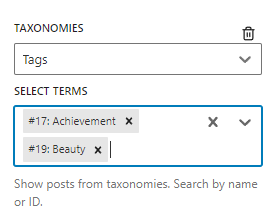
For more information on WordPress taxonomies, check out this article.
Order Query Loop by Custom Field
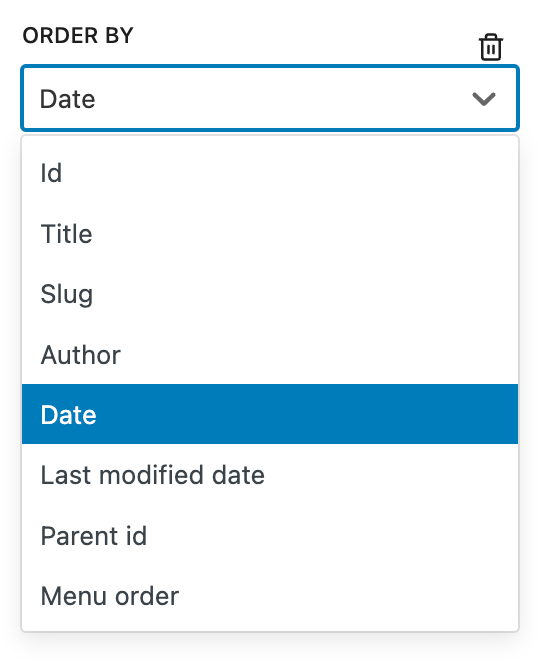
Query loop block offers some built-in orderby parameters as shown. To order your posts by custom field values, follow the steps below.
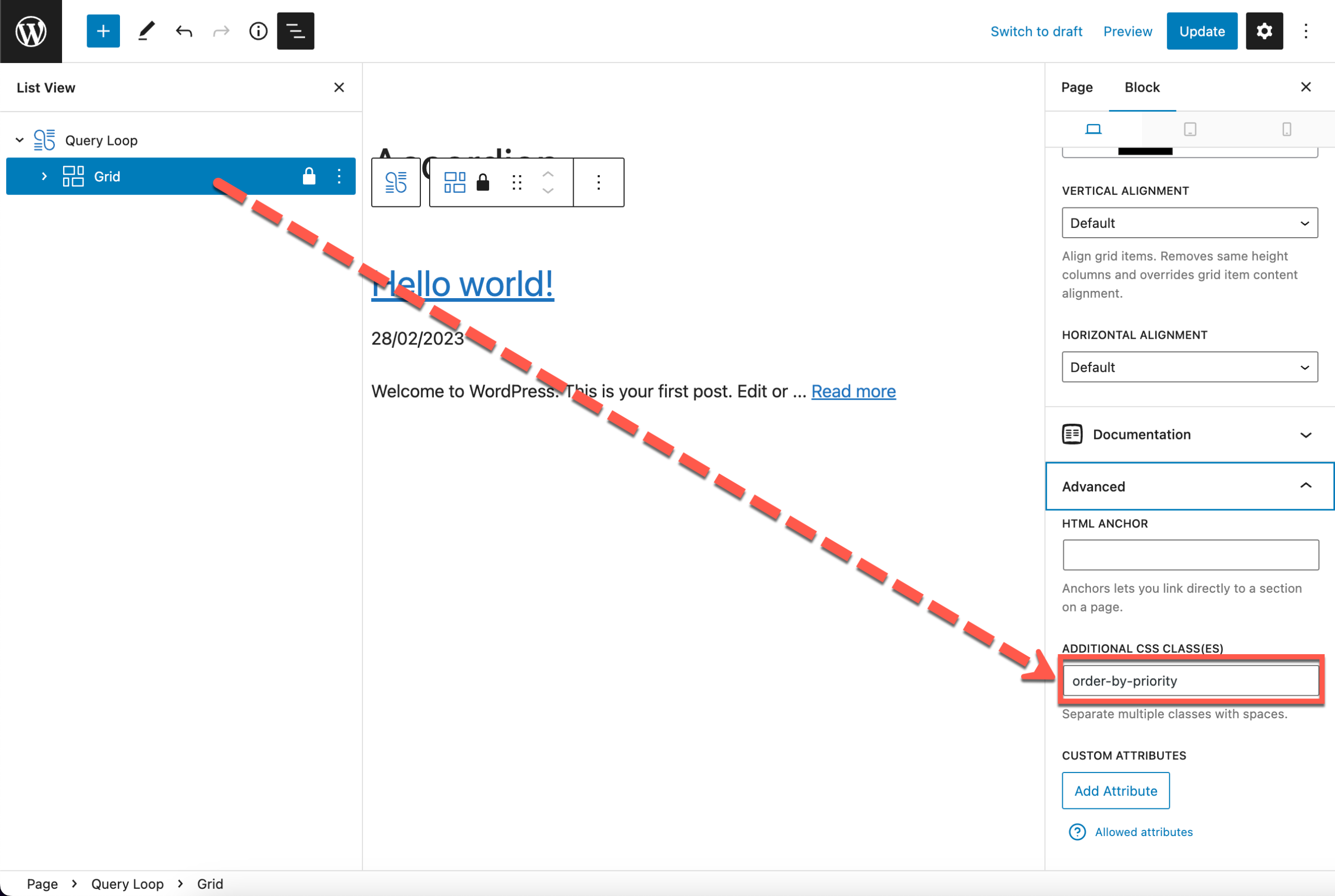
1. Add an additional CSS class to the Query loop
For example, we’d like to order the query loop by the value of the custom field priority.
Add a specific class name to the Grid block which is directly nested in the Query loop block, eg. order-by-priority.
2. Add the PHP filter
The filter targets the block with the class name order-by-priority and set the orderby parameter to the custom field values.
We will be using these common WP_Query arguments:
meta_key: the custom field name.meta_type: the value type of the custom field.orderby: specify the criteria for sorting the results of a query.order: specify the order in which the results of a query should be sorted,ASCfor ascending orders, andDESCfor descending orders.
Example A: Numeric Values
add_filter( 'generateblocks_query_loop_args', function( $query_args, $attributes ) {

    // apply filter if loop has class: order-by-priority
    if (! is_admin() && ! empty( $attributes['className'] ) && strpos( $attributes['className'], 'order-by-priority' ) !== false) {

        $query_args = array_merge( $query_args, array(
            'meta_key' => 'priority',
            'orderby' => 'meta_value_num',
            'order' => 'ASC',
        ));
    }

    return $query_args;
}, 10, 2 );
Example B: Text Values
CHAR stands for “character”. It is the default meta_type used for custom fields in WordPress, you don’t need to specify it in the code.
//CHAR type custom field value
add_filter( 'generateblocks_query_loop_args', function( $query_args, $attributes ) {

    // apply filter if loop has class: order-by-priority
    if (! is_admin() && ! empty( $attributes['className'] ) && strpos( $attributes['className'], 'order-by-priority' ) !== false) {

        $query_args = array_merge( $query_args, array(
            'meta_key' => 'priority',
            'orderby' => 'meta_value',
            'order' => 'ASC',
        ));
    }
    return $query_args;
}, 10, 2 );
Example C: Date Values
//DATE type custom field value
add_filter( 'generateblocks_query_loop_args', function( $query_args, $attributes ) {

    // apply filter if loop has class: order-by-priority
    if ( ! is_admin() && ! empty( $attributes['className'] ) && strpos( $attributes['className'], 'order-by-priority' ) !== false ) {

        $query_args = array_merge( $query_args, array(
            'meta_key' => 'priority',
            'meta_type' => 'DATE',
            'orderby' => 'meta_value',
            'order' => 'ASC',
        ));
    }
    return $query_args;
}, 10, 2 );
Improve Query Loop Loading Performance In Editor
When employing multiple query loop blocks with a substantial number of posts per page, the operational speed of the editor may experience a decline. In order to enhance this aspect, we have introduced a filtering mechanism that enables the establishment of an upper limit for the number of posts per page.
Step 1: add the filter
To implement this optimization, you can integrate the provided filter into your setup. Replace the return value of 1 with the desired quantity of posts that you intend to exhibit within your query loop blocks during the editor phase:
add_filter('generateblocks_query_loop_editor_posts_cap', function() {
	return 1; // Adjust this value accordingly
});
Step 2: change the posts per page to -1 in the query loop block
After integrating the filter, navigate to the page editor in which you encounter sluggish loading speeds. Within the query loop configuration, set the posts per page value to -1. This step enables the filter to identify the specific query loop in question. Consequently, you should observe an immediate reduction in the number of displayed posts within that query loop.
Step 3: change the posts per page back in the query loop block
Once you have noted the positive effect, feel free to revert the posts per page value to align with the desired outcome for the front-end display.
Use Query loop block to create Related Posts
In its simplest form, related posts are a list of posts displayed within, after, or aside from the current post a visitor is reading. The relationship between those posts and the one currently being read can vary greatly.
We allow users to use our Query loop block to create simple relationships. ie. by author, by taxonomy, or by hierarchy. We’ll introduce some examples of parameter settings in this article.
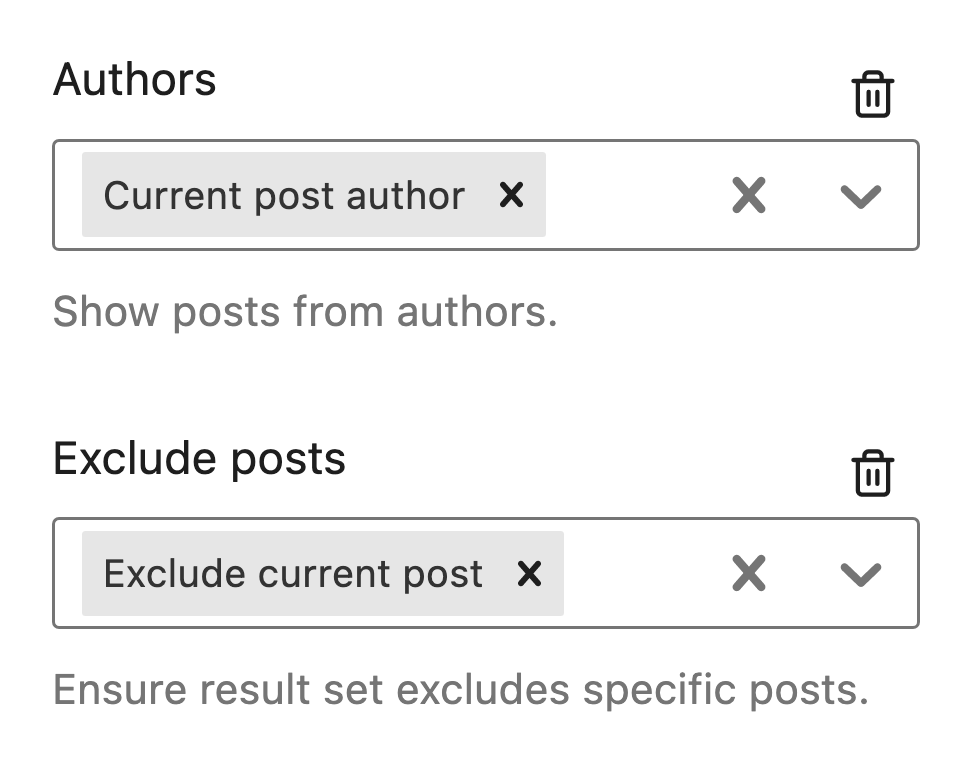
Related Posts by same author
For multi-author sites, it’s quite common to include at the end of the post, or in a sidebar, a list of other posts by the same author. This parameter set will do exactly that whilst making sure we don’t see a duplicate of the current post.
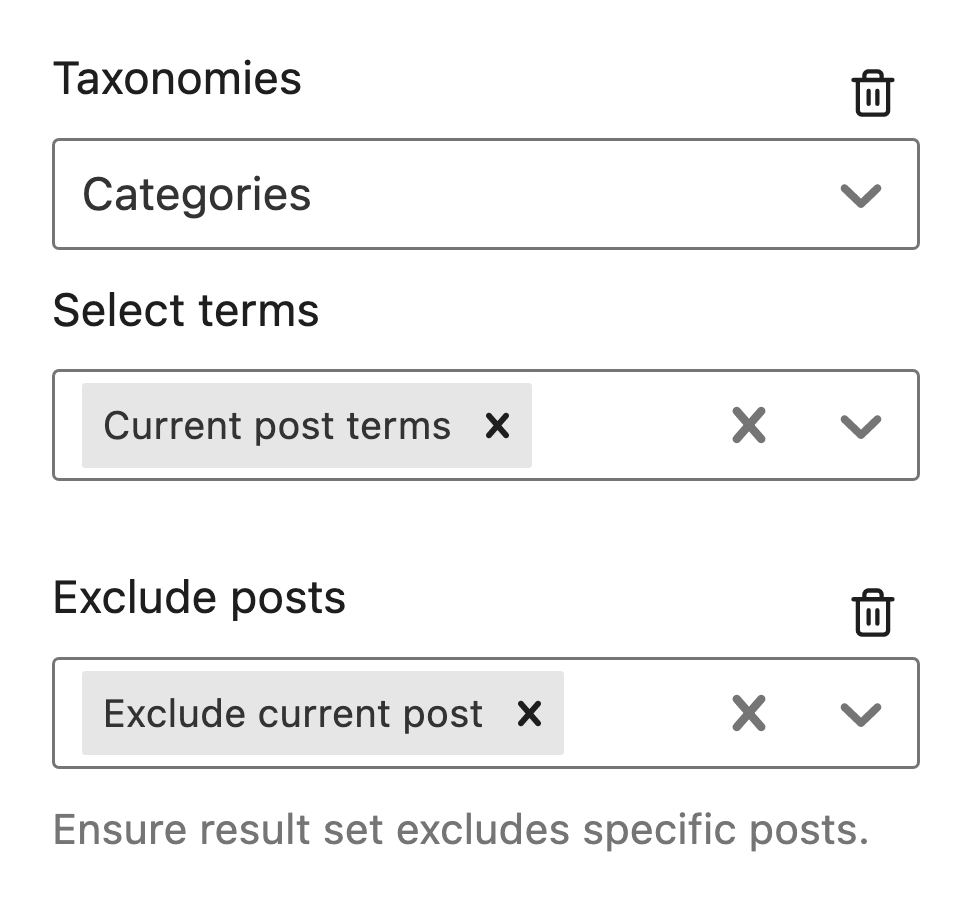
Related Posts by same taxonomy (category, tag, etc.)
A simple, lightweight, and effective related posts method is to use taxonomies to form the post relationships. And this is probably the most sought-after feature. Try these parameters to display posts that share the same category terms.
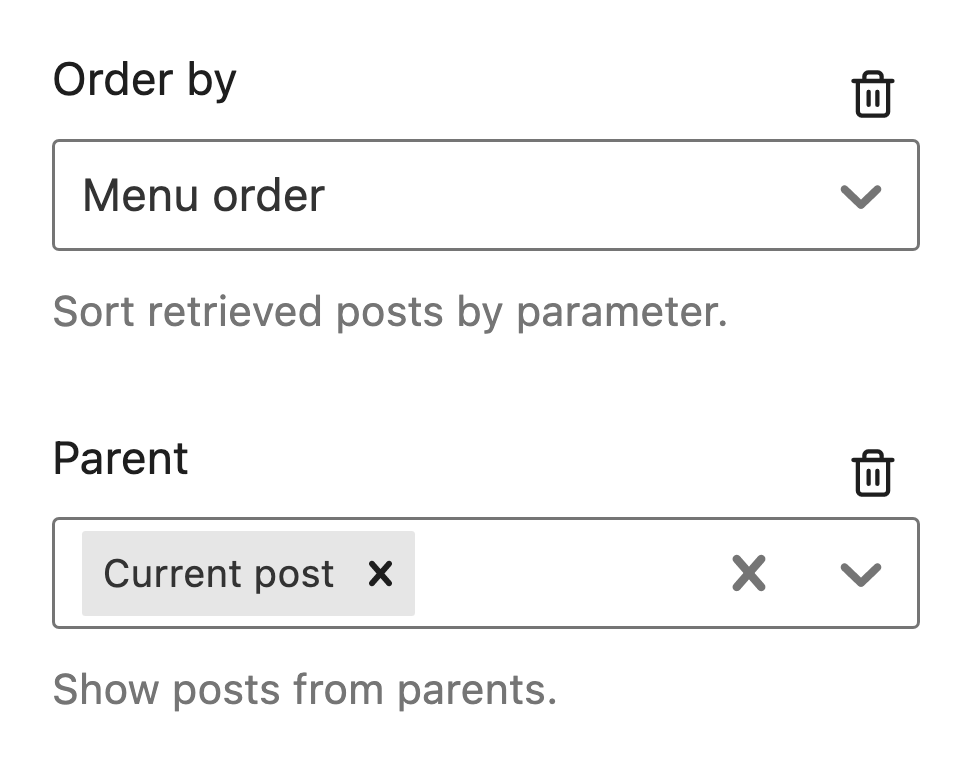
Related Posts by hierarchy
For pages and other post types that support hierarchies, displaying a list of child posts on the post parent is a good way to provide users with a handy index. This can be achieved with this super simple parameter set.
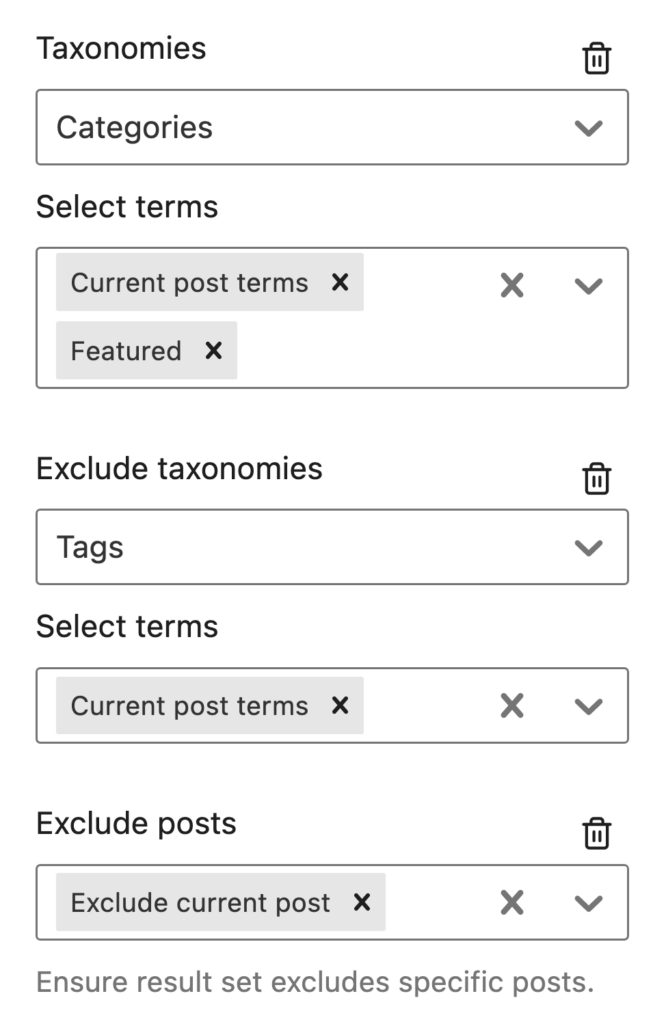
Related posts including categories, excluding tags
In this example, we will be showing posts that share the same category terms as the current post, along with posts in the Featured category. But at the same time, we want to exclude any posts that share the same tags. For example, we are reading a post in the category of Electric Cars with the tag Toyota. In our related posts, we expect to see more posts on electric cars but perhaps from a different manufacturer.
Add multiple post types in one query loop
Currently, GB query loop block can only select 1 post type for the query loop, if you want to add multiple post types in one query loop block, you can use the below method.
1. Add a CSS class to the Query loop block
Add a CSS class to the Grid block of the Query loop block.
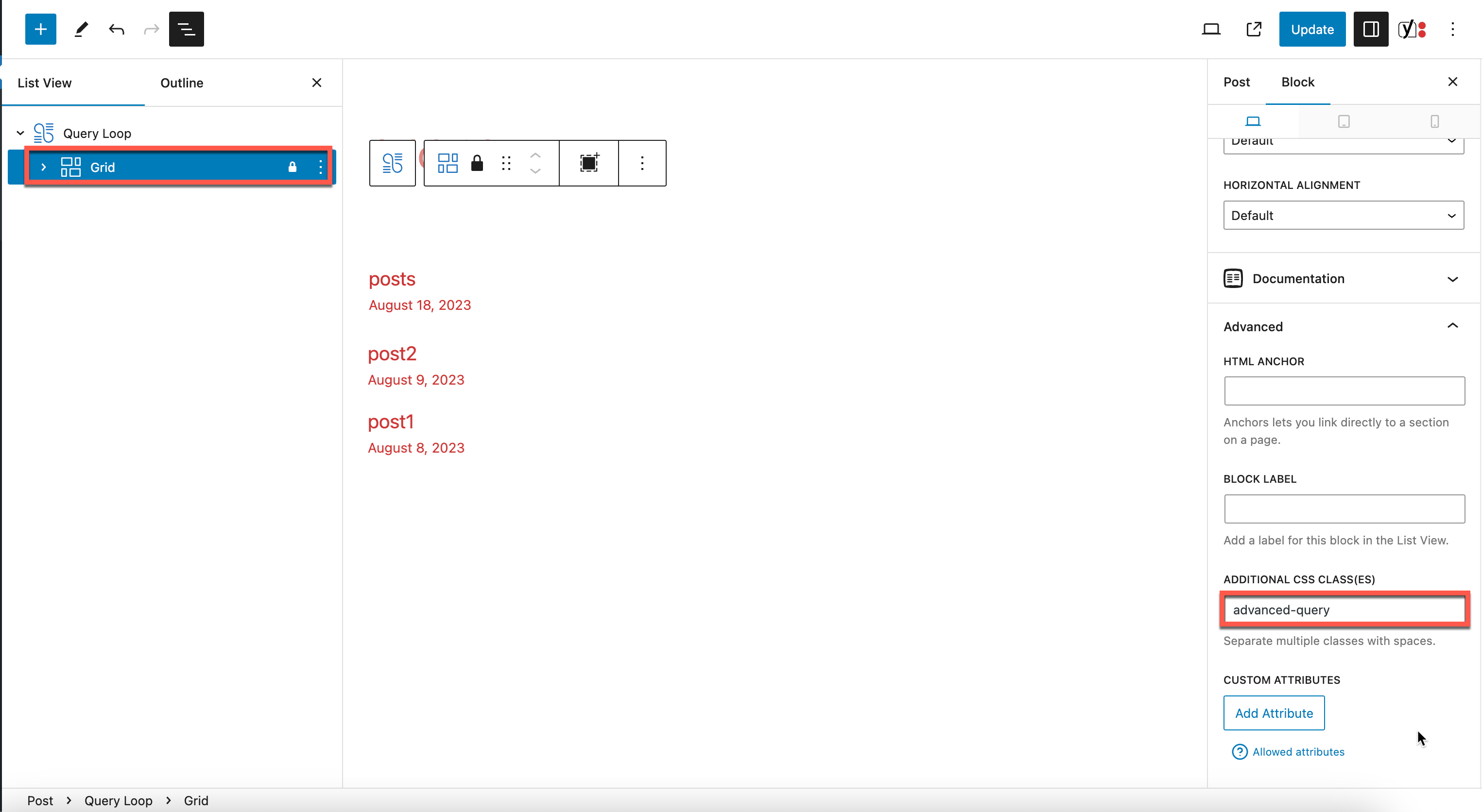
2. Use generateblocks_query_loop_args to merge queries
The below code adds post/page/cpt-1/cpt-2 to the query loop block, you can change 'post', 'page', 'cpt-1', 'cpt-2' to your own post type slugs.
add_filter( 'generateblocks_query_loop_args', function( $query_args, $attributes ) {
	if (
        ! is_admin() &&
        ! empty( $attributes['className'] ) &&
        strpos( $attributes['className'], 'advanced-query' ) !== false
	) {
        // pass meta_query parameter
        $query_args[ 'post_type' ] = array('post', 'page', 'cpt-1', 'cpt-2');
	}

	return $query_args;
}, 10, 2 );
Adding PHP: <https://docs.generatepress.com/article/adding-php/>