The Grid Block allows you to build advanced columns in your content. It uses flexbox, and even allows you to wrap the columns on multiple lines, meaning you can keep adding columns forever to build multi-line grids.
When you add a Grid Block, the Container Block is automatically inserted as the grid column. This gives you all of the power behind our Container Block directly inside your Grid.
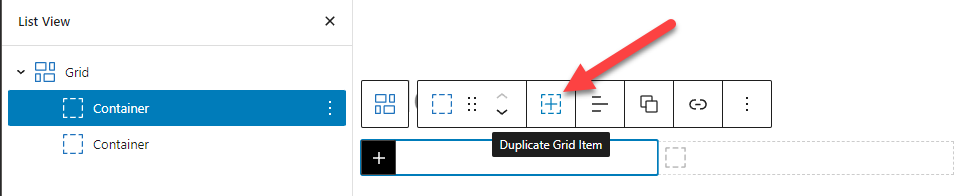
Duplicate Grid Item
When a Container block is inside of a Grid block, you can use the Duplicate Grid Item option to duplicate the selected Container to the Grid.
Layout
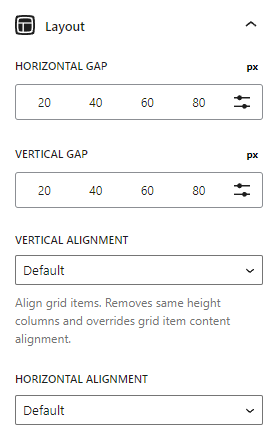
Horizontal Gap
The horizontal gap option allows us to control the horizontal spacing between our columns.
Vertical Gap
The vertical gap option allows us to control the vertical spacing between our columns if we choose to span multiple rows.
Vertical Alignment
This option will vertically align the columns in your grid.
Note: All Containers inside the Grid are set to 100% in height.
Horizontal Alignment
The horizontal alignment option will horizontally align your grid items. This is useful when your grid items aren’t wide enough to fill their container.
Equal Height Grid Containers
These options require GenerateBlocks 1.7.
To ensure a better understanding, let’s first examine the HTML structure of the Grid block.
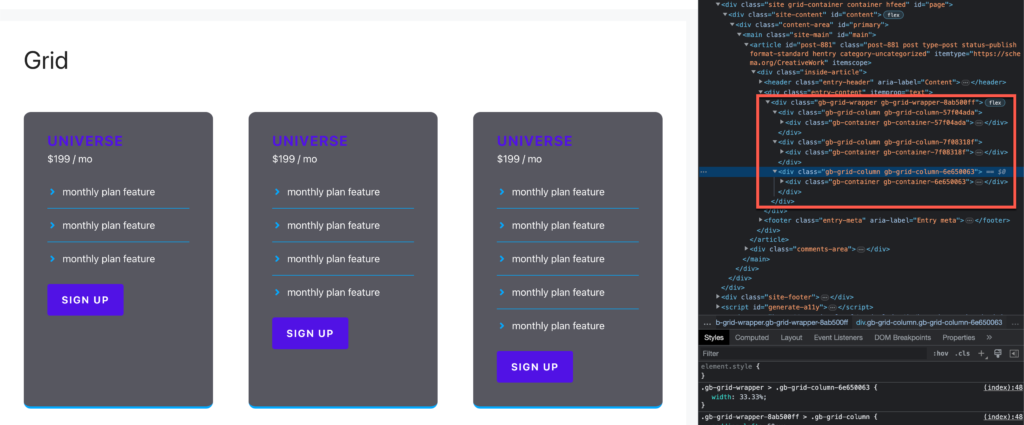
From the screenshot above, we can see that the Grid block with 3 columns consists of the following elements:
gb-grid-wrappergb-grid-columngb-containerheadline+button
gb-grid-columngb-containerheadline+button
gb-grid-columngb-containerheadline+button
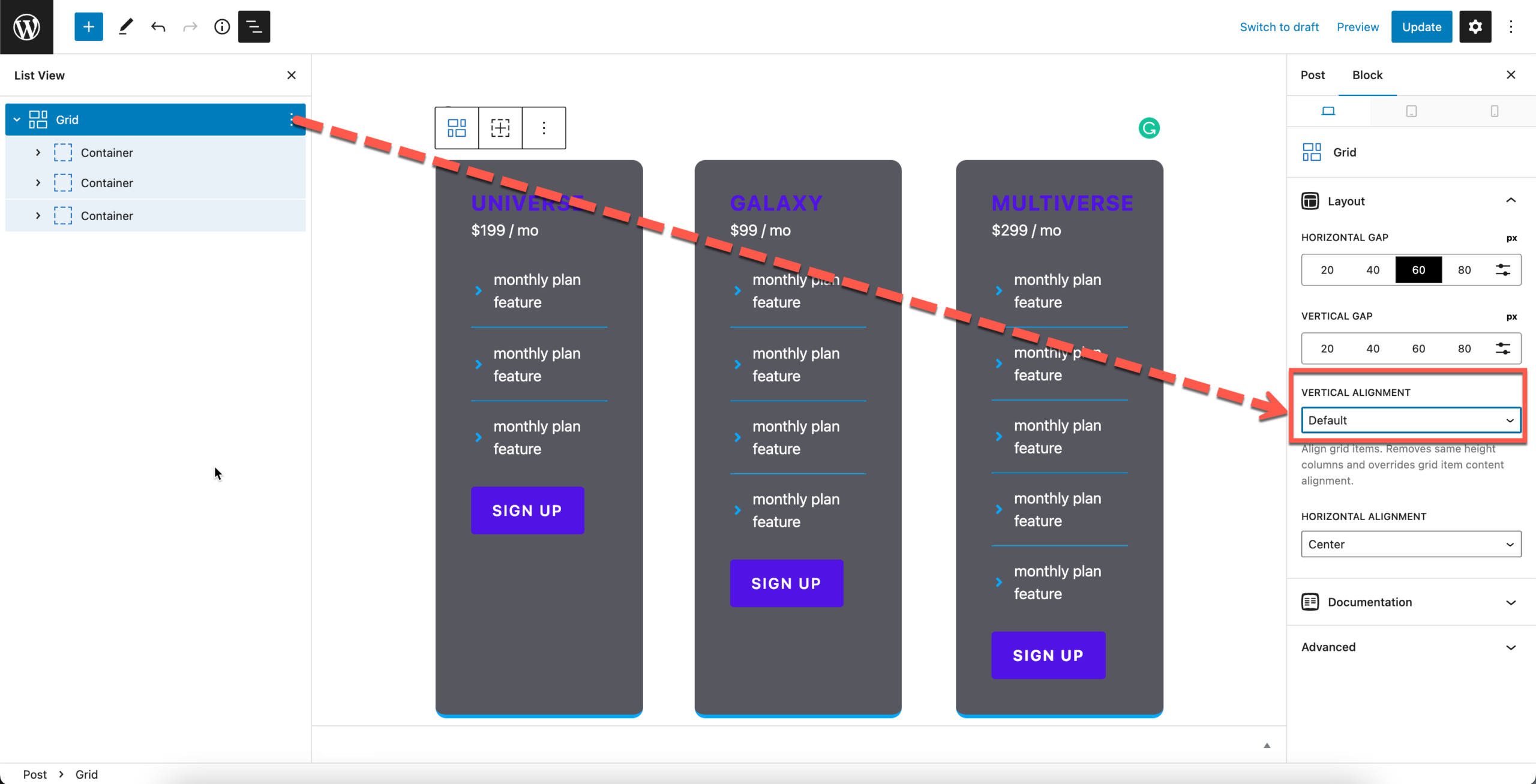
Step 1: Set Grid block’s Vertical Alignment to Default
This will ensure that all the Grid columns (gb-grid-column) have the same height.
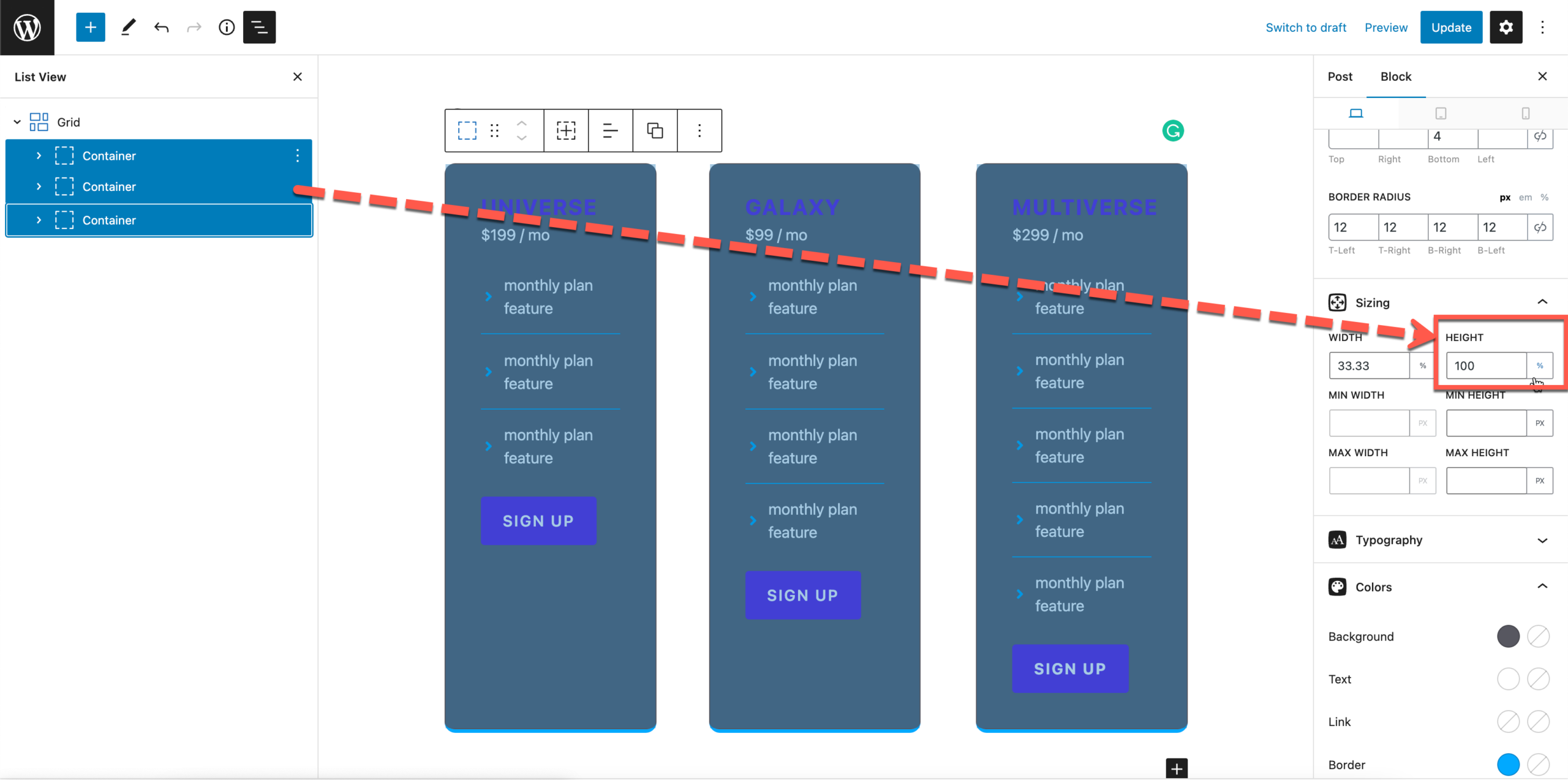
Step 2: Set all Grid Containers to be full height
This step ensures that all the Grid Containers (gb-container) extend to the full height of the Grid columns (gb-grid-column).
Vertical Alignment of Content in Grid Container
These options require GenerateBlocks 1.7.
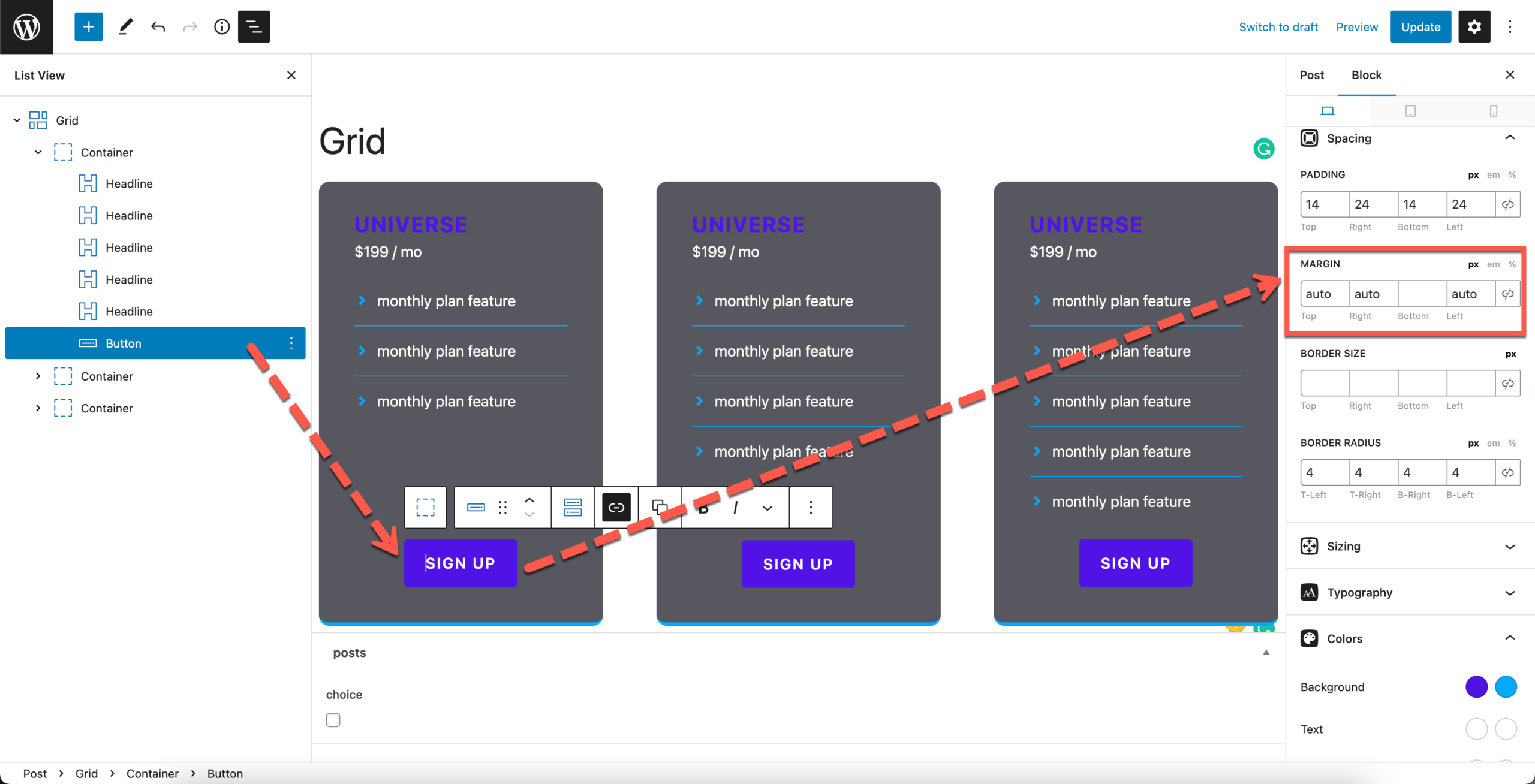
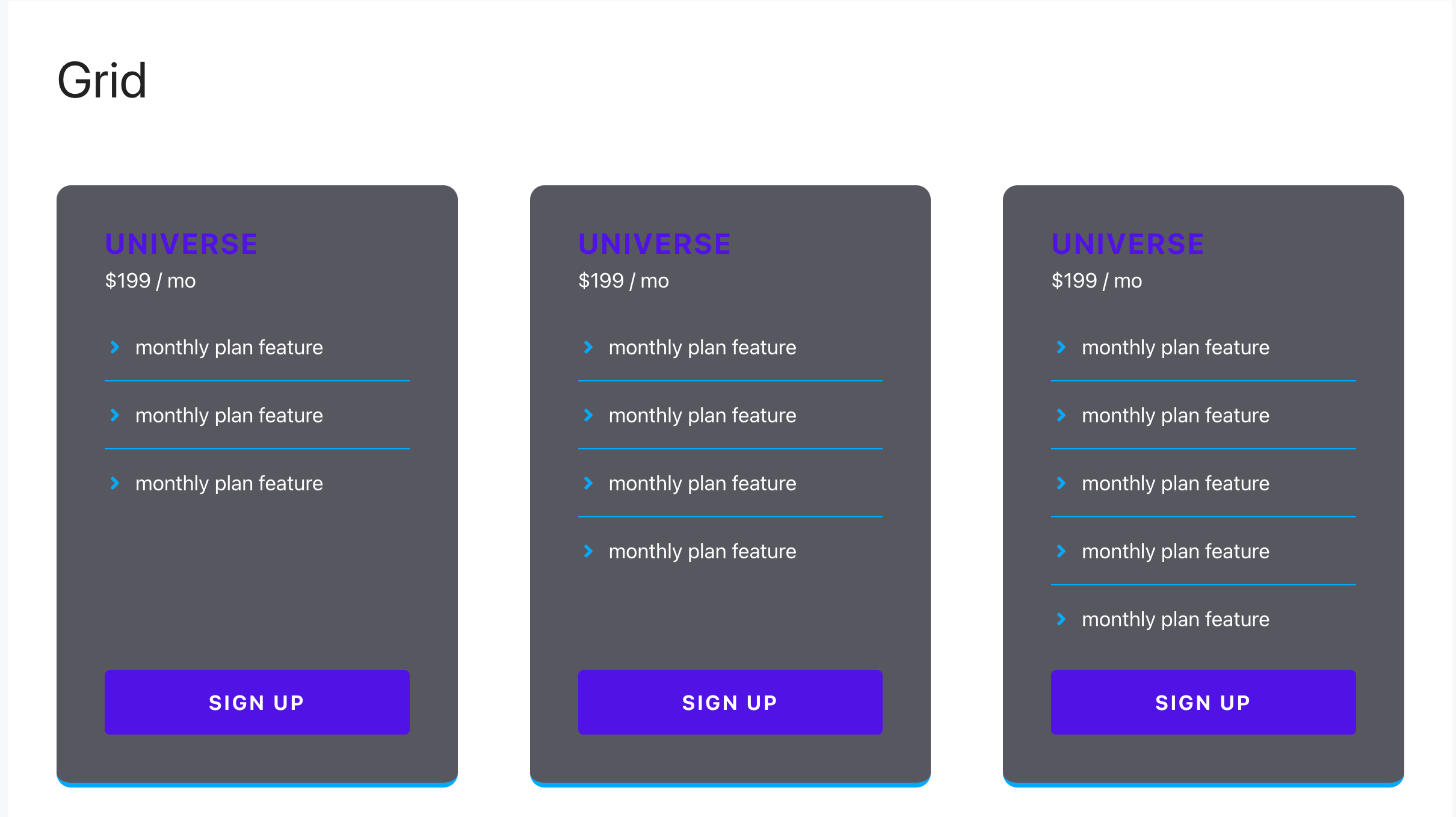
With GB 1.7, it is straightforward to make the last element of a Grid Container remain fixed at the bottom of a Grid Container without using CSS.
Step 1: Make Grid Containers equal-height
/v1-blocks/grid/#equal-height-grid-containers
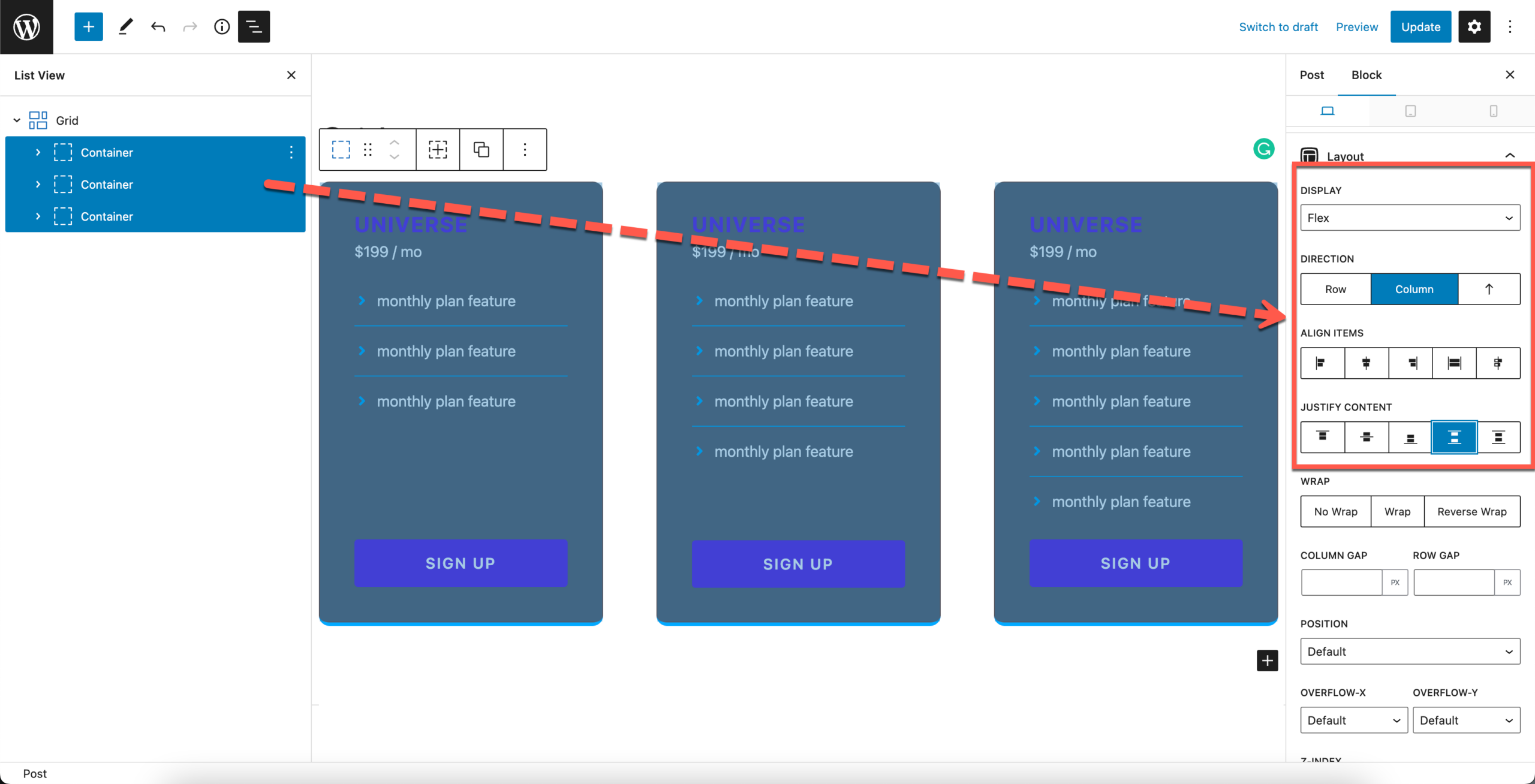
Step 2: Settings for Grid Containers
Bulk select the Grid Containers and set:
- Display:
flex; - Direction:
column; - Justify Content:
space-between;
Step 3: Settings for the last element
The last element is referring to the last direct child of the Grid Container.
In this case, it’s a Button block. Select this Button block and set:
- Margin-top:
auto;
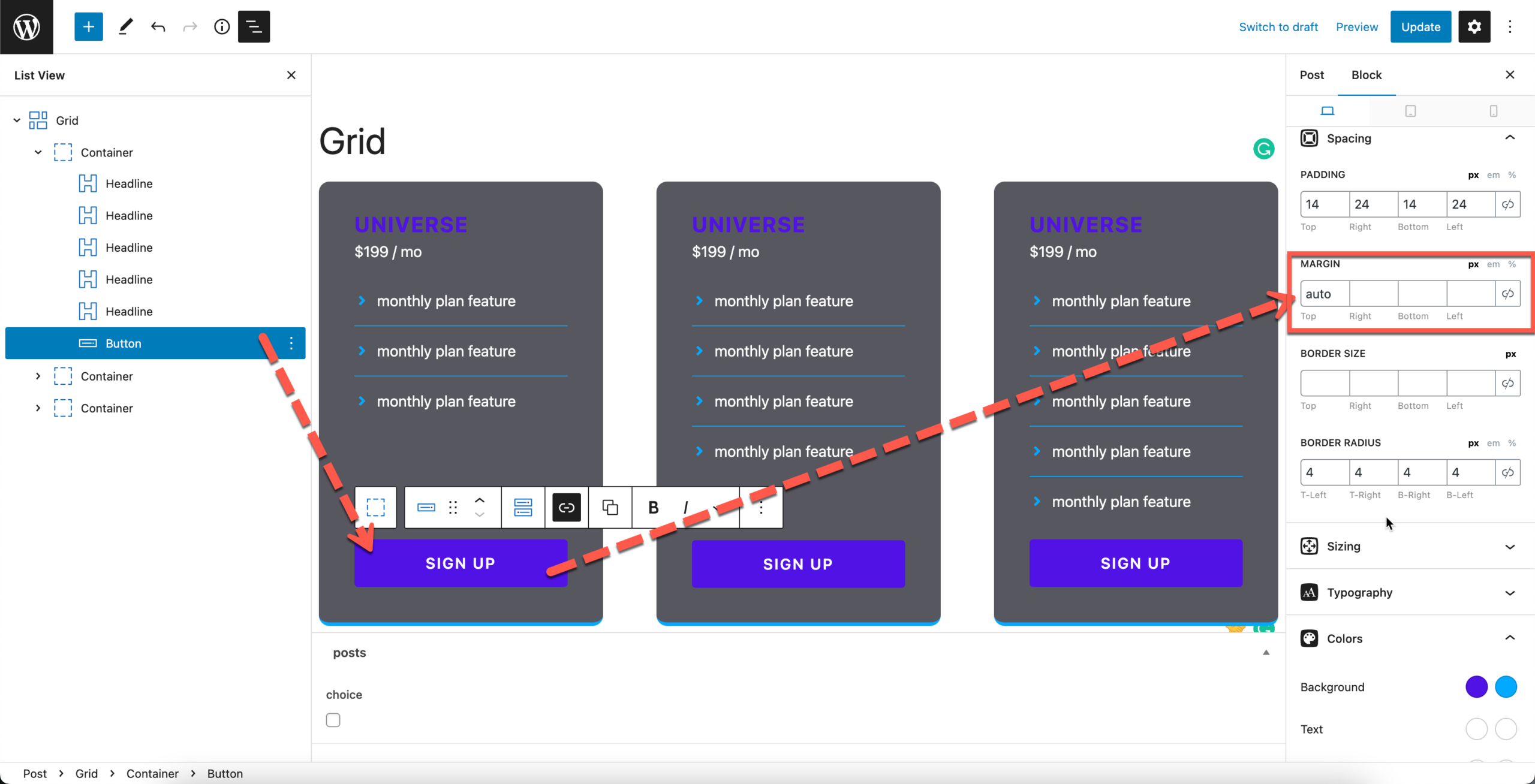
Note: to avoid the Button going full width, do the below setting as well.
- Margin-right:
auto; - Marin-left:
auto;