Editor Access lets administrators decide what each role can do inside the WordPress block editor. You can lock styling while leaving content editable, make sections read‑only, expose only a curated handful of controls, and control which blocks appear in the inserter — all per role and per post type. It is editor‑level governance designed to keep client and team edits on‑brand without taking the editor away from them.
Requirements
- GenerateBlocks Pro 2.7.0 or later.
- GenerateBlocks (free) 2.4.0 or later. Editor Access relies on the block inspector slot that ships in the free plugin from 2.4.0. On older free versions the feature stays completely inactive — no menu, no restrictions, no errors.
- An Administrator account. Creating and managing access profiles requires the
manage_optionscapability.
Core Concept
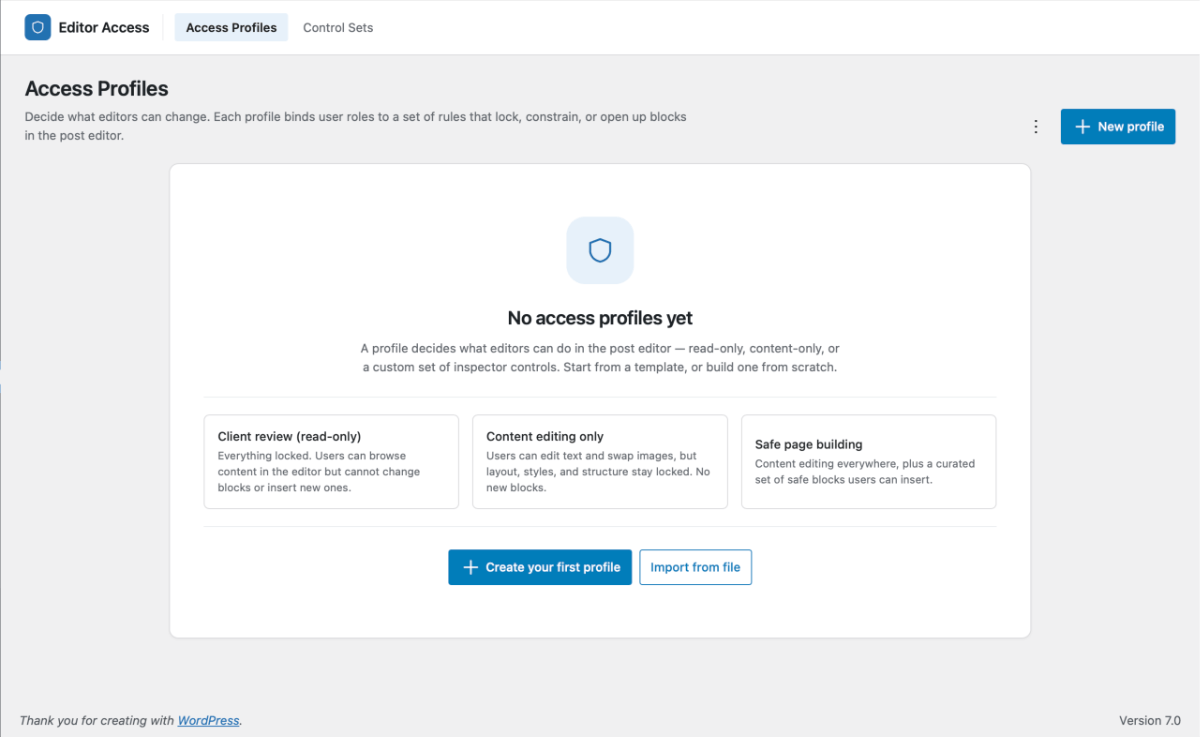
- Access Profile – a named set of editing restrictions, scoped to one or more user roles and ( optionally ) post types. A profiled holds a fallback mode, a insertable blocks policy and an ordered list of targeting rules for block specific modes.
- Control Set – a reusable, curated group of controls; for example: text color, padding, a link field. Control sets are assigned to access profile rules to expose only the controls you choose. Once control set can be used across many profiles.
You manage both from GenerateBlocks → Editor Access in the WordPress admin.
Editor Access Admin screen overview
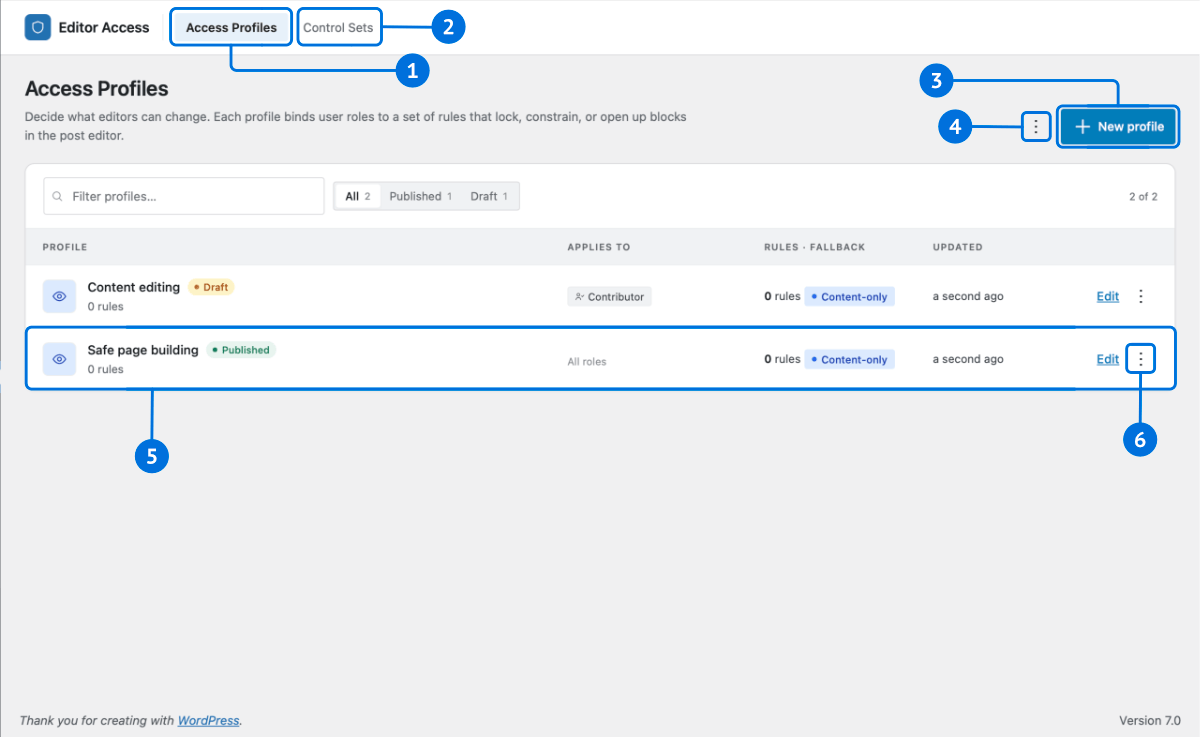
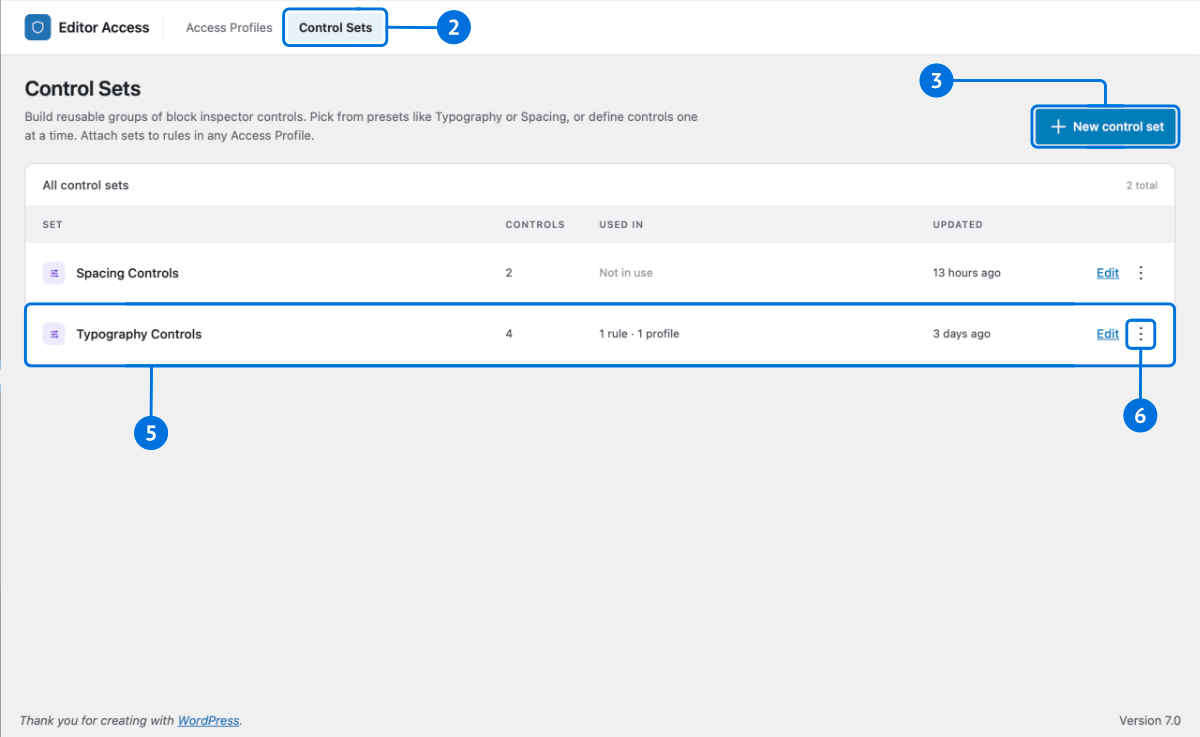
- View Access Profiles
- View Control Sets
- Add New Profile /. Control Set
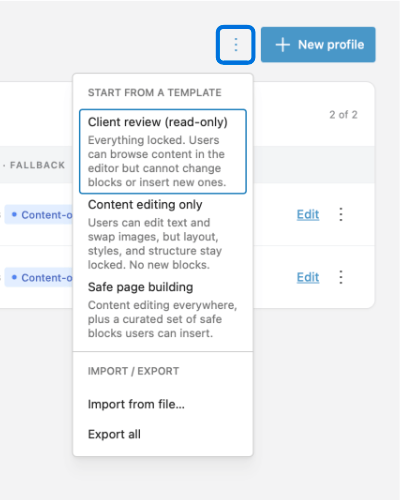
- Access Profile Tools: Start from a template, Import from a file, Export All
- Profile / Control set summary
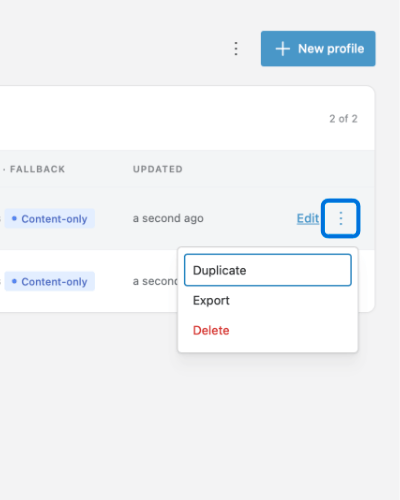
- Access Profile Actions: Duplicate, Export, Delete
Creating an Access Profile
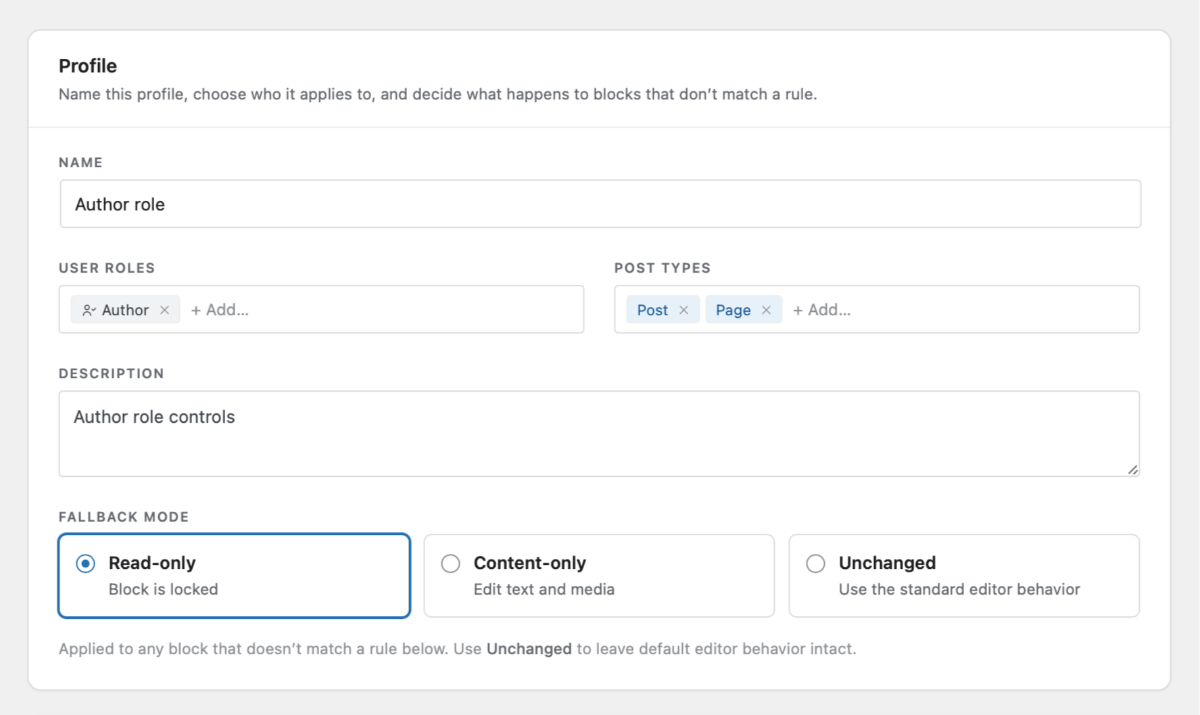
Go to GenerateBlocks → Editor Access and choose Add Profile. You can start from a blank profile or from one of the built‑in starter profiles. A profile has four parts.
1. Profile scope, who and where it applies
- Roles
The user roles the profile applies to. Leave roles empty to apply the profile to every non‑administrator who can edit content. - Post types
Restrict the profile to specific post types (for example only Pages). Leave empty to apply it everywhere the block editor is used.
2. Fallback mode, the default for unmatched blocks
The fallback mode applies to any block that no rule matches. Set it to Unchanged to start from “everything editable” and lock down individual blocks with rules, or set it to Content only / Read only to lock everything by default and then open up specific blocks.
3. Block inserter policy, what can be added
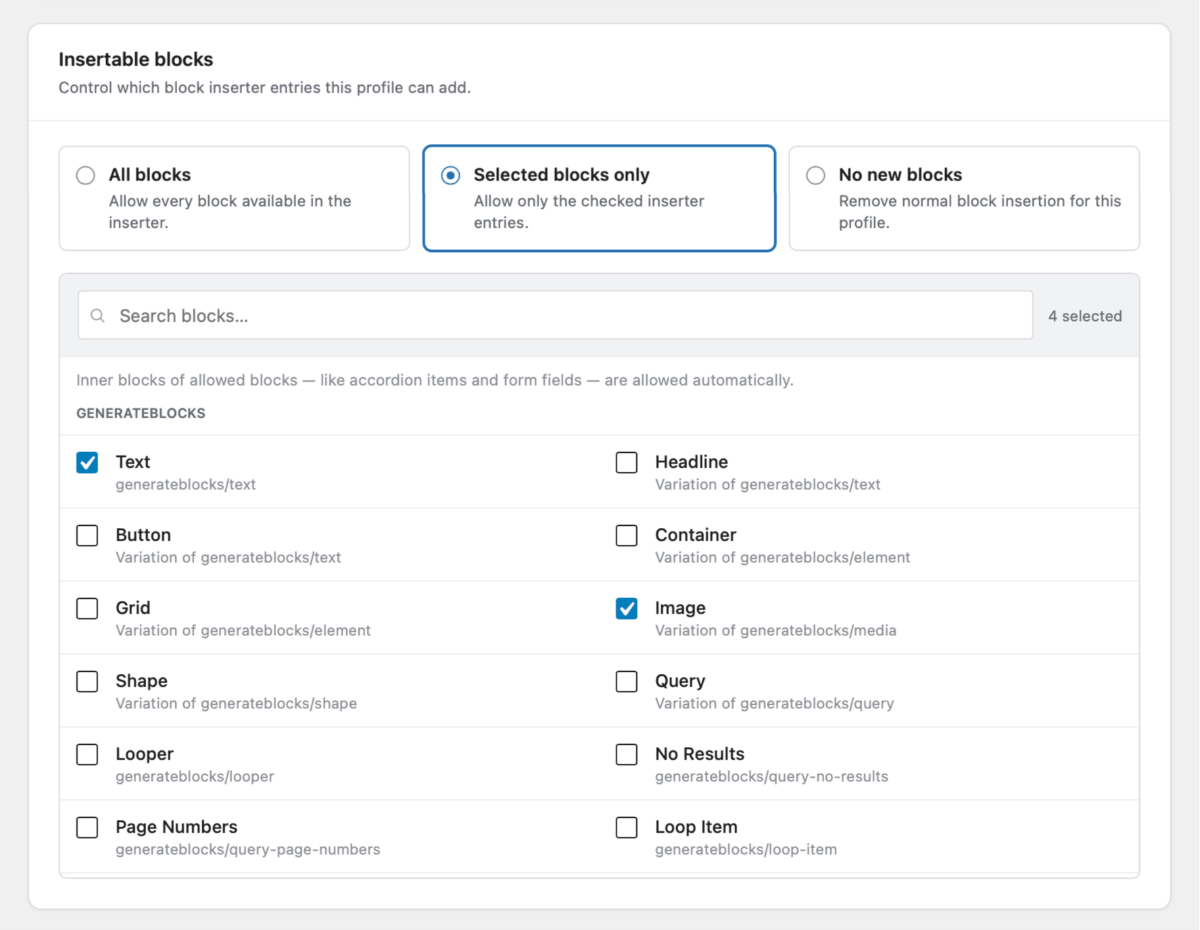
| Policy | Result |
|---|---|
| All blocks | No inserter restriction. |
| Selected blocks | Only the blocks and variations you choose can be inserted. Child blocks that a chosen block needs to function (for example a Query’s items, or a Carousel’s controls) are allowed automatically. |
| No blocks | Inserting new blocks is disabled entirely. Editing of existing blocks still follows the rules above. |
When a profile restricts editing, the editor’s Code editor mode and the per‑block Edit as HTML option are also disabled for restricted users, so structure can’t be changed by editing raw markup.
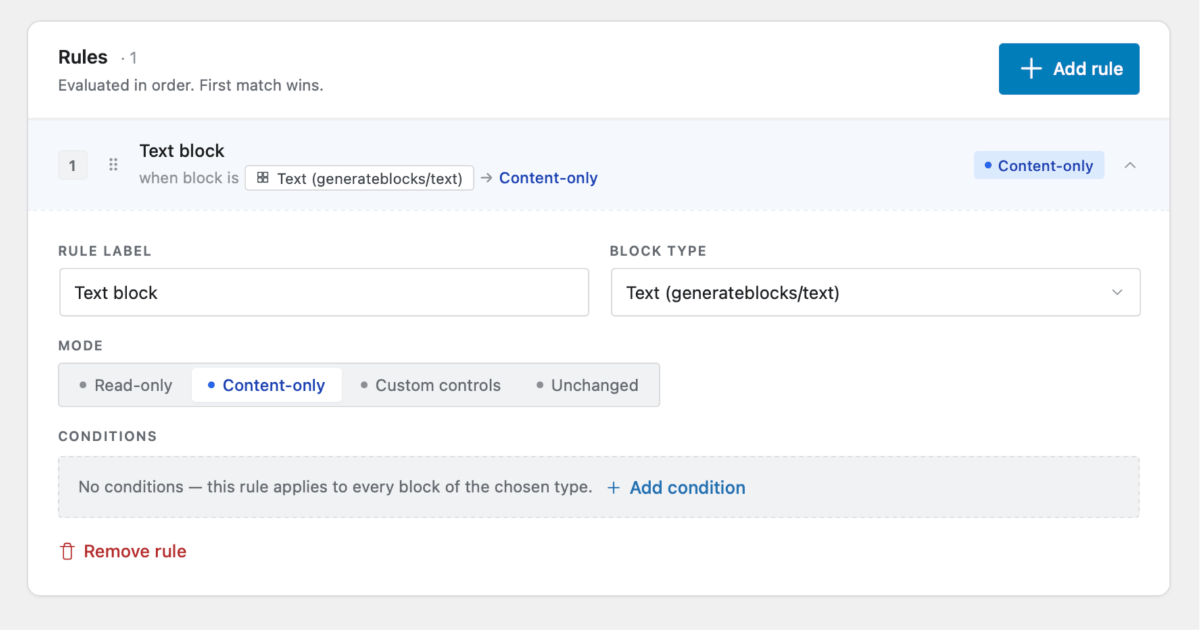
4. Rules, per‑block targeting
Rules let you apply a mode to specific block types, optionally narrowed by the block’s attributes. Each rule has a target block type, an optional set of conditions, and a mode (and, for Custom, a control set). Rules are covered in detail below.
Targeting rules in depth
Order matters – first match wins
For each block on the page, GenerateBlocks evaluates the profile’s rules from top to bottom and applies the first rule whose block type and conditions match. Put your most specific rules first and your broader rules below. Any block that no rule matches uses the profile’s fallback mode.
Conditions, narrowing a rule by attributes
A rule can match on the block’s attributes, so it applies only to some instances of a block type. For example: lock only the Container that has a specific custom class, or only buttons whose label is “Buy now”. All conditions on a rule must be true for it to match (they are combined with AND). A value field accepts a comma‑separated list, and the row matches if any of those values match.
| Operator | Matches when… |
|---|---|
| exists | The attribute holds a meaningful value. Defaults such as “off”, 0, and empty don’t count. |
| is | The attribute equals one of the values. |
| is not | The attribute does not equal any of the values. |
| contains | The attribute’s text contains one of the values. |
| does not contain | The attribute’s text contains none of the values. |
| includes | The attribute is a list that includes one of the values. |
| does not include | The attribute is a list that includes none of the values. |
Editing modes
Every rule (and the profile fallback) applies one of four modes to the blocks it matches:
| Mode | What the editor can do |
|---|---|
| Unchanged | No restriction. The block behaves exactly as normal — full controls, full editing. |
| Content only | Text, images, and other content can be edited, but styling, layout, and structure are locked. The block cannot be moved or removed. Blocks that have no editable content fall back to a fully locked (read‑only) state in this mode. |
| Read only | The block is fully locked. It is visible in the editor but cannot be edited, moved, or removed. |
| Custom controls | The block stays selectable, but its inspector shows only the controls from the Control Set you attach to the rule. Everything else is hidden. |
Control Sets (for custom mode)
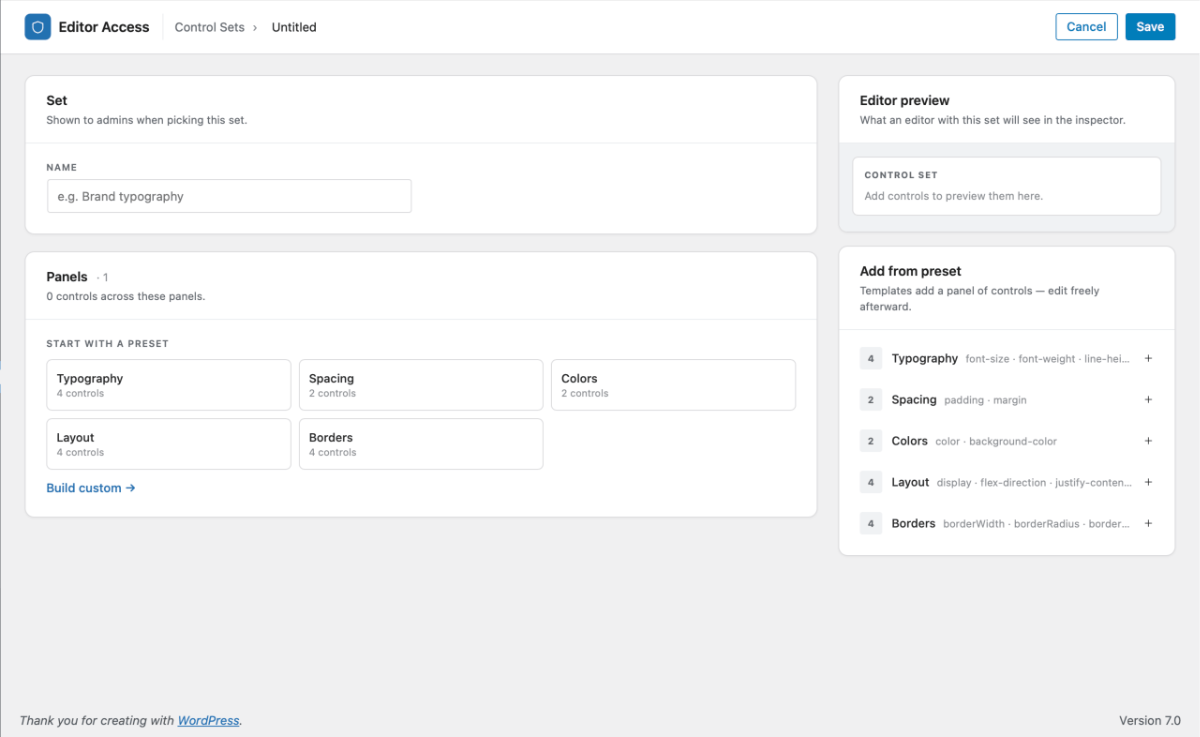
A Control Set defines exactly which controls a restricted editor sees when a Custom rule applies. Build a control set once, then attach it to any number of Custom rules across your profiles.
- Style controls
Expose a single CSS property through a friendly control: a color picker, dimensions (padding / margin / border radius and similar), box shadow, typography, and more. - Setting controls
Expose a block attribute or an HTML attribute through a text field, select, toggle, link field, media picker, or icon picker. - Panels and groups
Organize controls into labelled panels and multi‑column groups so the curated inspector stays tidy.
A control set must contain at least one usable control before it can be saved, and a Custom rule must point at a control set that has at least one usable control before its profile can be published. A control set that is still referenced by a profile cannot be deleted — remove it from the profile first.
Control Set Panels in depth
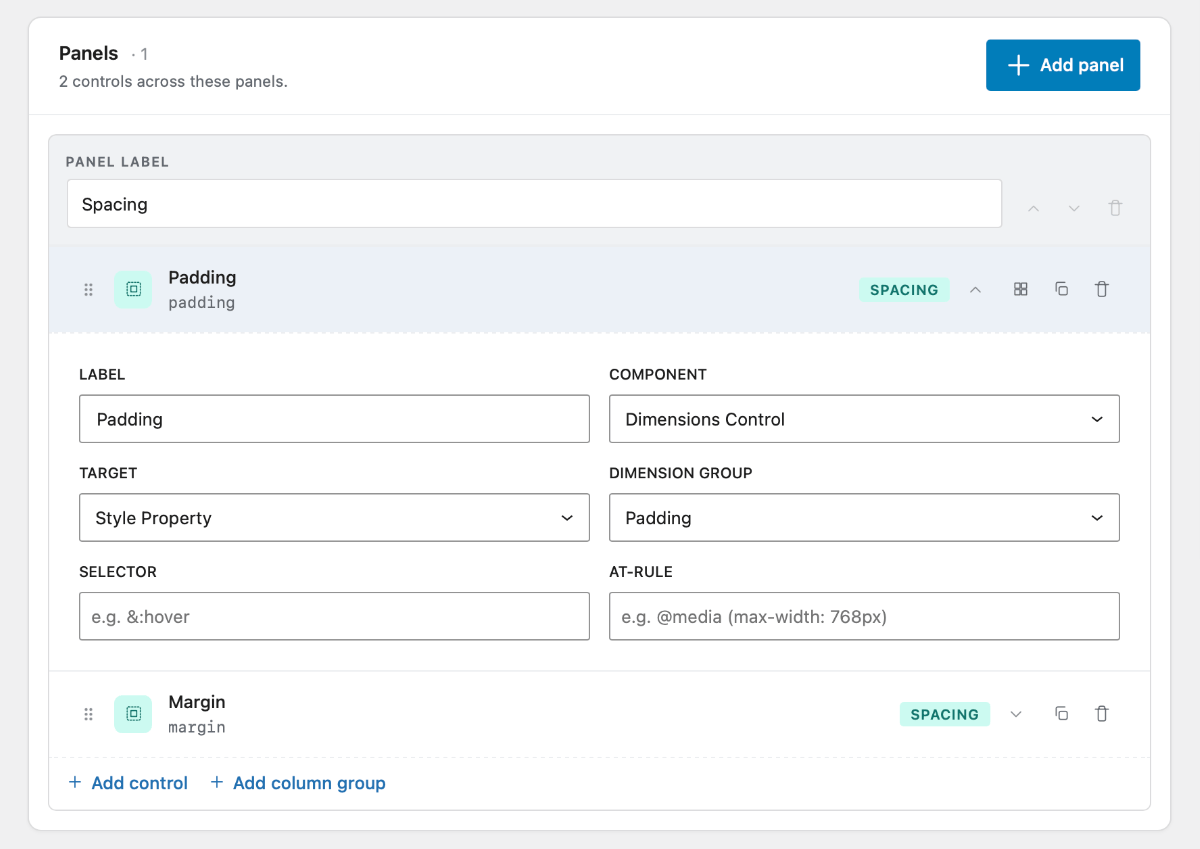
Controls are organised and displayed in ( optionally labelled ) panels. Each panel can house as many controls as you require and are displayed in the relevant block or style settings section of the editor.
Panel Label
Add an optional panel label to display in the editor.
Controls overview
- Label
Set the Label for the control component - Component
Select a component that best fulfils the UI requirements of the target value. The list of components are contextualised to the target. - Target
Choose where a component will apply its value:- Style Property: CSS Property / Dimension Group, Selector, AT-Rule
- Block Attribute
- HTML Attribute
The Dimension Group replaces the CSS Property when the Dimensions Control component is selected.
Components
- Text Control
- Select Control
- Color Picker
- Color Palette
- Unit Control
- Dimensions Control
- Background Control
- Box Shadow Control
- Filter Control
- Transform Control
- Transition Control
- Button Group
- Media Upload
Target
Style Property
Use the Style Property target to build a UI to set any CSS property, for any selector at any screen size.
- CSS Property
Enter any browser support CSS property. - Dimension Group
Shows when dimension control component is selected. Options include: Padding, Margin, Border Width, Border Radius, Inset, Scroll Padding and Scroll Margin - Selector
Optionally set a selector eg.&:hoverto set the hover state or> pto set the style on a child element. - AT-RULE
Optionally set the AT-rule to responsively apply the style eg.
Block Attributes
Choose a block attribute including: Tag Name, Icon, Open Icon, Close Icon, Shape HTML
HTML Attributes
Choose a HTML Attribute including: src, href, target, red, ID, title, alt, role, aria-label, aria-hidden, data-transition, data-type. OR you can add your valid attributes eg. data-name.
Column Group
Controls can be added to a panel individually or in a Column Group which allows you to keep related controls together and improve UI layout when multiple controls required.
How a profile is chosen for a user
A user can be in scope for more than one published profile. GenerateBlocks picks a single profile per editing session using this priority:
- Profiles whose post‑type scope doesn’t include the current post type are skipped.
- A profile that targets the user’s role wins over a profile that targets everyone (empty roles).
- When role priority ties, the profile with the more specific post‑type scope wins.
- If still tied, the profile listed first wins.
Only published profiles are enforced. Save a profile as a draft while you build and test it; drafts never restrict anyone.
Administrators, previewing, and bypass
- Administrators are never locked out. A profile with an empty role scope (“everyone”) deliberately excludes administrators. An administrator is only affected if a profile explicitly targets a role they hold — and even then they keep a bypass toggle and full code‑editor access.
- Preview as a restricted user. From the editor, an administrator can preview any profile (including drafts) to see exactly what a restricted editor would experience, without changing their own account.
- Bypass. While a profile targets you, you can temporarily turn restrictions off to make a quick change, then turn them back on.
What Editor Access does and doesn’t enforce
Editor Access is editor‑UI governance, not a server‑side permission system. It shapes what the block editor offers a user — which controls, modes, and inserter items appear. It is not a security boundary: a determined user with editing permission could still change content through other means (for example the REST API or the Classic Editor). This is the same model used by other editor role managers, and it is intentional. Use WordPress roles and capabilities for true permission enforcement.
What is enforced on the server: who can create or edit profiles and control sets (administrators only), whether the code editor is available, and which blocks the inserter will allow.
Legacy (v1) blocks
The original GenerateBlocks v1 blocks — Container, Grid, Headline, Button, Button Container, Image, and Query Loop — are not covered by Editor Access modes. Editor Access targets the current (v2) GenerateBlocks blocks and other compatible blocks. If you still rely on v1 blocks, plan your move to the v2 equivalents.
Import and export
Profiles and control sets can be exported to a file and imported on another site, which is handy for reusing a setup across projects. Imported profiles arrive as drafts so you can review and adjust their scope before publishing — nothing you import takes effect until you publish it.
Developer reference
Editor Access exposes a few filters for advanced customization.
generateblocks_editor_access_capability— change the capabilities required to manage profiles (defaultmanage_options) or to be subject to them (the use context, defaultedit_posts).generateblocks_editor_access_role_order— change the deterministic role order used to pick a single profile for multi‑role users.generateblocks_editor_access_companion_block_types— declare extra child block types that should be auto‑allowed when a parent block is allowed in the inserter.generateblocks_editor_access_control_components— extend the list of control components available in control sets.
Example — make Editors (rather than every edit_posts user) the ones Editor Access applies to:
add_filter(
	'generateblocks_editor_access_capability',
	function ( $capability, $context ) {
		// Only change the "use" context; leave management on manage_options.
		if ( 'use' === $context ) {
			return 'edit_others_posts';
		}

		return $capability;
	},
	10,
	2
);
Troubleshooting
- The Editor Access menu isn’t there. Confirm GenerateBlocks (free) is 2.4.0+ and GenerateBlocks Pro is 2.7.0+, and that you’re logged in as an administrator.
- My profile isn’t restricting anyone. Check it’s published (not a draft), that its role and post‑type scope match the user and screen, and remember administrators are excluded unless a profile explicitly targets their role.
- A restricted user sees an empty inspector on a block. That’s expected for Read only, and for Custom rules whose control set exposes nothing relevant to that block.
- Restrictions don’t apply to v1 blocks. That’s by design — see Legacy (v1) blocks above.