Pro feature
Design tokens abstract style property values, such as a hex color or pixel dimension, into a clearly named, explainable token. A hex color like #44ff22, for example, can be declared as the variable --brand-color and surfaced in the style builder as a friendly Brand Color, ready to use in block properties, global styles, and even within other tokens.
Where to find it
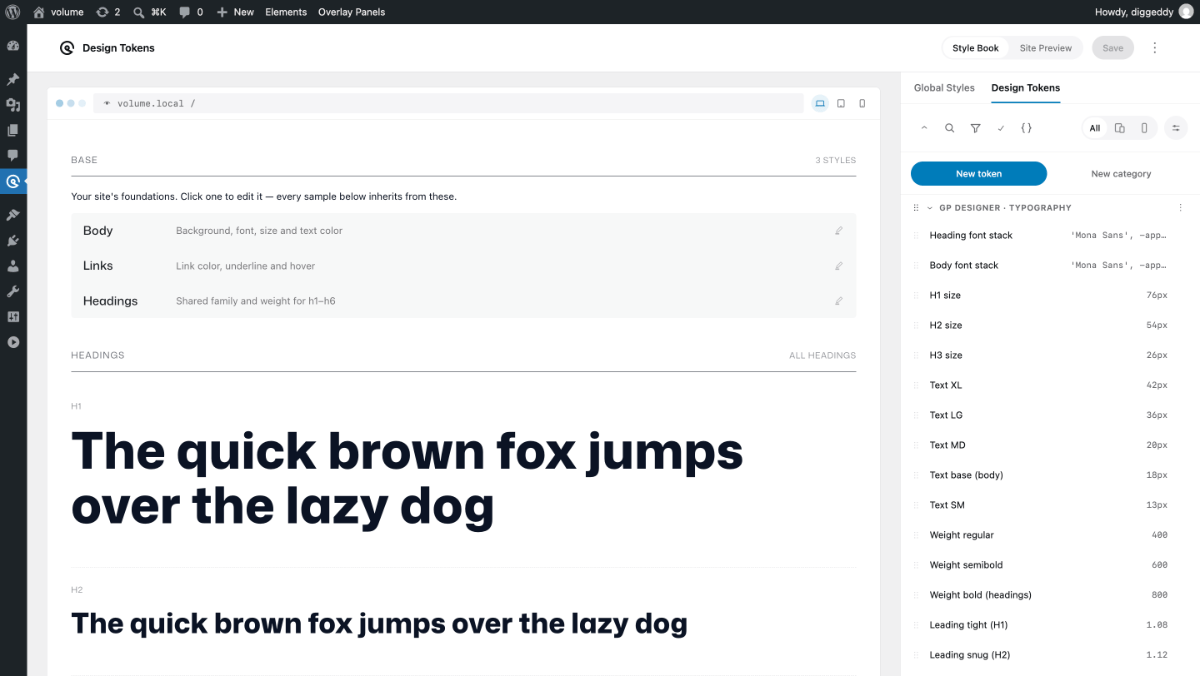
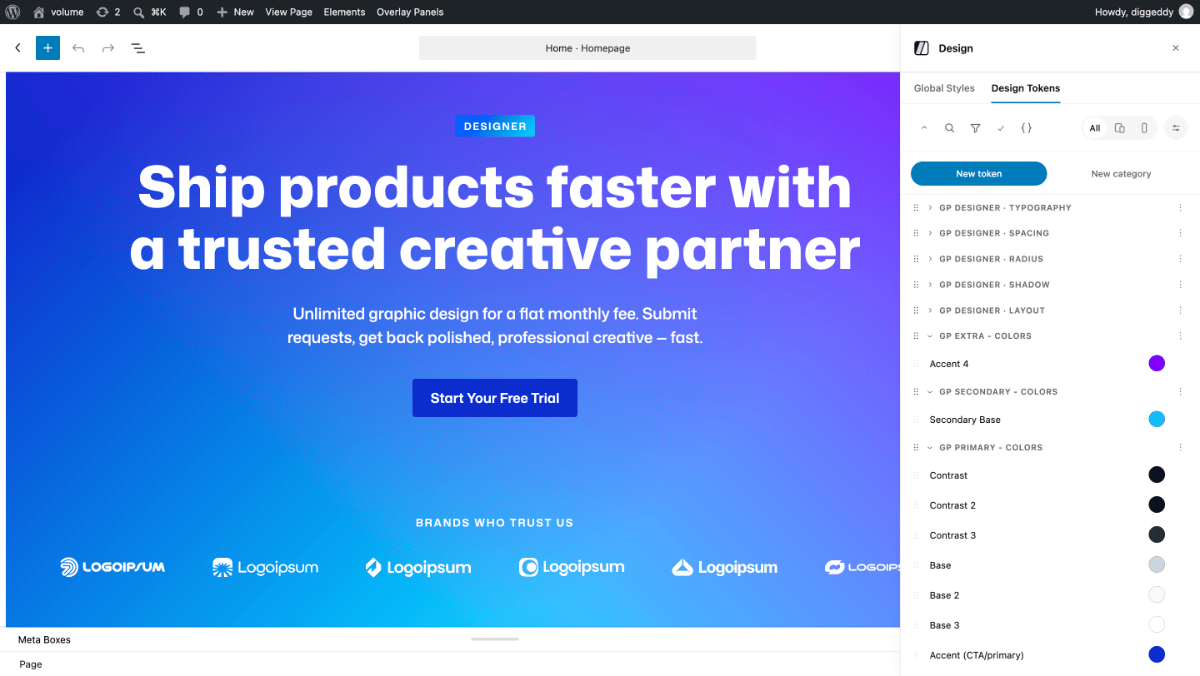
The Design Tokens panel can be accessed alongside Global Styles from either the dedicated workspace in the dashboard or a panel from any editor view.
Design Workspace
Navigate to the Dashboard > GenerateBlocks > Design and choose either Global Styles or Design Tokens to open the GenerateBlocks Design Workspace. This dedicated design workspace provides the styles panel alongside a site preview that can display any page for live visual reference, or a Style Book that displays a list of selectable theme elements for direct styling and preview.
Editor Panel
Click the Design button in the editor top bar to open the sidebar panel to access Global Styles and Tokens from within the editor.
Note: This workspace and panel only appears for users who can manage Global Styles. If you don’t see it, check with whoever manages your site’s user roles.
Creating a token
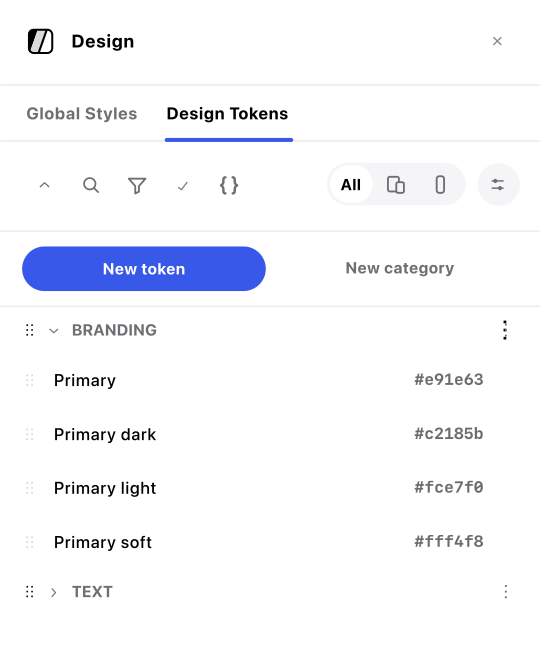
- Click New token.
- Choose a Type: Color, Unit or Text.
- Optionally choose or create a Category to assign the token to.
- Enter a Name (this is the friendly name used in style pickers, e.g. “Brand color”).
- Set a Value, then configure the rest of the token as described below.
GenerateBlocks generates the CSS variable automatically from the name (e.g. “Brand color” becomes --brand-color). To change it, use the pencil icon next to the variable to open Rename token variable, which checks that the new name is valid and not already taken, and shows how many places currently use the token before you confirm.
Setting up the token
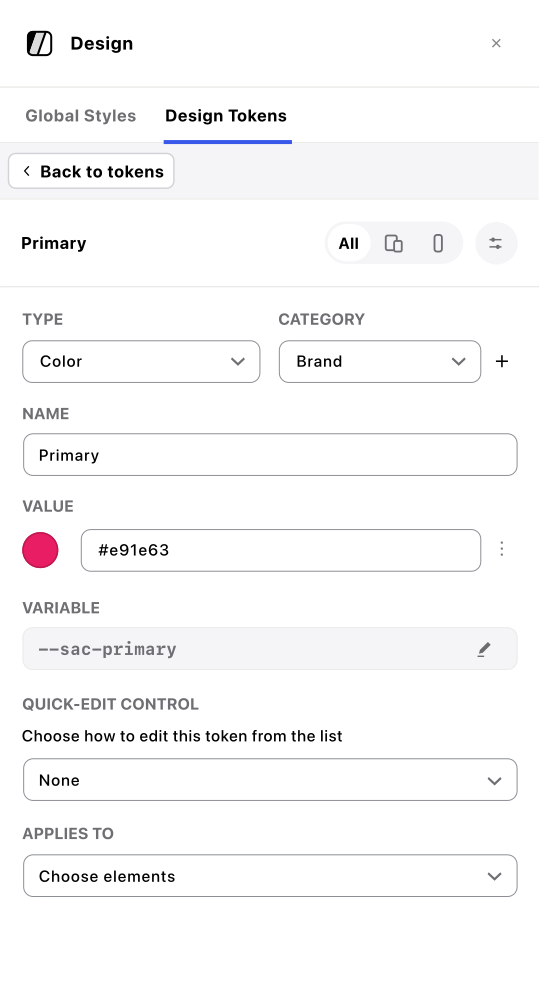
When you create a new token or edit an existing token you will be presented with a settings panel:
Token settings
Type
Choose from one of three types: Color, Unit or Text
- Color: accepts hex codes,
rgb()/hsl()/oklch()and similar functions, or named CSS colors. - Unit: accepts a size or length, e.g.
16px,1.5rem,clamp(1rem, 2vw, 2rem). - Text: accepts a free-form value for anything the other two types don’t cover, like a font stack or a grid template.
Category
Choose an optional group used to organize related tokens. Create a new one with the + button next to the field, or move a token into an existing category.
Name
Provide the token with a plain name for easier referencing in the token panel and when applying it to a style builder control.
Value
Set a valid CSS property value for the token. This will support all valid properties including functions such as: clamp(), calc(), min(), max(), var() and any other current or future supported functions.
Variable
The CSS variable generated from the token’s name, for example --brand-color. It is shown read-only; click the pencil icon to open Rename token variable. Renaming doesn’t update existing references to the old name, so run Check usage first (see Renaming, duplicating, or deleting a token below).
Quick-edit control
Choose how you edit the token’s own value on this row in the Design Tokens screen. Pick a color picker, a unit control, or a button group / select built from your own preset options (add each with Add option, giving it an Option label and Option value). This only changes how you edit the value here; it doesn’t change how the token appears when you use it elsewhere, that’s controlled by Applies to.
Applies to
Choose which style pickers should offer this token. Choose a quick preset (e.g. “All color properties,” “All border colors,” “Font size”) or pick individual properties. Leaving this empty still creates the token and outputs it as a CSS variable; it just won’t be suggested in any picker. That’s useful for a token you only reference directly in custom CSS.
Responsive token values
A token’s value isn’t limited to one fixed value. Just like any other Global Style property, you can switch to a different AT-media rule and set a different value for that token. AT-media rules can cover any media breakpoint or even custom rules such as prefers-color-scheme.
The token resolves to whichever value matches the current rule, so “Spacing large” can mean one thing on desktop and something smaller on mobile, without creating a second token or creating additional styles.
Editing :root directly with CSS Edit mode
If you’d rather write CSS by hand, you can switch your :root Global Style into CSS Edit mode and edit its custom property declarations directly, instead of using the controls on the Design Tokens screen. Values you set this way are validated the same way as values set through the token’s own controls: the value must suit the token’s type, and values containing characters such as {, }, ;, < or >, or CSS comment markers, are rejected.
Copy and Paste variables
You can copy and paste CSS Variables in CSS Edit mode.
Taking over your site’s container width
GenerateBlocks has a legacy global container width setting under GenerateBlocks > Settings. If you create a Unit token with the CSS variable name --gb-container-width, that token takes over: its value becomes the site’s container width everywhere, and the legacy setting is hidden. Your old setting isn’t lost, it’s just set aside, and it comes straight back if you ever delete or rename that token away from --gb-container-width.
Using a token
Once a token exists, it shows up as an option in any matching style control across the editor. Anywhere you’d normally pick a color or a size, your named tokens appear alongside the standard pickers.
Applied tokens can be accessed wherever you see this button in the style builder controls.
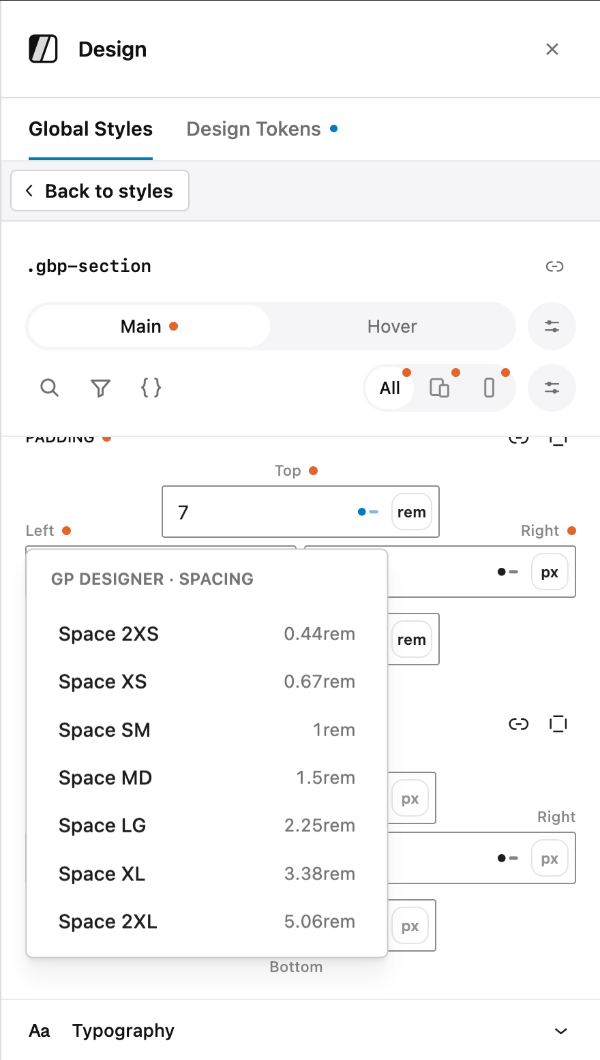
You can also reference a token directly by name in custom CSS or an Advanced Selector, the same way you would any CSS custom property:
.my-card {
    background-color: var(--brand-color);
    padding: var(--space-lg);
}
The row’s options menu also has a Copy var() reference action if you’d rather copy the var(--name) syntax straight to your clipboard.
Tokens are output as CSS custom properties in the :root Global Style, whether or not a picker offers them or a block uses them.
Checking where a token is used
Before renaming or deleting a token, choose Check usage from its options menu. It checks four places for references to it:
- Global Styles CSS
- Block content across your posts and pages
- Other tokens’ preset option values
- Other custom properties on the root Global Style
If the token isn’t referenced anywhere, you’ll see that confirmed directly. On larger sites the scan may only check a recent subset of your content rather than everything; if that happens, it will tell you so rather than reporting a false “not used anywhere.” Results are refreshed automatically after you make changes, so reopening Check usage always reflects your latest edits rather than an older cached scan.
Renaming, duplicating, or deleting a token
Each token’s options menu (the three dots on its row) gives you: Edit, Rename, Duplicate token, Copy var() reference, Check usage, and Delete token.
Before renaming or deleting, consider the consequences:
- Renaming updates the variable in every
:rootoverride. It does not update references to the old name in blocks, other Global Styles, preset option values, or other variables, so those references will stop resolving to a value. - Deleting removes the token from the registry and from style pickers, but doesn’t rewrite any CSS that already references its name.
- Both changes are applied when you save, and Discard undoes them until then.
- Run Check usage first so you know exactly what to update. The rename and delete windows also show how many places currently use the token.
Importing and exporting
The options menu in the top bar of the Design workspace lets you export your tokens, or import a design system exported from this or another site. Exports are JSON files.
- Export design tokens
- Export all global styles (including Design Tokens)
- Import…
Before an import is applied, you see a summary of what it will do. Check it carefully:
- If the file contains a
:rootGlobal Style, importing replaces the entire:rootGlobal Style (including ordinary declarations, variables, and responsive or theme rules) and all Design Token settings, not just the tokens. - Global Styles in the file that don’t exist on your site are created straight away.
- Global Styles that already exist are skipped by default. Choose Overwrite styles that already exist to replace them.
- A Global Style is not imported if one of its selectors belongs to another Global Style on your site.
- The
:rootreplacement and any overwrites are staged. They apply when you save, and Discard undoes them. - A file that includes Design Tokens must also contain exactly one
:rootGlobal Style, and can’t contain circular token references. - Importing tokens requires permission to manage Design Tokens. A file that carries them is refused as a whole if you don’t have it.
Permissions
Design Tokens is managed by the same permission as Global Styles. If your site restricts who can manage Global Styles, that same restriction applies here. A user who can’t manage Global Styles won’t see the Design Tokens workspace at all.