The CSS Editor is available in GenerateBlocks Pro 2.6. It extends the styles object to support all current and future CSS properties. It surfaces the CSS declared on every block and global style selector right inside the editor, allowing users to see all styles at a glance, edit CSS directly and copy and paste styles.
The CSS editor presents itself in several ways::
- CSS Properties panel
Available in any block editor with the GenerateBlocks Styles Panel for blocks and global style selectors. - CSS Mode
Enable CSS Mode in any block editor for a CSS only editing experience for blocks and global styles. - CSS Editor Modal in the Global Styles admin.
Open the CSS editor in the GenerateBlocks > Global Styles admin
The CSS Properties panel
The CSS Properties panel is pro addition to the Styles Inspector Controls.
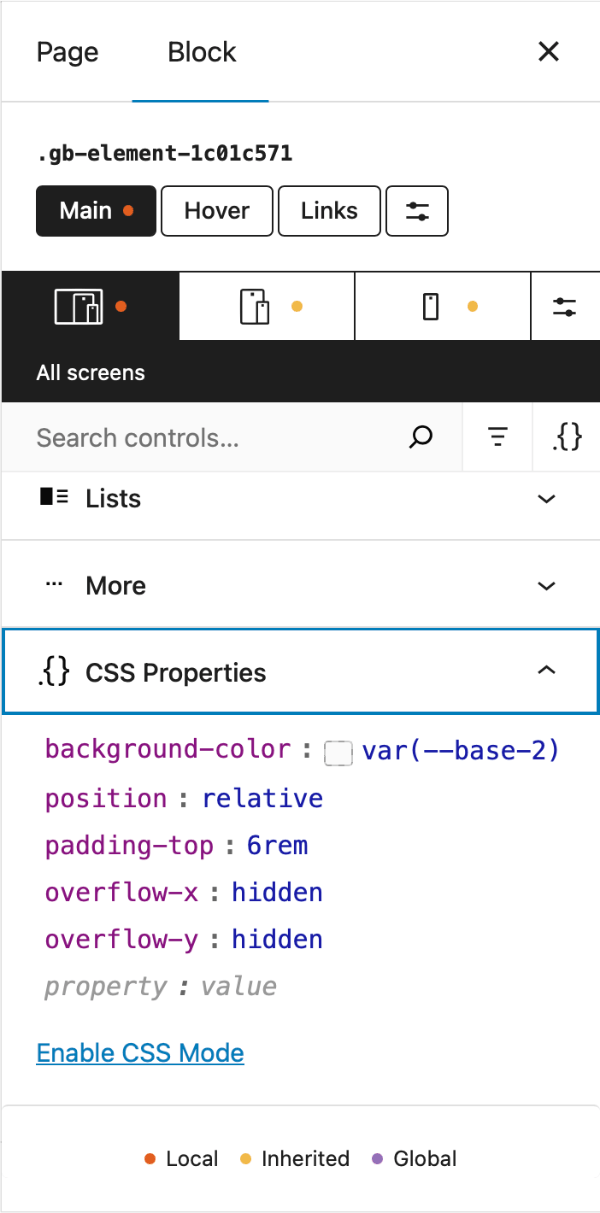
With the CSS Properties panel the user can:
- see all CSS properties declared on the current selector
- this applies to block and global style selectors
- edit, delete and add CSS properties
- use any browser supported CSS, current and future
CSS Mode
CSS Mode replaces the regular style inspector controls UI with a full on CSS Editor. This mode surfaces all CSS properties declared on a block or global style, not just the current selector. This mean’s you can edit all selector and responsive styles in the one place.
CSS Mode is for users who want:
- to work with code instead of a UI to build their styles
- to edit all styles declared on a block or global style in one place
- to paste CSS directly into a block or global style
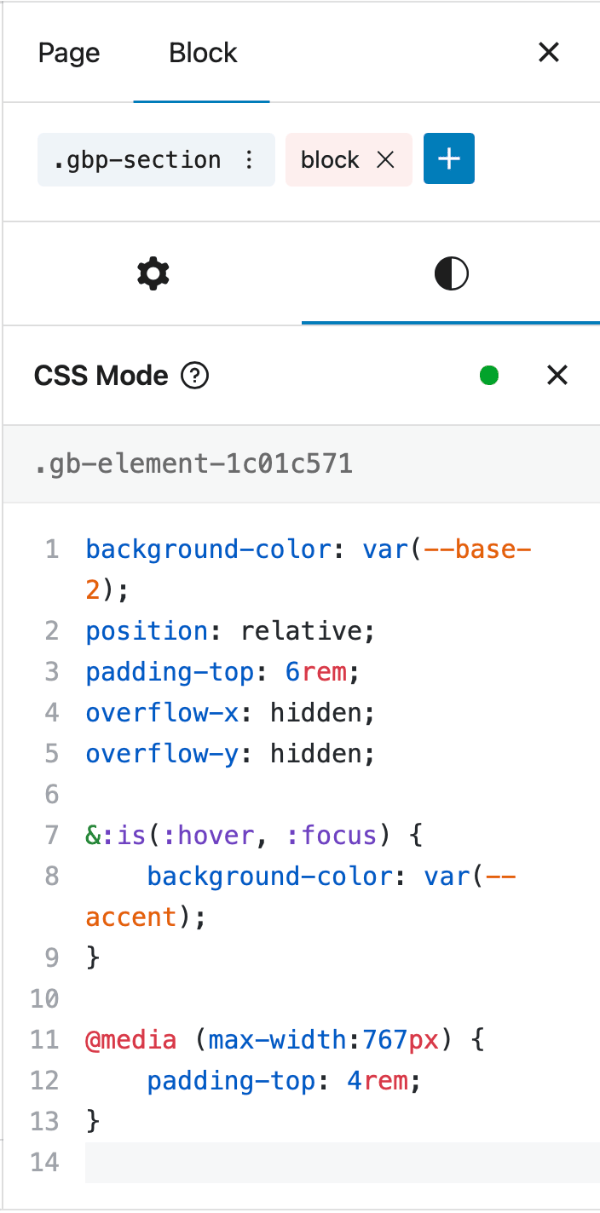
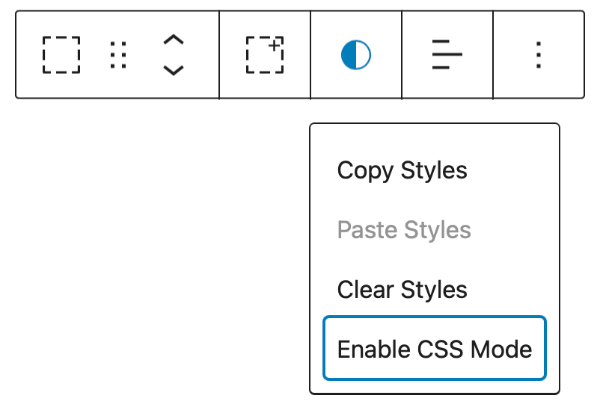
Enabling CSS Mode
Three ways to enable CSS Mode:
- in the CSS Properties in the styles panel
- in the Styles menu in a blocks toolbar
- using the WordPress Command Pallet ( CTRL + K / CMD + K ) search for Enable CSS
Disabling CSS Mode
Two ways to disable CSS mode:
- click the close X in the CSS Mode editor
- in the Styles menu in a blocks toolbar
- using the WordPress Command Pallet ( CTRL + K / CMD + K ) search for Disable CSS
CSS Validation
The editor auto validates CSS as it is written. At the tope of the panel an indicator light demonstrates the validation state. Green is good, Amber is pending and Red indicates an error in the CSS. Hovering over the light will display tooltip details.
Editing and Pasting Styles
In Editor Mode you can paste properties or entire CSS rules directly into the editor.
Pasting Properties
You can paste any number of individual properties into the editor for example:
color: blue;
font-size: 14px;
margin-bottom: 24px
Pasting CSS Rules
Pasting the entire CSS rule should only be done if you want to nest this rule inside the current styles. If thats the case then you must ensure it is a) a valid CSS rule and b) it the pasted rule does not contain nested selcectors.
Nested CSS Rules
The editor supports one level of nesting rules. Which allows GenerateBlocks to target states, pseudo-elements and child elements. I
CSS Editor Modal in Global Styles Admin screen
The CSS Editor Modal is available in the GenerateBlocks > Global Styles admin screen. It can be accessed via the 3 dot ( Kebab ) menu for any Global Style. Here you can add, deleted, edit and copy/paste and CSS properties or nested CSS rules including at-media queries..
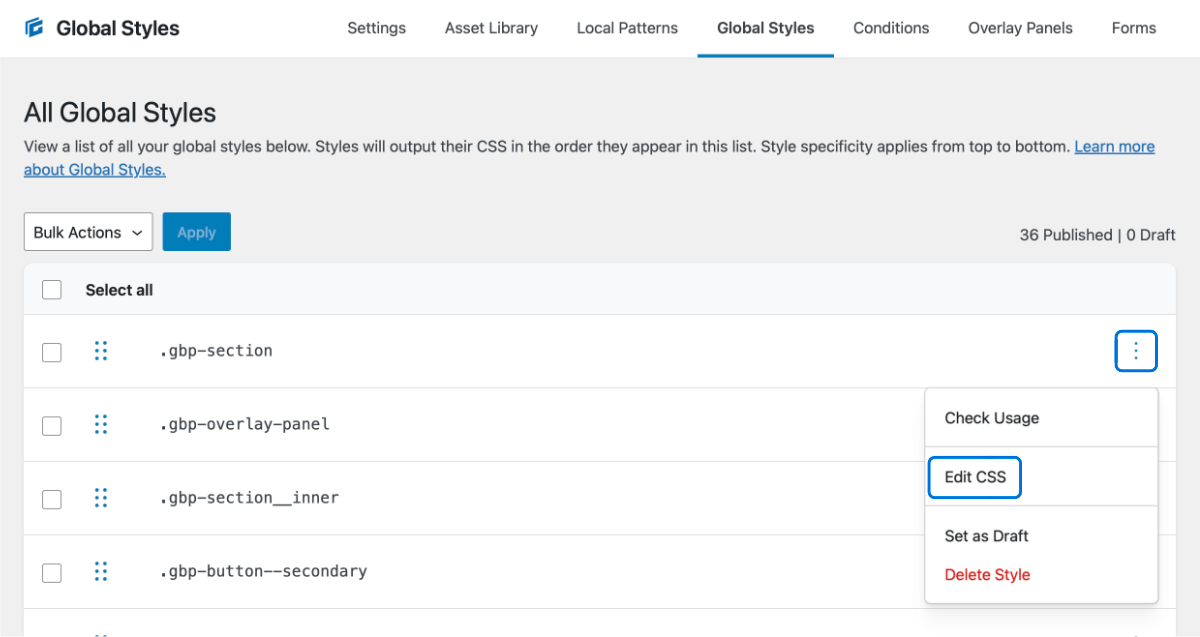
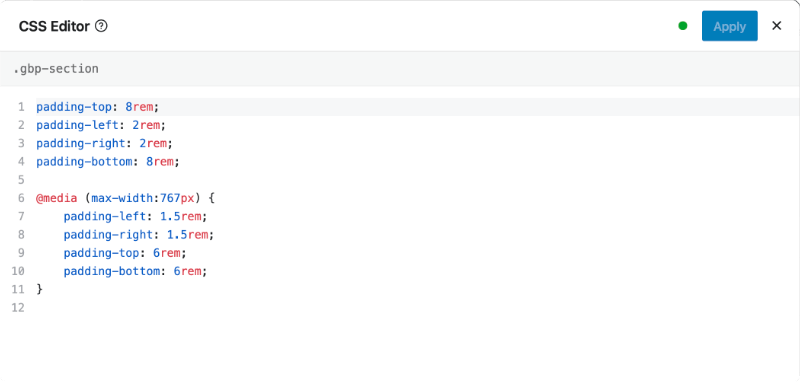
The modal editor is broken into 2 main areas:
- Header
The header provides a shortcut to the documentation, an Apply changes button and a close button. The Indicator light changes to show the CSS state. Green for good, Orange for pending, Red for Error in CSS. - Editor window
This is where CSS properties are displayed and edited. Note that the editor opens and closes with the current parent selector, which cannot be edited.
Opening the CSS Editor modal
In the GenerateBlocks > Global Styles admin page
Choose Edit CSS From the kebab ( 3 dot menu ) beside any Global Style.
Basics of writing or pasting styles
The following section explains the basic of adding styles to the CSS Editor Modal.
Unsupported inputs
The following are unsupported:
- CSS Comments
/* comments */added to the editor will be stripped from the CSS. - Nested Selectors
the CSS Styles object supports one level of nesting + at-rules. You therefore cannot add a CSS Rule to the editor that has nested rules.
Supported inputs
Top-level properties apply directly to this element. Use & for states, pseudo-elements, and children.
CSS Properties will apply directly to the parent selector:
color: red;
font-size: 16px;
Pseudo-Classes and Pseudo-elements are both accepted as a nested rule. The & ( ampersand ) is required with no space to concatenate the pseudo with the parent selector:
&:hover {
   color: blue;
}

&::before {
   content: "";
}
Concatenated Classes require the & ( ampersand )with no space to concatenate the class with the parent selector:
&.active {
   color: red;
}
Combinators are supported and can be presented with or without the & ( ampersand )
> .child {
   display: block;
}

+ .sibling {
   display: none;
}
AT-Rules can be applied to the parent or nested within a selector:
@media (max-width:768px) {
      font-size: 14px;
  }

  &:hover {
      color: blue;

      @media (max-width:768px) {
          color: green;
      }
  }
Support AT-Rules:
@media@container@supports
Quick reference
Selectors
&:hover&::before&.active& > .child& + .siblingsvg
Shortcuts
- Cmd/Ctrl + S — Apply
- Tab — Indent
Tips
- Invalid CSS must be fixed before changes are applied.
- Only one level of selector nesting is supported (no selectors inside selectors).