Welcome to GeneratePress One. This page takes you from a fresh WordPress install to a finished starter site in about 5 minutes.
GeneratePress One includes GP Premium, GenerateBlocks Pro and GenerateCloud. For this quick start you need the first two, plus the free GeneratePress theme and the free GenerateBlocks plugin.
Log in to your accountBefore you start
A WordPress site
A new site or a staging copy is best. Importing a starter site changes your design settings and adds pages, posts and images.
Your account login
Your downloads and licence key are in your GeneratePress account.
A backup
If the site already has content you want to keep, back it up first with your host’s tool or a backup plugin.
Set up your site in six steps
1. Download your plugins
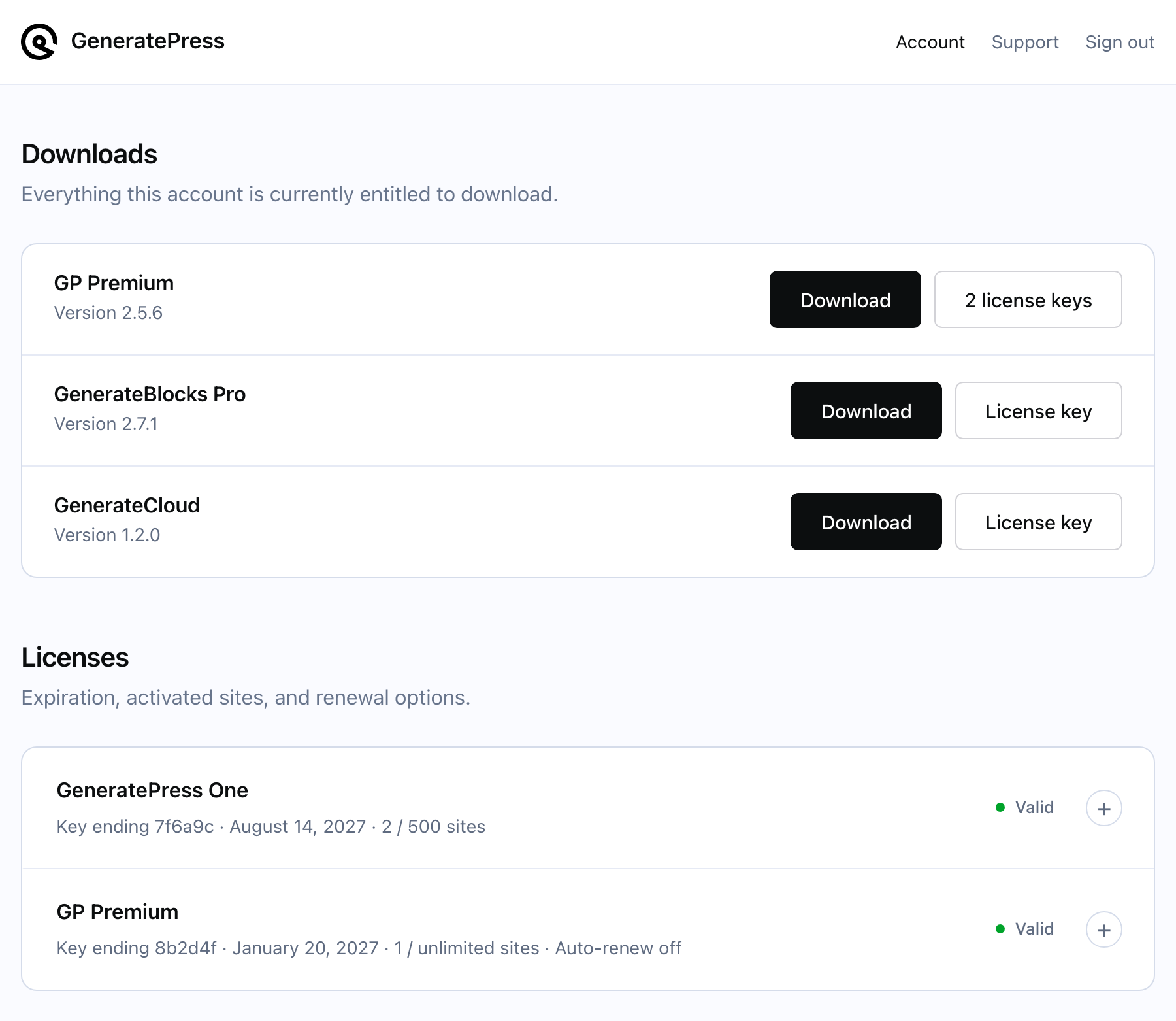
- Log in to your account.
-
Under Downloads, download GP Premium (
gp-premium.zip) and GenerateBlocks Pro (generateblocks-pro.zip). -
Keep them as
.zipfiles. Don’t unzip them. - Copy your licence key while you’re there. One GP One key works in both plugins. See Find your license key.
Safari unzipped the download into a folder? Go to Safari → Settings → General, untick Open “safe” files after downloading, then download again.
2. Install the free theme and plugin
Both come from WordPress.org, so you install them straight from your dashboard.
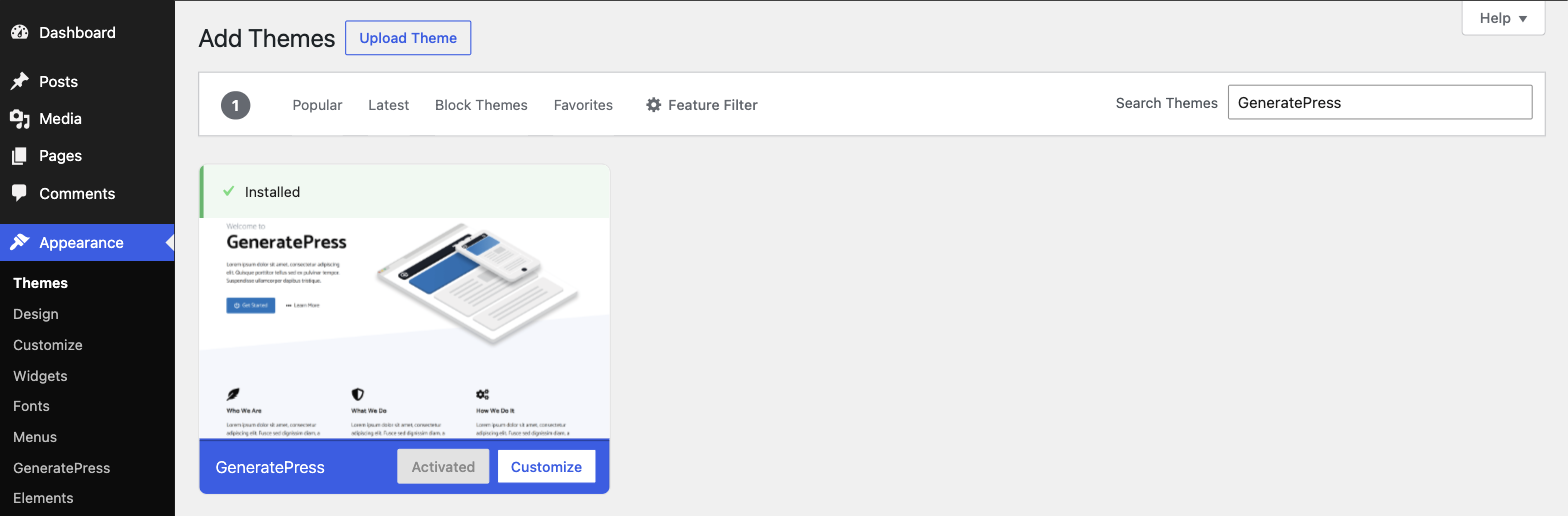
GeneratePress theme
- Go to Appearance → Themes → Add New Theme.
- Search for GeneratePress.
- Click Install, then Activate.
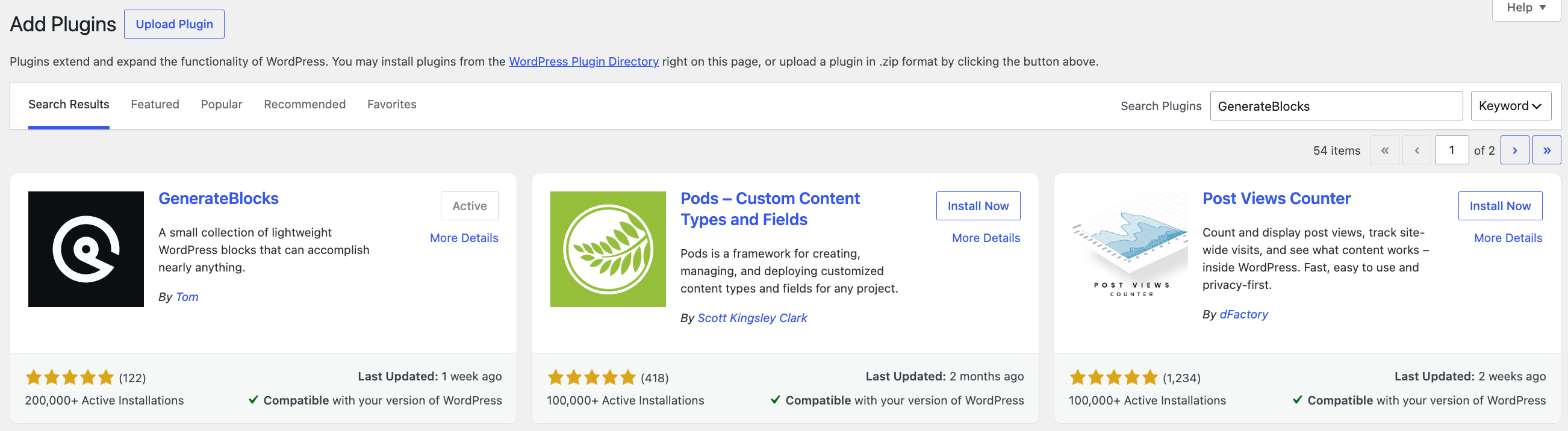
GenerateBlocks plugin
- Go to Plugins → Add New Plugin.
- Search for GenerateBlocks.
- Click Install Now, then Activate.
3. Install GP Premium and GenerateBlocks Pro
Each premium plugin needs its free partner active first: GP Premium needs the GeneratePress theme, and GenerateBlocks Pro needs GenerateBlocks.
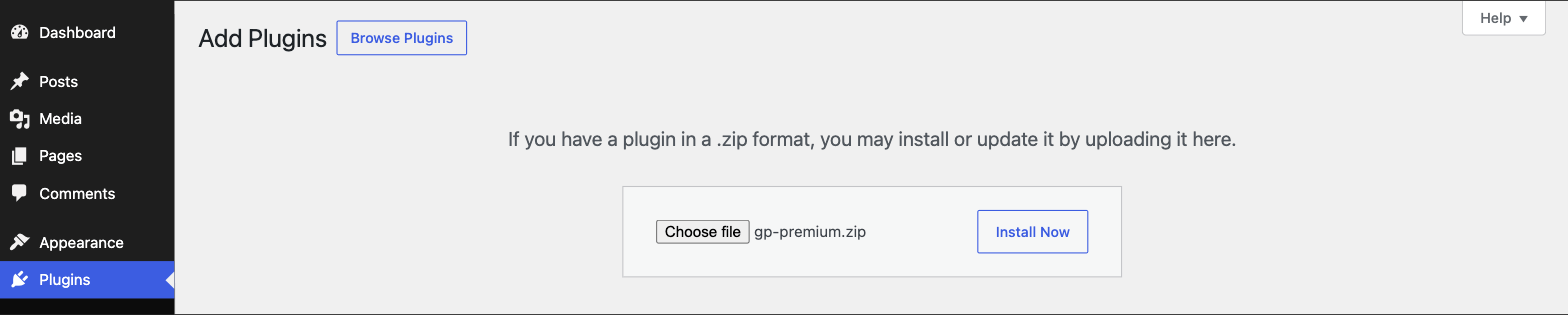
- Go to Plugins → Add New Plugin → Upload Plugin.
-
Choose
gp-premium.zip, click Install Now, then Activate Plugin. -
Do the same with
generateblocks-pro.zip.
Your Plugins screen now shows GP Premium, GenerateBlocks and GenerateBlocks Pro, all active.
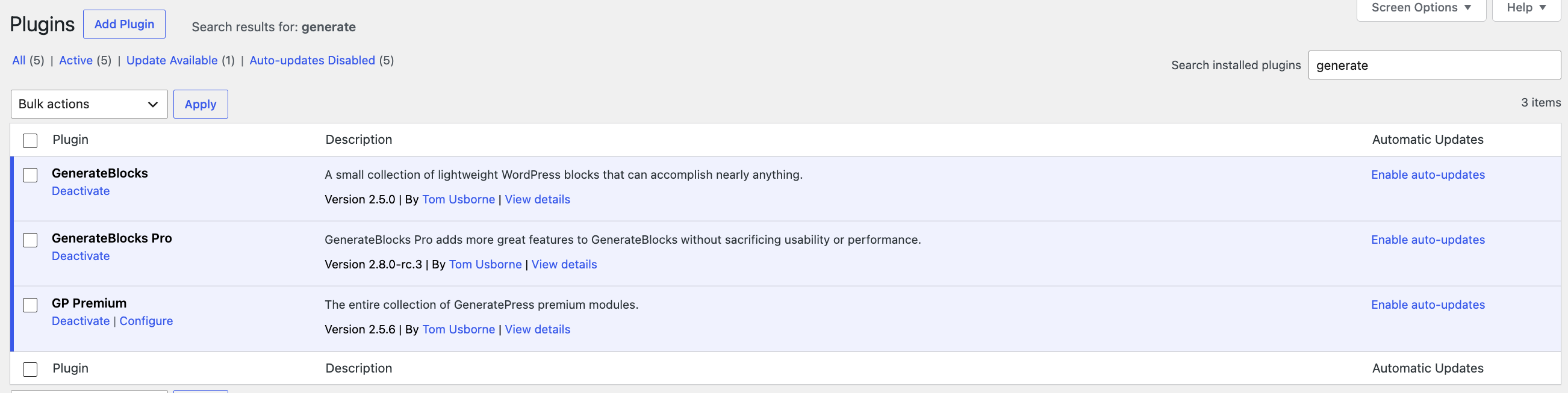
WordPress says no valid plugins were found, or that a stylesheet is missing? The wrong file was uploaded, usually an unzipped folder. See Plugin install failed.
4. Activate your licence key
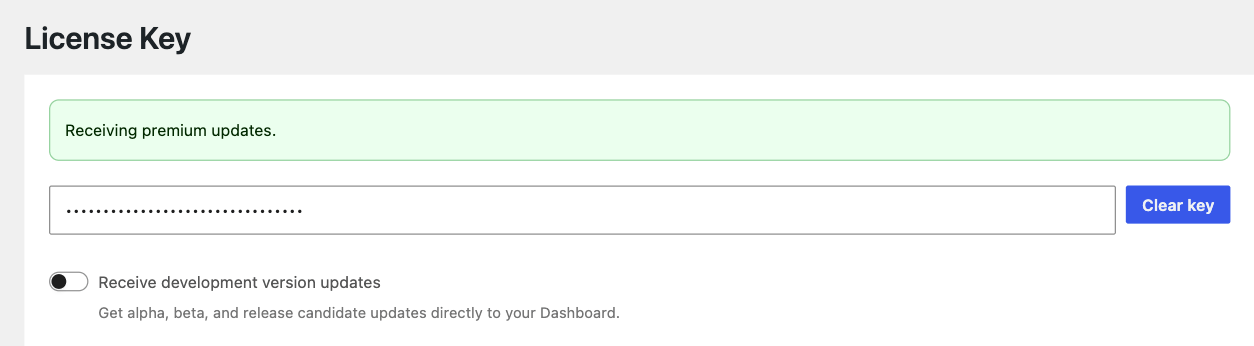
Paste the same GP One key into both plugins, with no spaces before or after. Activating it turns on updates and unlocks the GP One starter sites.
GP Premium
- Go to Appearance → GeneratePress.
- Paste your key into the licence key field and click Save.
GenerateBlocks Pro
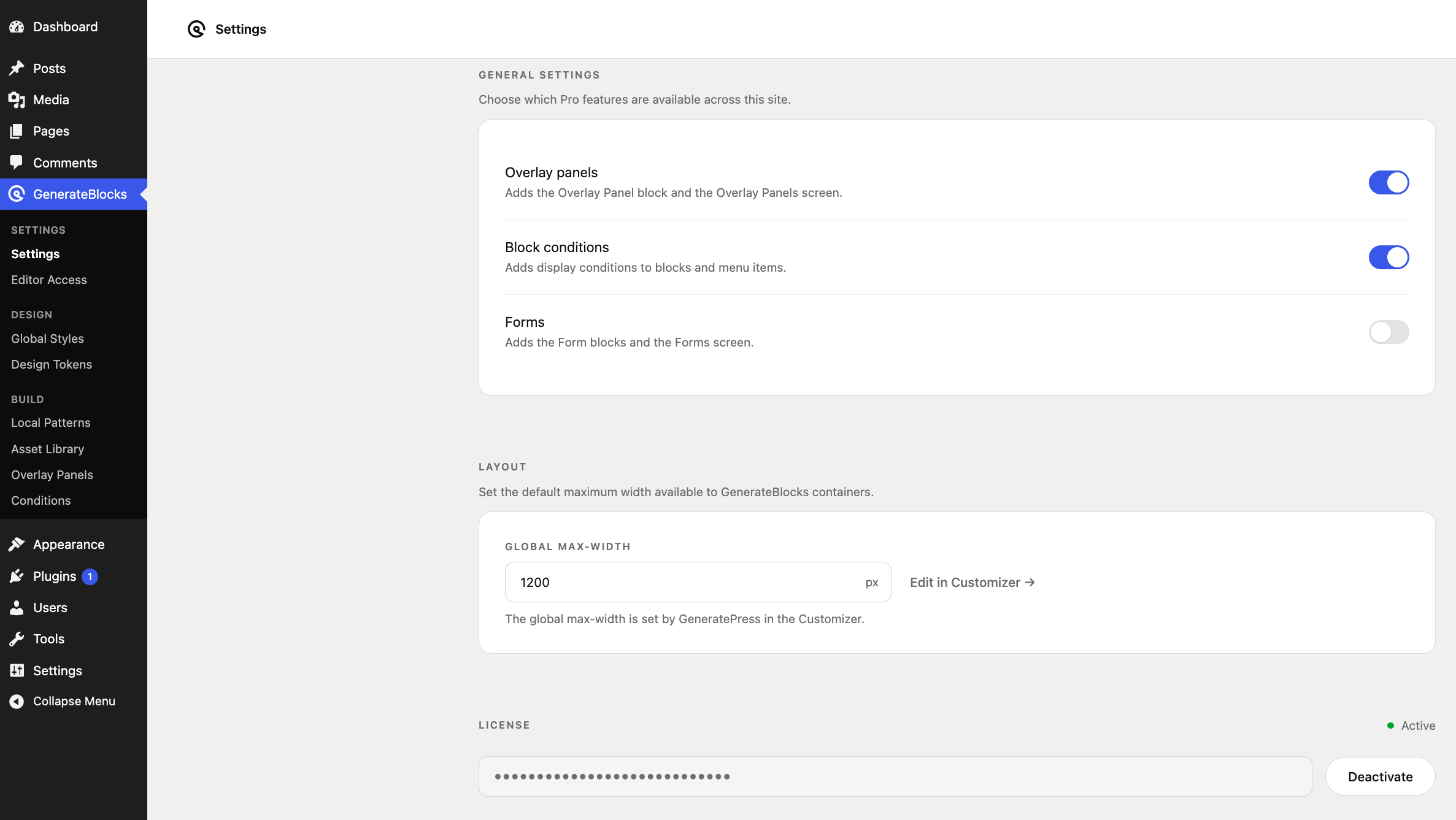
- Go to GenerateBlocks → Settings.
- Paste your key into the licence key field and click Save.
Key won’t save or activate? See License key activation issues.
5. Turn on the Site Library
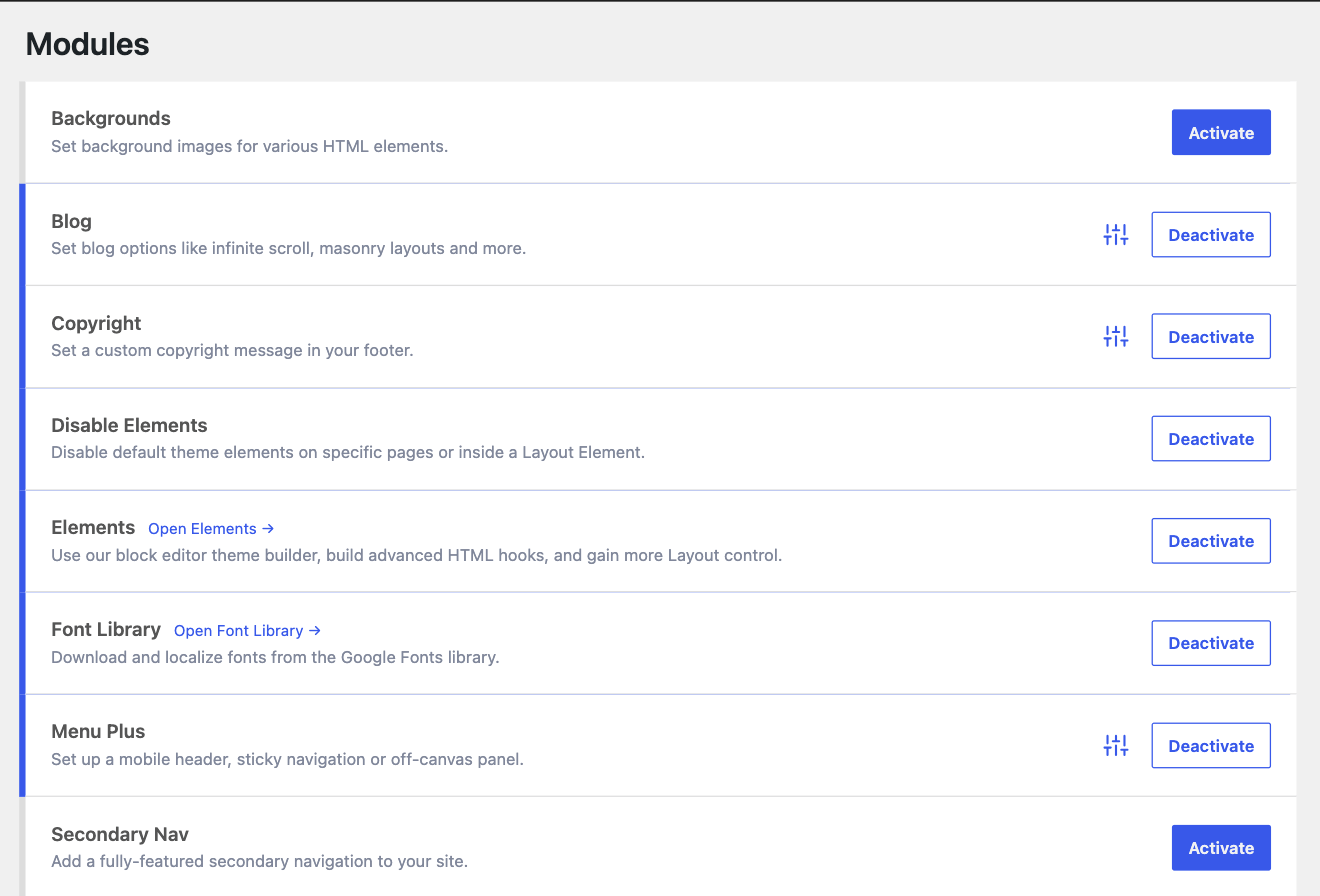
The Site Library is a GP Premium module, so switch it on first.
- Go to Appearance → GeneratePress.
- In the modules list, find Site Library and click Activate.
- A Site Library tab appears at the top of the GeneratePress dashboard.
No Site Library tab? See No Site Library tab.
6. Choose and import a site
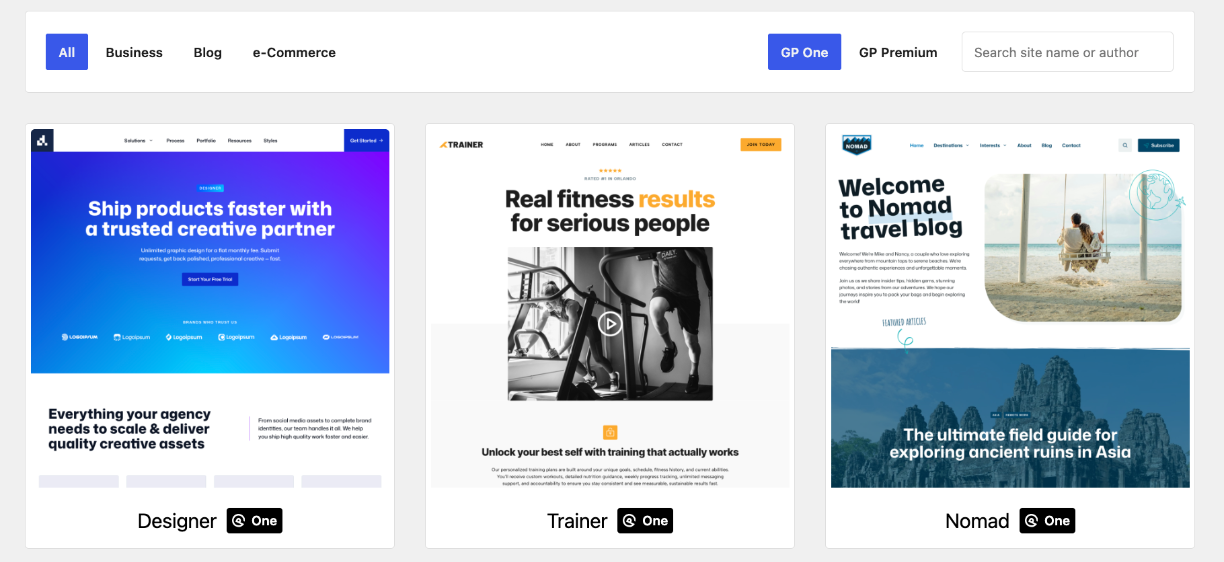
- Go to Appearance → GeneratePress → Site Library.
- Filter by plan and choose GP One to see the sites built for your subscription. You can also filter by category (Business, Blog, e-Commerce) or search by name.
- Click a site to preview it at desktop, tablet and mobile sizes, and to see the plugins it uses.
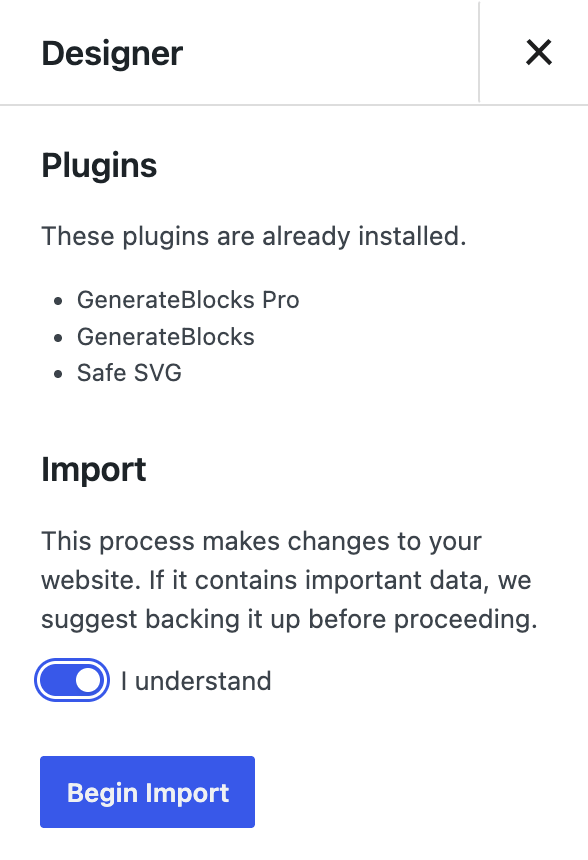
- Click Get Started. The panel lists the plugins the import will install and the ones you already have.
- Read the message under Import, switch on I understand, and click Begin Import.
- When it’s finished, click View Site.
That’s it. Your site now has the starter site’s design, pages, posts and images, and you can edit all of it.
Changed your mind?
GP Premium backs up your settings before each import. Go back to the Site Library and use the option at the top of the page to remove the imported site.
Import not working?
If the library won’t load, shows no sites, or an import fails, see Troubleshooting imports.
What next?
Make it yours
Find your settings: change colours, fonts and layout in the Customizer.
Build with blocks
Getting Started with GenerateBlocks: edit and build layouts.
Share your patterns
GenerateCloud: reuse your own patterns across sites.
Stay up to date
Keep things up to date: updates for the theme and plugins.
Move your licence
Manage your license: free up a site or add a new one.
Get help
Support forum: ask the GeneratePress team.